UGC popup
Customize the popup that appears when visitors click posts in galleries and cards.
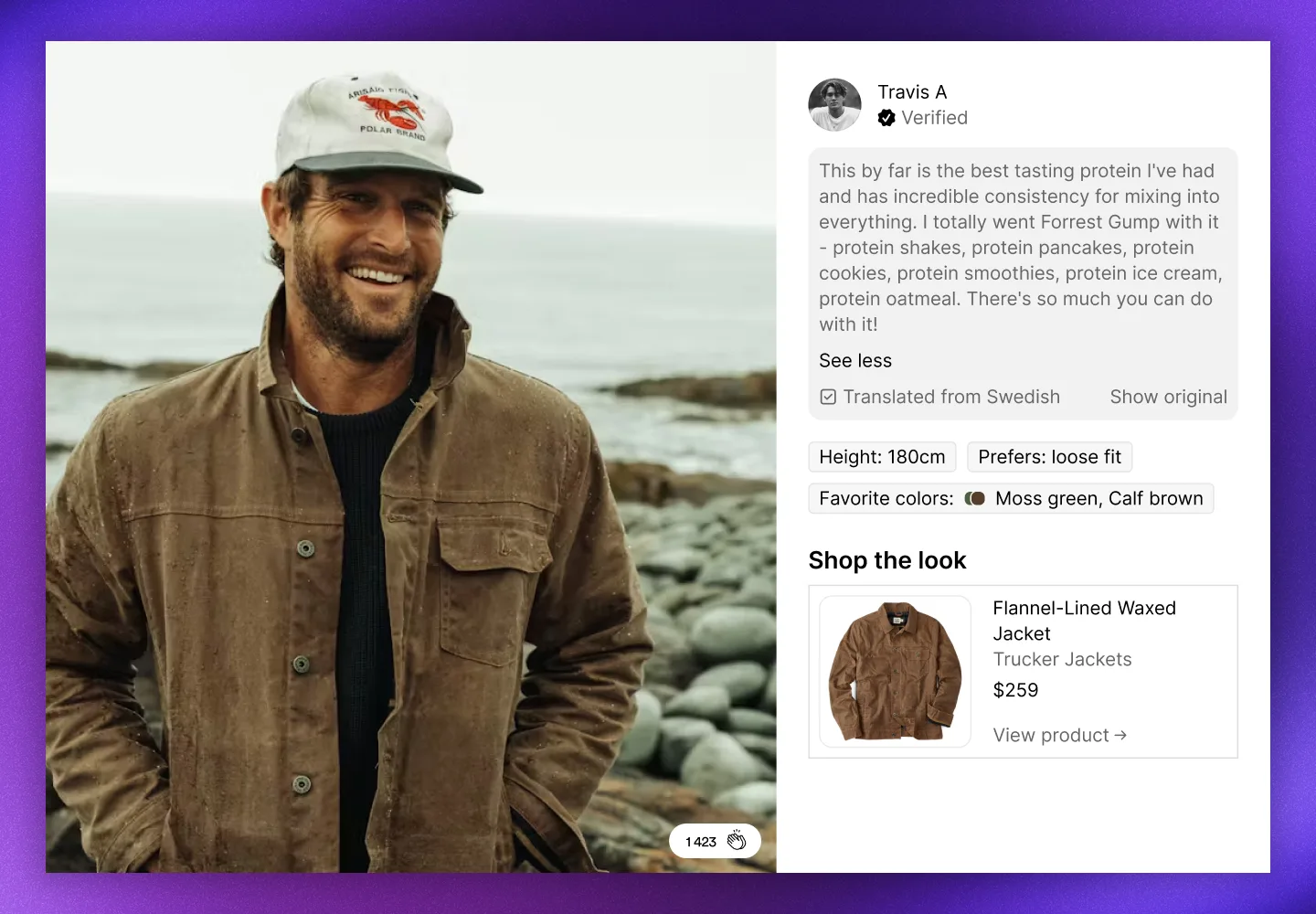
The UGC popup opens when a visitor clicks a post in a gallery or card. It shows the image or video in full size, along with creator details, caption, product tags, and any profile properties you've enabled.
Popup features
The UGC popup includes several elements that help visitors engage with your content:
- Full-size media: The image or video displays at full resolution
- Creator information: Shows the creator's name and the badge their profile displays from your loyalty program
- Caption: The post caption with a "See more" and "See less" toggle for longer text
- Translated captions: Automatically translated with a "Show original" option
- Profile properties: Custom properties such as height, preferences, or favorite colors, in gallery popups
- Brand comment: The post's brand comment, below the caption
- Custom link: A link card for the post's custom link, if it has one
- Shop the look: Product tags with image, name, price, and link to product page
- Claps: Visitors can show appreciation with the clap button
- Hotspots: Product tag markers on the image itself
Customize popup appearance
UGC popup settings are configured per gallery or card, so each widget can have its own popup styling.
For a gallery:
- Navigate to UGC → On-site widgets
- Open your gallery
- Click Design → Popup
- Adjust the settings
- Click Save changes
| Setting | Options |
|---|---|
| Display claps | Show (default) or Hide |
| Hotspots | Show (default) or Hide |
| Product hover | Swap image (default, shows alternate product image on hover) or Static |
| Video sound | Muted or On (default) |
| Background | Color picker for popup background (default black) |
| Opacity | Background opacity, 0.3 to 0.7 (default 0.7) |
For a card:
- Navigate to UGC → On-site widgets
- Open your card
- Click Design → Interaction
- Set On click to Open popup
- Adjust the settings under Popup settings
- Click Save changes
| Setting | Options |
|---|---|
| Display claps | Yes or No (default) |
| Display hotspots | Yes or No (default) |
| Swap product image on hover | Yes (default) or No |
| Background | Color picker for popup background (default black) |
| Opacity | Background opacity, 0.3 to 0.7 (default 0.7) |
Translated captions
The UGC popup automatically translates captions based on the market the gallery is loaded on. Visitors see the caption in their local language, with a note showing "Translated from [language]" and the option to click "Show original" to view the original caption text. After that, "Translate to [language]" shows the translation again. When the original language isn't known, the note shows "Translated".
Profile properties
Display custom profile properties in the UGC popup to show additional information about the creator. This could include details such as height, preferences, favorite colors, or any other profile properties you've collected.
The profile properties setting is global and applies to all gallery popups.
- Navigate to UGC → On-site widgets
- Open any gallery
- Click Design → Profile properties
- Set Profile props to Enable
- Click Add property to select which properties to display
- Click Save changes
| Setting | Options |
|---|---|
| Profile props | Enable or Disable |
| Visible properties | Select which profile properties to show |
Only public properties show in galleries. To show a private property, mark it public in Settings → Properties.
All measurement-related properties are displayed in the correct measurement system (metric or imperial) based on your markets.
Localization
The popup's built-in text, such as Shop the look, View product, See more, and Show original, is edited in Settings → Translations under On-site widgets (Galleries and cards). See Translations.