On-site widgets
Display your loyalty program on your website with customizable widget sections.
Program widgets display your loyalty program on your website and match your site's design. There are widgets for each part of your program, handling the interactive elements such as displaying member status, listing available rewards, and letting members complete activities.
Navigate to Loyalty → On-site widgets to manage your widgets.
All program widgets follow your Loyalty theme. This ensures a consistent look across all widgets. You can fine-tune the layout, write copy, and select color schemes for each widget, but fonts, colors, and styling are controlled by your Loyalty theme.
The copy you write is automatically translated for each of your languages. See translations.
Available widgets and sections
Each section of your loyalty program is available as a standalone widget you can embed individually. There is also a Full landing page widget that combines all sections into one embed for a complete rewards page.
Give your program a dedicated landing page, with the Full landing page widget or the standalone sections you choose, and link to it at least from your store's footer. For logged-in customers, add selected sections, such as My account and My rewards, to your store's account page.
The widget editor shows a live preview of your changes. Switch between Desktop, Tablet, and Mobile to check the layout, and select a language to preview the copy in it. The Theme area edits your Loyalty theme from the same page. Click Save changes to save both: the widget on your site updates right away, with no separate publish step.
Sections that require login, such as My account and My rewards, are hidden for visitors who aren't logged in as a member, and preview signed in. For the other sections, such as Hero, Activities, and Tier cards, switch between Logged out and Signed in in the preview.
Each widget's card shows Live or Not live, depending on whether it loaded on your site in the last 10 days. See Check that a widget is live.
Settings every section has
Every section has these settings, except where a row says otherwise. The sections below list only their own:
| Setting | Description |
|---|---|
| Color scheme | Select from your theme's color schemes |
| Title | Section heading |
| Description | Optional supporting text below the heading |
| Text align | Left or Center. Not on Purchase incentives |
| Show divider | No or Yes. Displays a divider line below the section |
| Visibility | Hero and About only: Always show, or Hidden if signed in |
About, My rewards, Activities, Redeemable rewards, and Tier cards show items in columns. Under Columns, control the layout:
| Setting | Description |
|---|---|
| Desktop | Number of columns on desktop, 2 to 4 |
| Tablet | Number of columns on tablet, 2 to 3 |
| Mobile | Number of columns on mobile, 1 to 2 |
| Boxed layout | Display items in bordered boxes. Not on Tier cards |
My rewards, Activities, and Redeemable rewards also share their image settings, under Columns:
| Setting | Description |
|---|---|
| Image layout | Full or Icon |
| Aspect ratio | With Full: 1:1, 4:5, or 16:9 |
| Image size | With Icon: the image size, 20 to 100 px |
Hero
The Hero section is a full-width banner that introduces your program.
The section displays your program title and description over a customizable background image or video, with Join now and Sign in buttons for visitors who aren't members. When a member is logged in, the buttons are hidden since they're already part of the program.
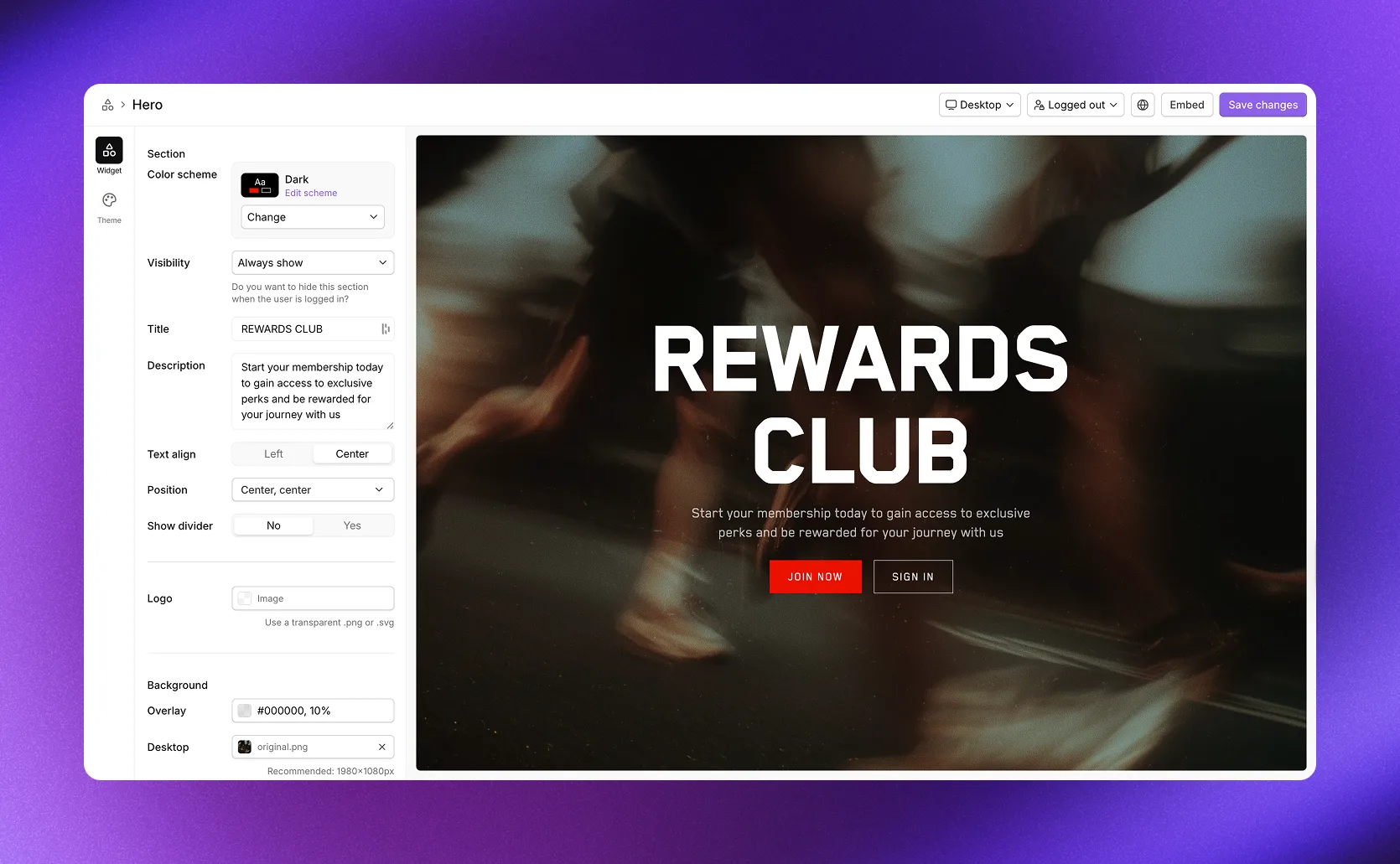
The examples in this article are from Cevoid's demo store. Customize the look in your Loyalty theme.
Own settings:
| Setting | Description |
|---|---|
| Position | Where to position the content on the background |
| Logo | Optional logo image (transparent .png or .svg recommended) |
| Size | Logo size, 32 to 500. Shows once you add a logo |
Under Background, customize the banner appearance:
| Setting | Description |
|---|---|
| Overlay | Color overlay with opacity (e.g., #000000, 10%) |
| Desktop | Background image or video for desktop (the app recommends 1980×1080 px) |
| Height | Desktop banner height, 50 to 100% |
| Mobile | Background image or video for mobile (the app recommends 1080×1980 px) |
| Height | Mobile banner height, 50 to 100% |
About
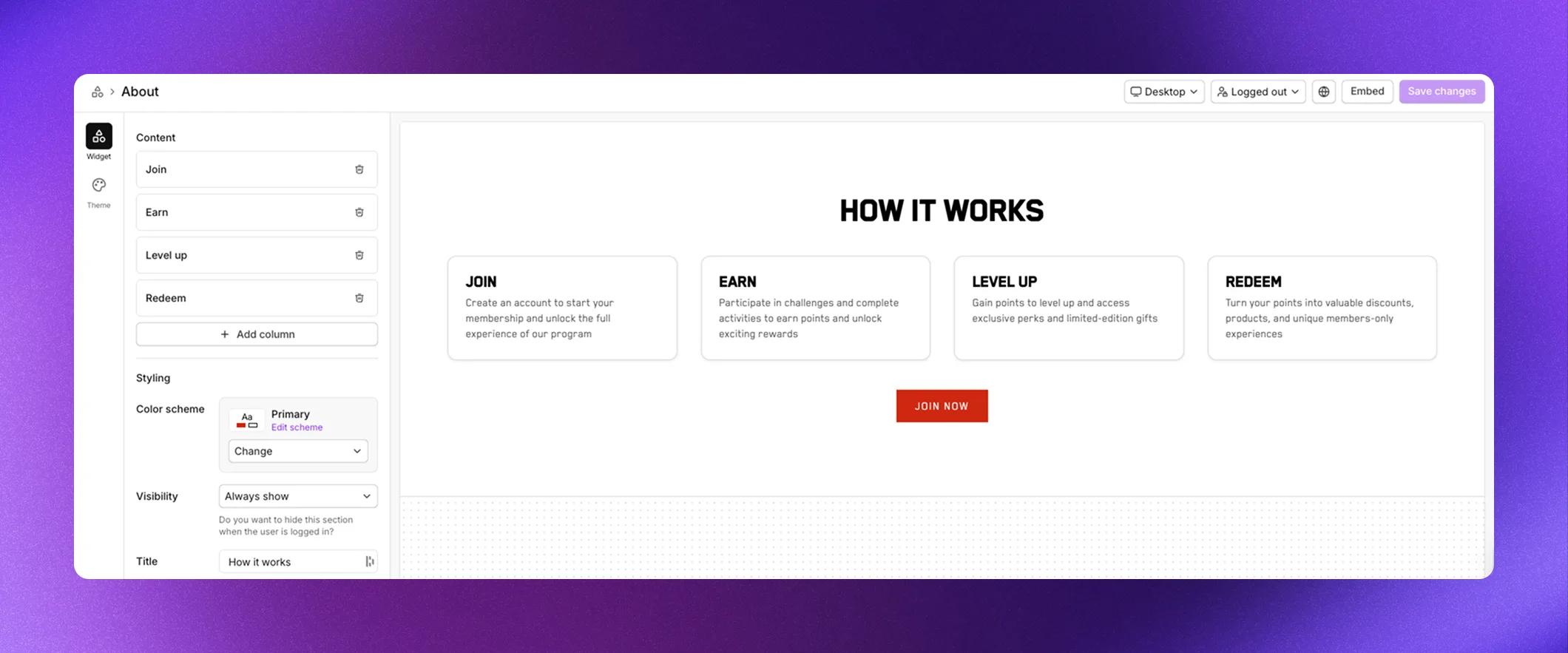
The About section explains how your program works using a multi-column layout. Each column walks visitors through a step of your program, typically covering how to join, earn points, level up through tiers, and redeem rewards.
Own settings:
Under Content, add and manage columns:
- Click Add column to create a new step
- Click a column to edit its Image, Title, and Description
- Click the trash icon to remove a column. Columns can't be reordered.
| Setting | Description |
|---|---|
| Include join program button | Show a join button for visitors who aren't members |
Under Columns, besides the column settings:
| Setting | Description |
|---|---|
| Image size | Full-width or Fixed size |
| Aspect ratio | With Full-width: 16:9, 1:1, or 4:5 |
| Fixed size | With Fixed size: the image size, 20 to 100 px |
Account summary
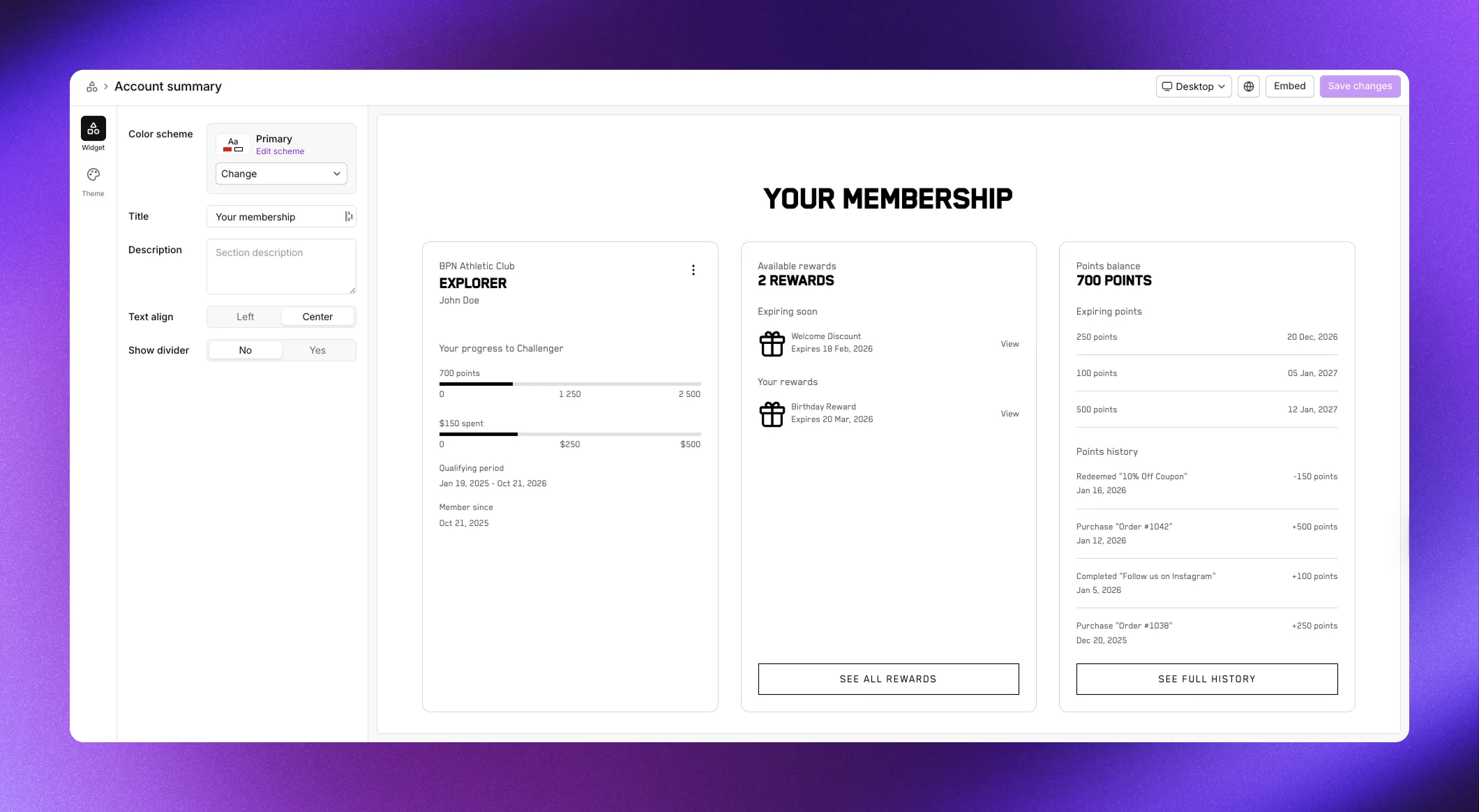
The Account summary section gives logged-in members a complete overview of their membership in three summary cards. It combines membership status, their rewards, and points history into one compact view.
The first card shows their tier status, including your program name, their current tier, member name, progress bars for each milestone, and join date. The second card displays their available rewards with a list they can browse, plus a button to see all rewards. The third card shows their points balance and recent points history, with buttons to redeem rewards or view full history.
The Account summary section is only visible when a member is logged in.
My account
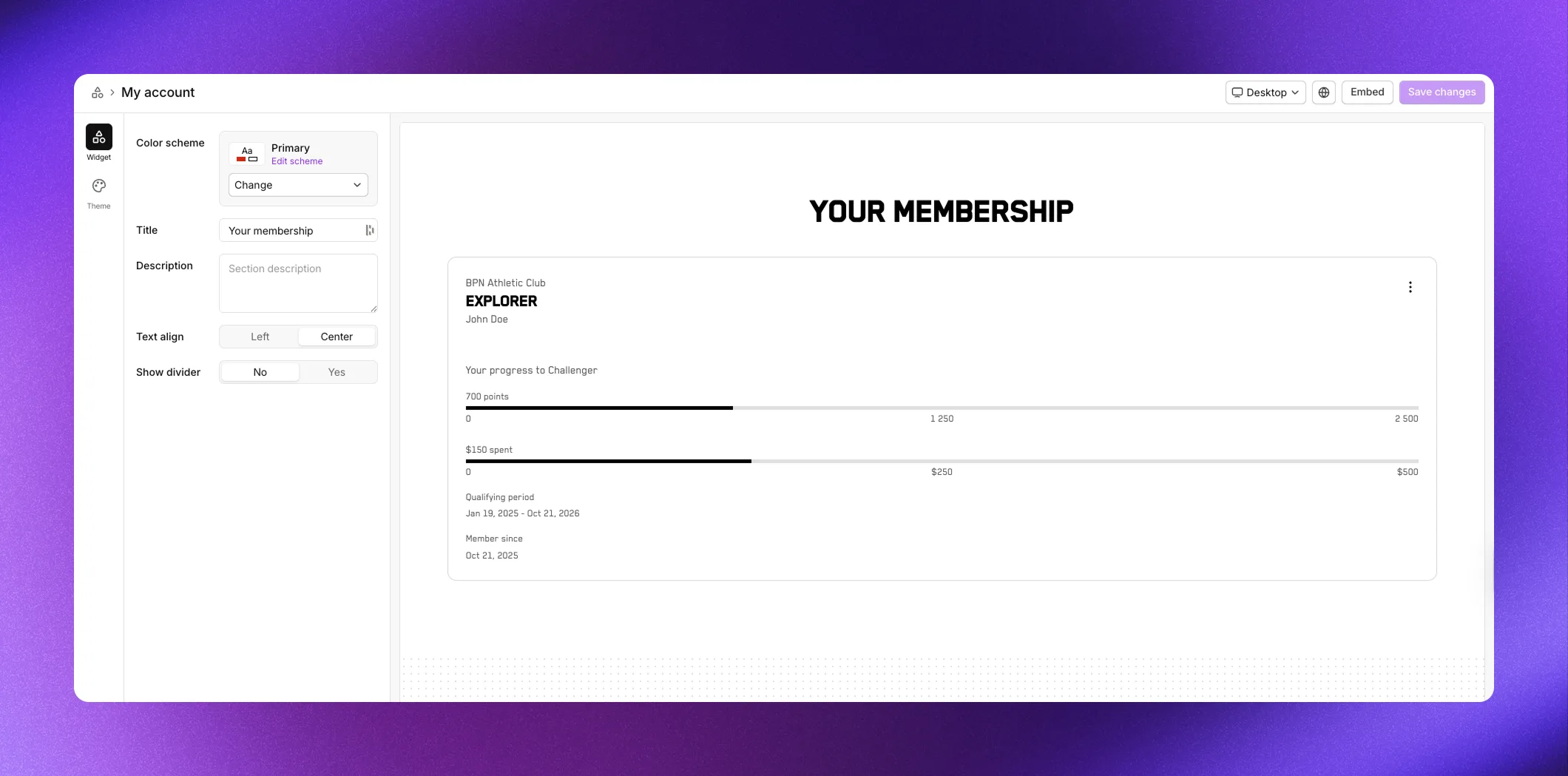
The My account section shows the member's current tier status and progress toward the next tier. It displays the program name, their tier, name, progress bars for each milestone used in your program, and when they joined.
Use it for a focused view of membership status without the rewards and points history included in Account summary.
The My account section is only visible when a member is logged in. From its actions button, members can leave your program with Opt Out of Program. See Remove a member from the program.
Tier progress
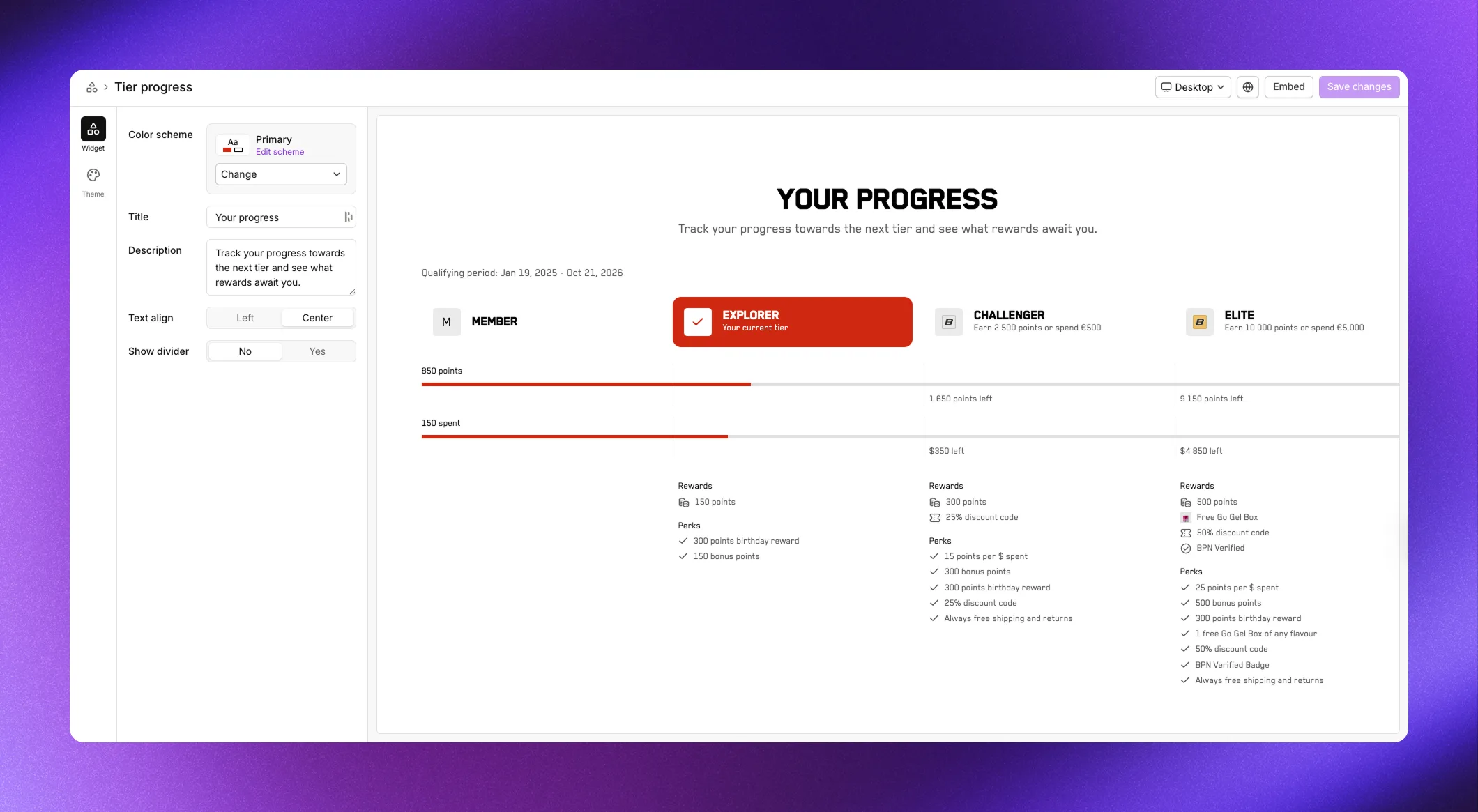
The Tier progress section shows the member's journey through all tiers in a horizontal progress layout. It displays progress bars for each milestone used in your program, highlights the member's current tier, and shows each tier with its rewards and perks listed below.
Unlike Tier cards, which shows tiers in a grid, Tier progress emphasizes the progression from one tier to the next. When the member has an earning window, the section shows "Qualifying period:" with its dates. A member on an invite-only tier sees it at the end of the row.
The Tier progress section is only visible when a member is logged in.
My rewards
The My rewards section displays all rewards the member has received in a grid layout. Each reward card shows the reward name, icon, and when it was received. Members can click rewards to view details or copy discount codes.
The My rewards section is only visible when a member is logged in.
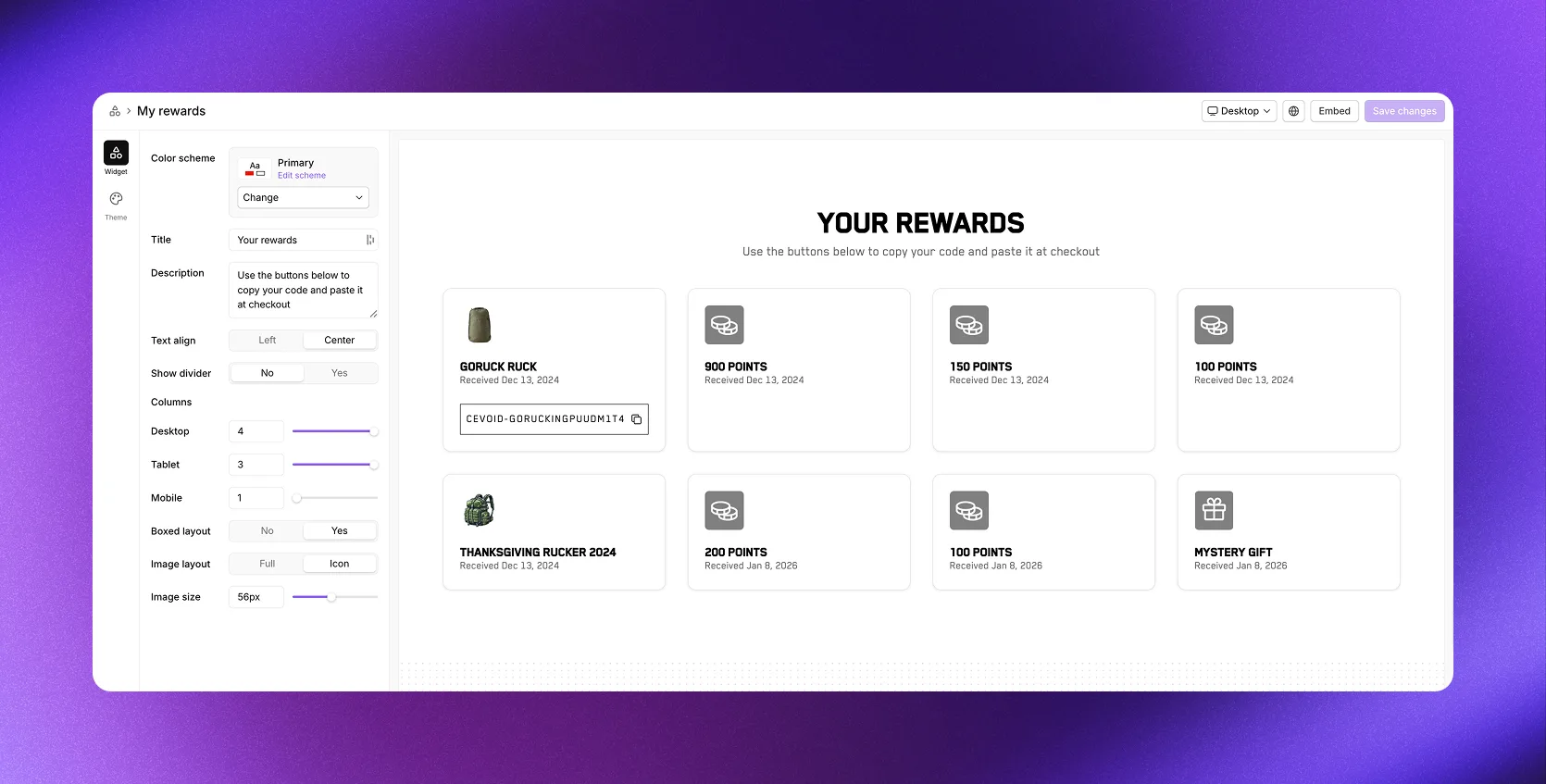
The section also has the column and image settings.
Purchase incentives
The Purchase incentives section shows visitors how they can earn points on purchases. It displays your points-per-currency-spent rate prominently, encouraging visitors to sign in and start earning.
Visitors see "You'll earn:" and members "You currently earn:", followed by the rate, such as "1 point per $1 spent". A member whose tier has a tier multiplier also sees it, marked "Tier multiplier applied". With no live points-per-amount incentive, the section shows "No active purchase incentives". Visitors who aren't members get a sign-in or Join now button.
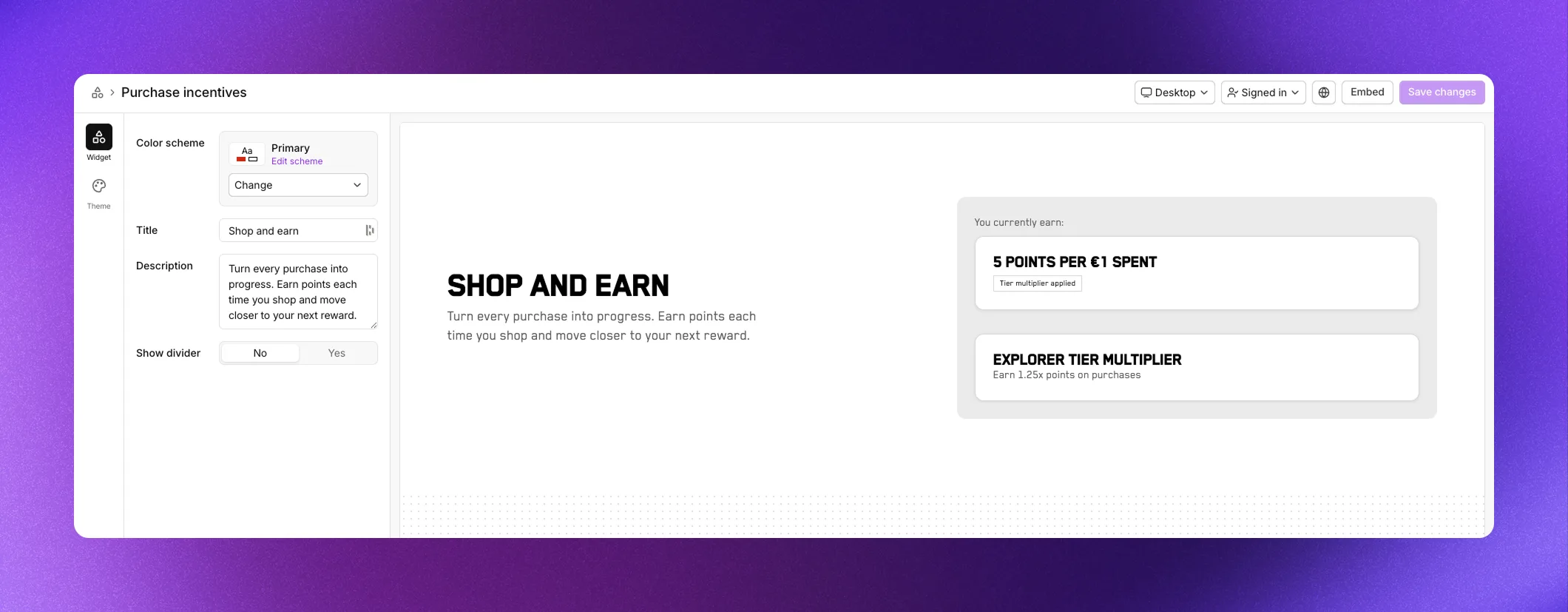
The section pulls information from your purchase incentives. It has no Text align setting.
Activities
The Activities section displays your single-task activities and challenges in a grid. Members can browse available activities, see the points or rewards they'll earn, and click to participate.
Each activity card shows the activity icon, title, and reward. Challenges display additional information such as end dates and descriptions. When members complete activities, those move based on your sorting settings so active opportunities stay prominent.
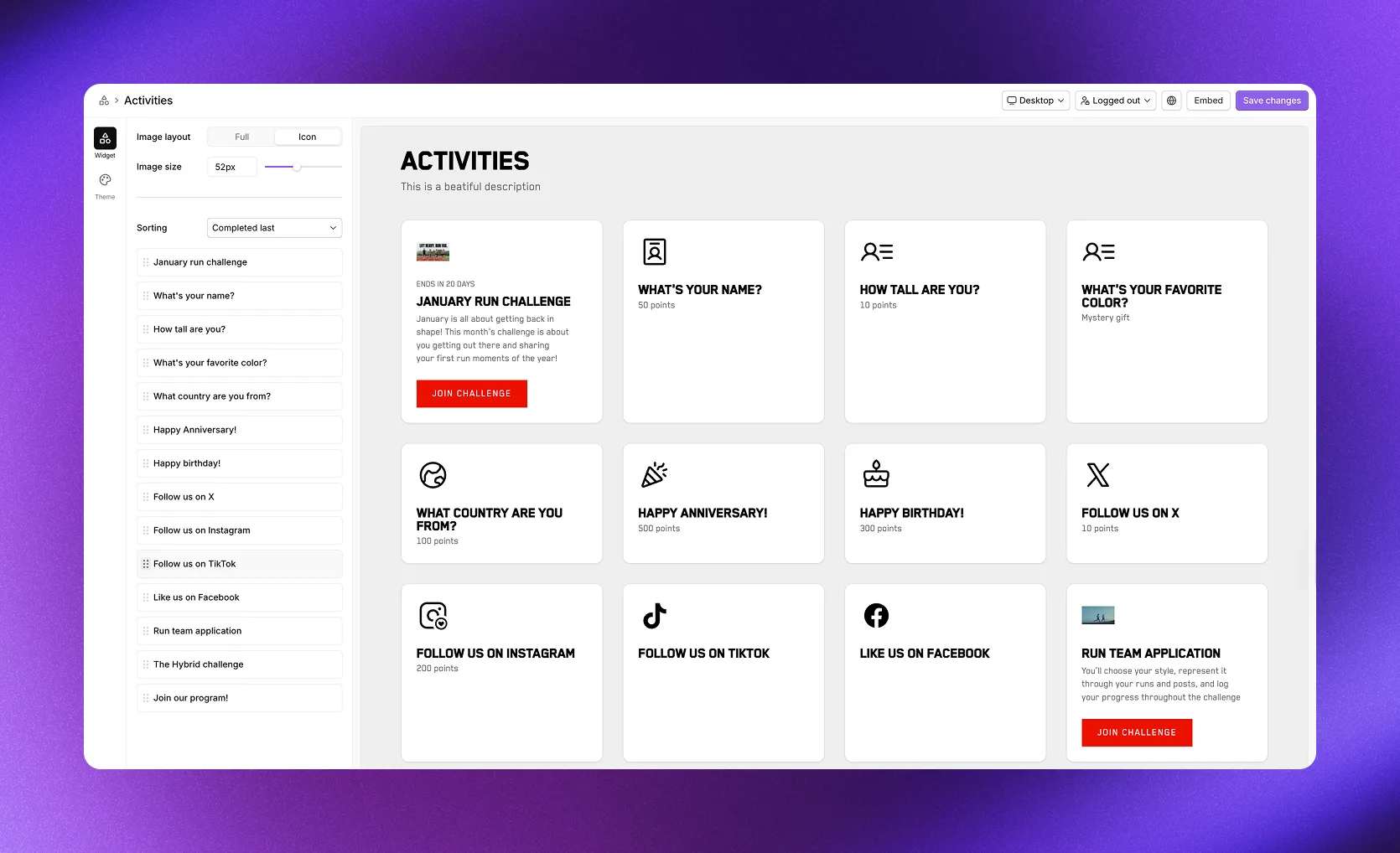
Own settings, besides the column and image settings:
| Setting | Description |
|---|---|
| Sorting | Completed last (default) or Completed first |
Drag activities in the list to set a custom display order.
Redeemable rewards
The Redeemable rewards section shows your points shop, where members can browse and redeem rewards using their points. Each reward card displays the reward name, icon, and points cost.
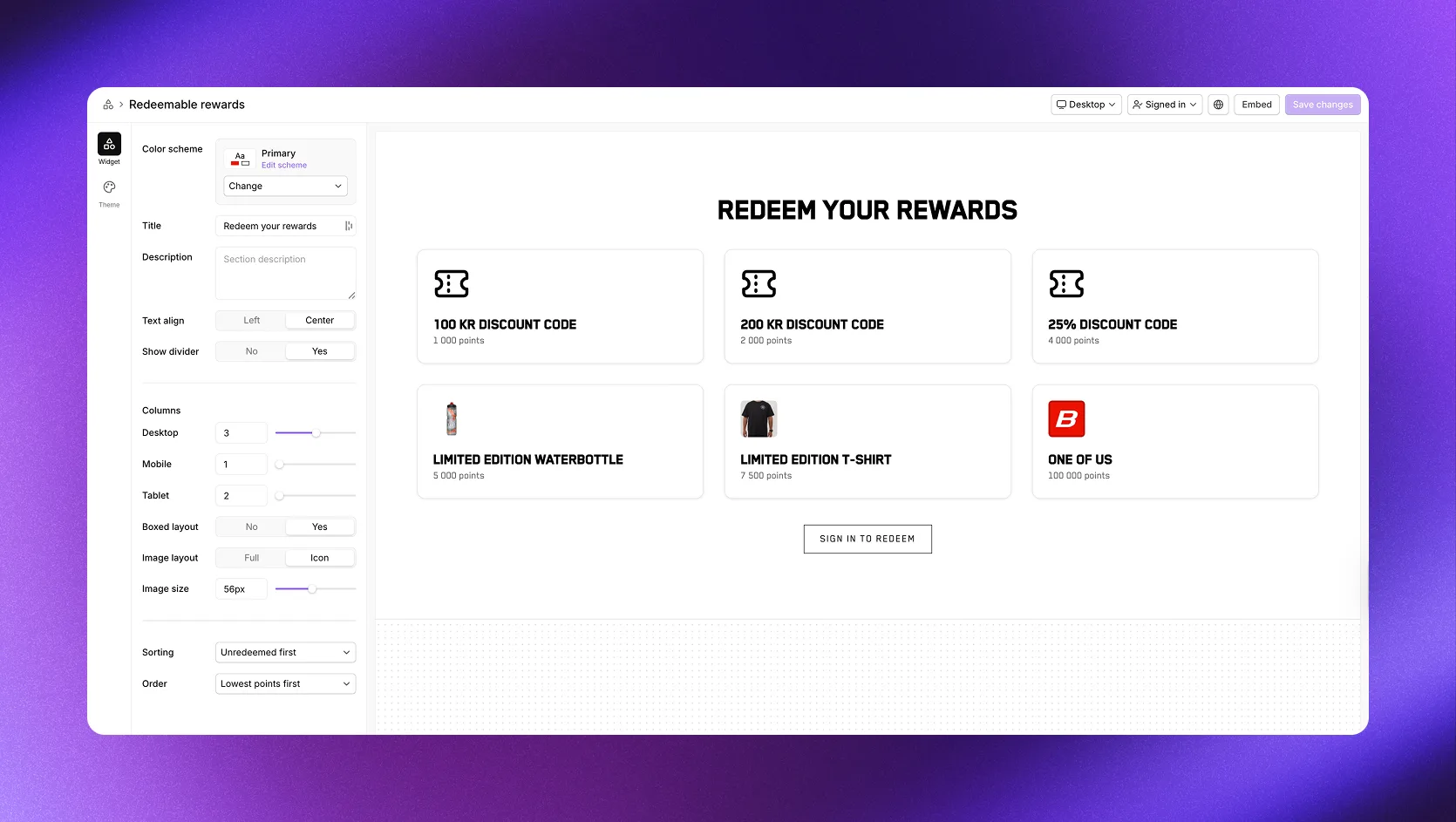
The section displays rewards from your redeemable rewards.
Own settings, besides the column and image settings:
| Setting | Description |
|---|---|
| Sorting | Unredeemed first (default) or Unredeemed last |
| Order | Lowest points first (default), Highest points first, or Custom |
When Order is set to Custom, drag rewards in the list to set the display order.
Tier cards
The Tier cards section displays your live tiers in a card layout. Each card shows the tier name, icon, what it takes to reach the tier, entry rewards, and perks. Visitors can see exactly what benefits they'll get at each level.
The requirement lists each milestone the tier uses, such as "Earn 500 points", "Spend $100", or "Make 5 purchases", joined with "or". The entry tier shows "Join the program". When a member is logged in, their tier shows "Your current tier" so they can see where they are and what's next. Invite-only tiers show only to their own members.
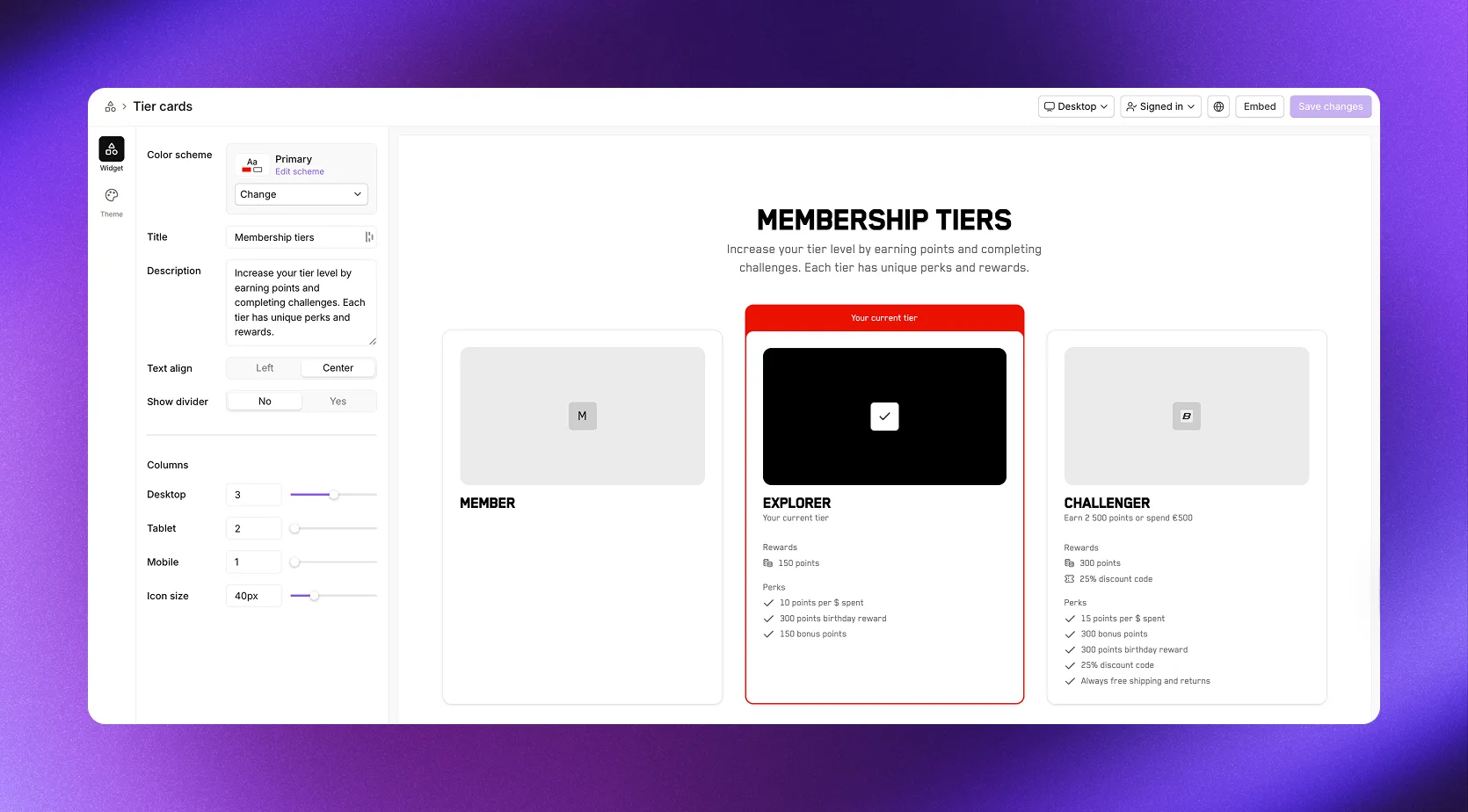
Own settings, besides the column settings:
| Setting | Description |
|---|---|
| Hide entry tier | No or Yes. Leaves the entry tier out of the cards |
| Icon size | Size of tier icons, 20 to 100 px |
FAQ
The FAQ section lets you answer common questions about your program. Add questions and answers to help visitors and members understand how earning, redeeming, tiers, and other aspects of your program work.
You can add as many questions as needed and reorder them by dragging.
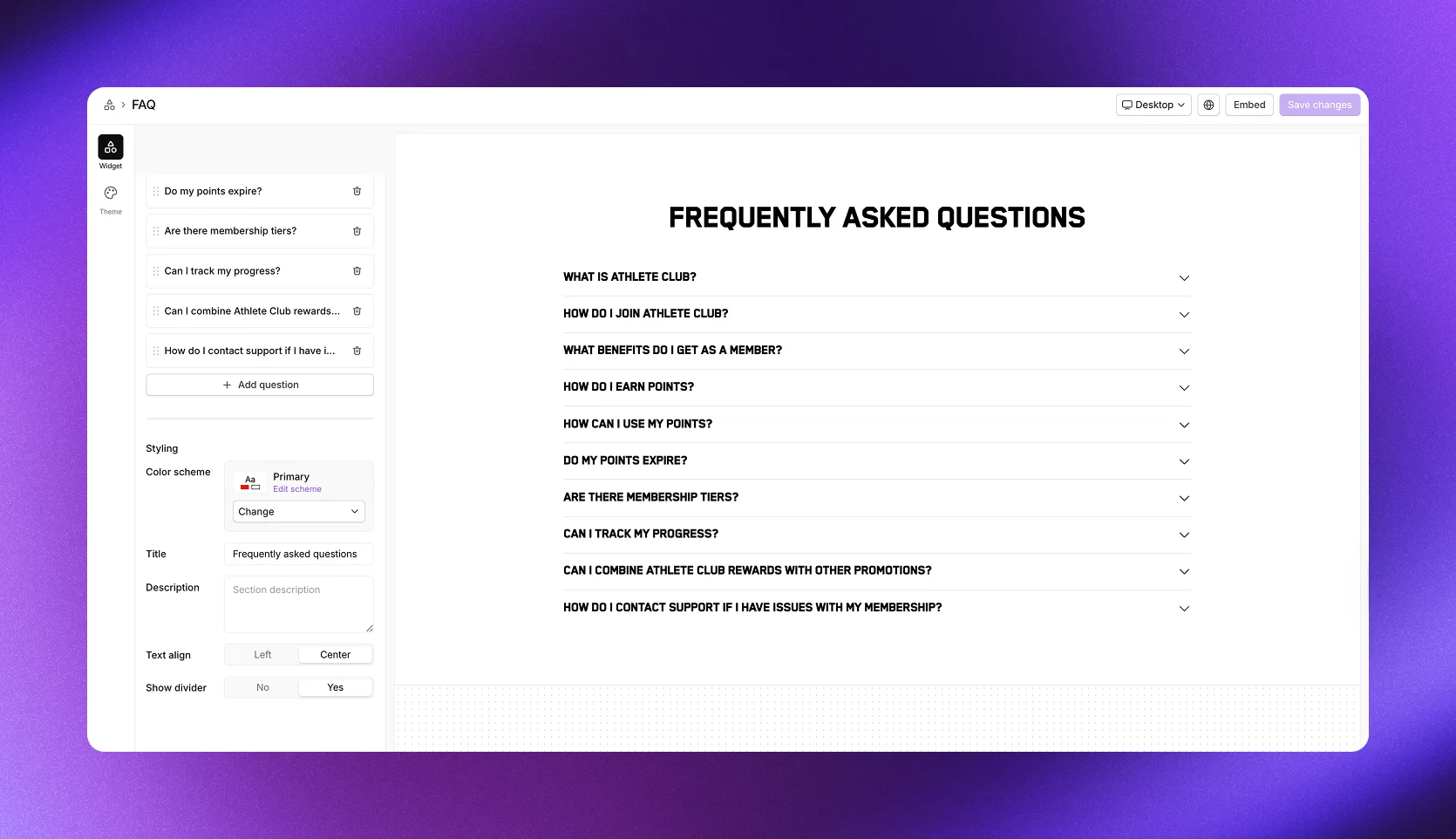
Under Content, click Add question to create FAQ items. Each item has a Question and an Answer field.
Full landing page
The Full landing page widget combines multiple sections into a single embeddable widget, giving you a complete loyalty program page with one embed code.
Navigate to Loyalty → On-site widgets and select Full landing page.
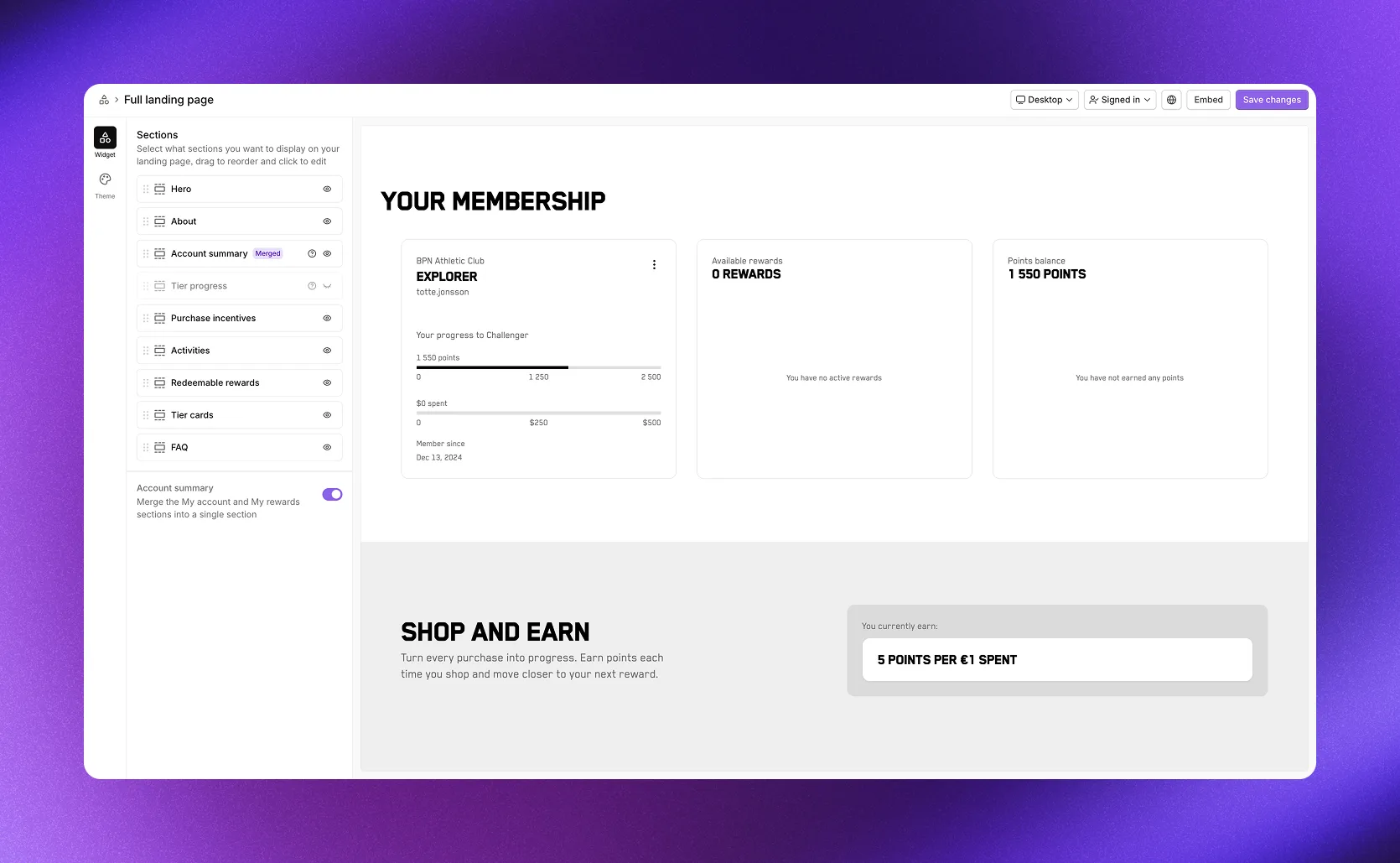
The Full landing page includes all available sections: Hero, About, Account summary, My account, My rewards, Tier progress, Purchase incentives, Activities, Redeemable rewards, Tier cards, and FAQ. You control which sections appear and in what order.
Manage sections
Under Sections, you can:
- Show or hide each section with the eye icon next to it
- Reorder sections by dragging them up or down
- Edit a section's settings by clicking its name
Sections marked with a question mark icon (?) only appear when the member is logged in. Logged-out visitors won't see these sections.
Click Save changes to save the page.
Account summary toggle
The Account summary toggle at the bottom of the section list changes how member information is displayed. It's on by default:
- On: Merges My account and My rewards into a single Account summary section with three summary cards. Account summary shows in the list with a Merged badge, and My account and My rewards are hidden from it.
- Off: Shows My account and My rewards as separate sections, and hides Account summary
Embed widgets
Click Embed in the top right corner of any widget editor to add the widget to your site, with a Shopify theme block or with code. See Embed program widgets.
Logged-in non-members
Based on your opt-in settings, customers might be logged in to your store but not yet part of your program. When this happens, program widget sections show a Join button where the sign-in elements would normally appear. Opening an activity shows a message that they need to join before completing it, along with a Join button.
Clicking the Join button opts them into the program. If you've added a program opt-in consent policy in your legal settings, that information and any consent requirements are included in the join flow.
With the Invite only opt-in rule, there's no Join button. Under some opt-in rules, customers logged in to your Shopify store are joined automatically, with no Join button: see How customers opt in through program widgets.