Gallery design
Set the layout, post style, upload button, and fallback content of each gallery on your website.
Every gallery can be customized to match your brand and website. Choose from different layouts, adjust how posts are displayed, and add an upload button, on the gallery's Design tab. To choose which posts a gallery shows, see Galleries.
Navigate to UGC → On-site widgets and open a gallery to change its design.
How gallery design works
The Design tab has a menu of settings groups, in this order:
- Gallery layout: How posts are arranged. See Gallery layouts.
- Post design: How each post looks. See Post styles.
- Upload button: See Upload button
- Fallback: Only on the product page gallery. See Product page gallery fallback.
- Filter labels: Only on the Grid and Masonry layouts. See Filter labels.
- Popup: How the popup looks when a visitor clicks a post. See UGC popup.
- Advanced: See Advanced settings
- Global settings: Settings for every gallery and card. See Global settings.
- Profile properties: See UGC popup
Galleries automatically inherit typography and fonts from your website once embedded, so they match your site. Your BrandKit doesn't style galleries. Every element of a gallery has a class name that starts with cevoid-, so a developer can change its styling further in your site's own CSS. Cevoid has no CSS field.
Change a gallery's design
- Navigate to UGC → On-site widgets
- Open your gallery
- Click the Design tab
- Apply your changes
- Click Save changes
Styling changes apply on the next page view after clicking Save changes.
Gallery layouts
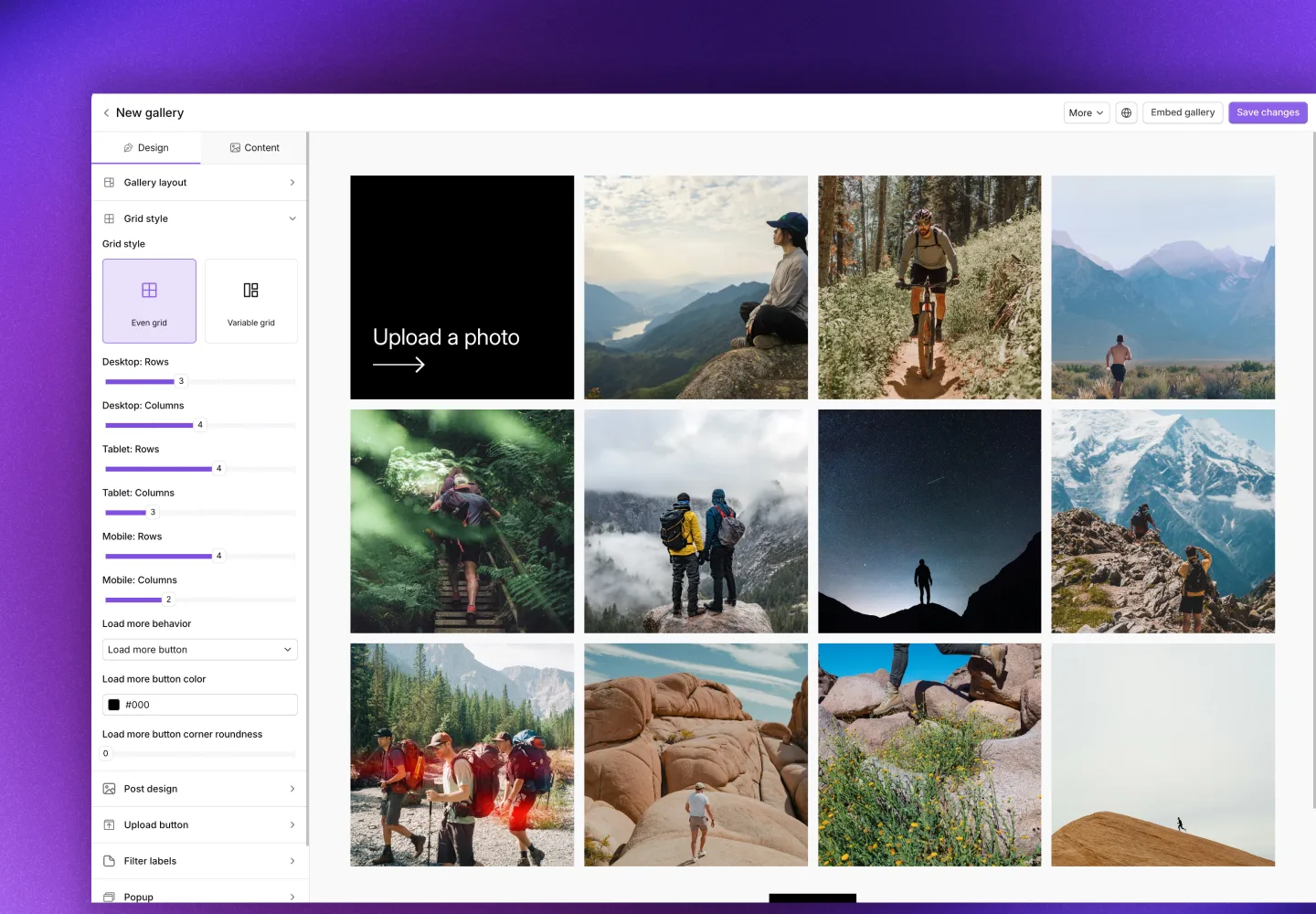
The gallery layout controls how your posts are arranged. Each layout offers different settings to control the number of posts shown, how they're organized, and how visitors load more content. Set it in Layout: Grid, Masonry, Collage, or Slider. A new custom gallery starts on Grid.
Grid layout: Posts display in a clean, uniform grid. This is the most common layout and works well for most use cases.
| Setting | Options |
|---|---|
| Style | Even grid (default, all posts the same size) or Variable grid (highlights one larger post per load) |
| Desktop, Tablet, Mobile | Rows and columns per device. Rows 1 to 6 (default 4). Columns 2 to 6 on desktop and tablet, 1 to 4 on mobile (default 4, 3, and 2) |
| Space between posts | 0 to 40 px on desktop and mobile (default 15 and 10 px) |
| Load more: Behavior | Load more button (default), Infinity scroll, or No load more |
| Load more: Color, Roundness | Button background color, and corner radius from 0 to 30 px. Only with Load more button |
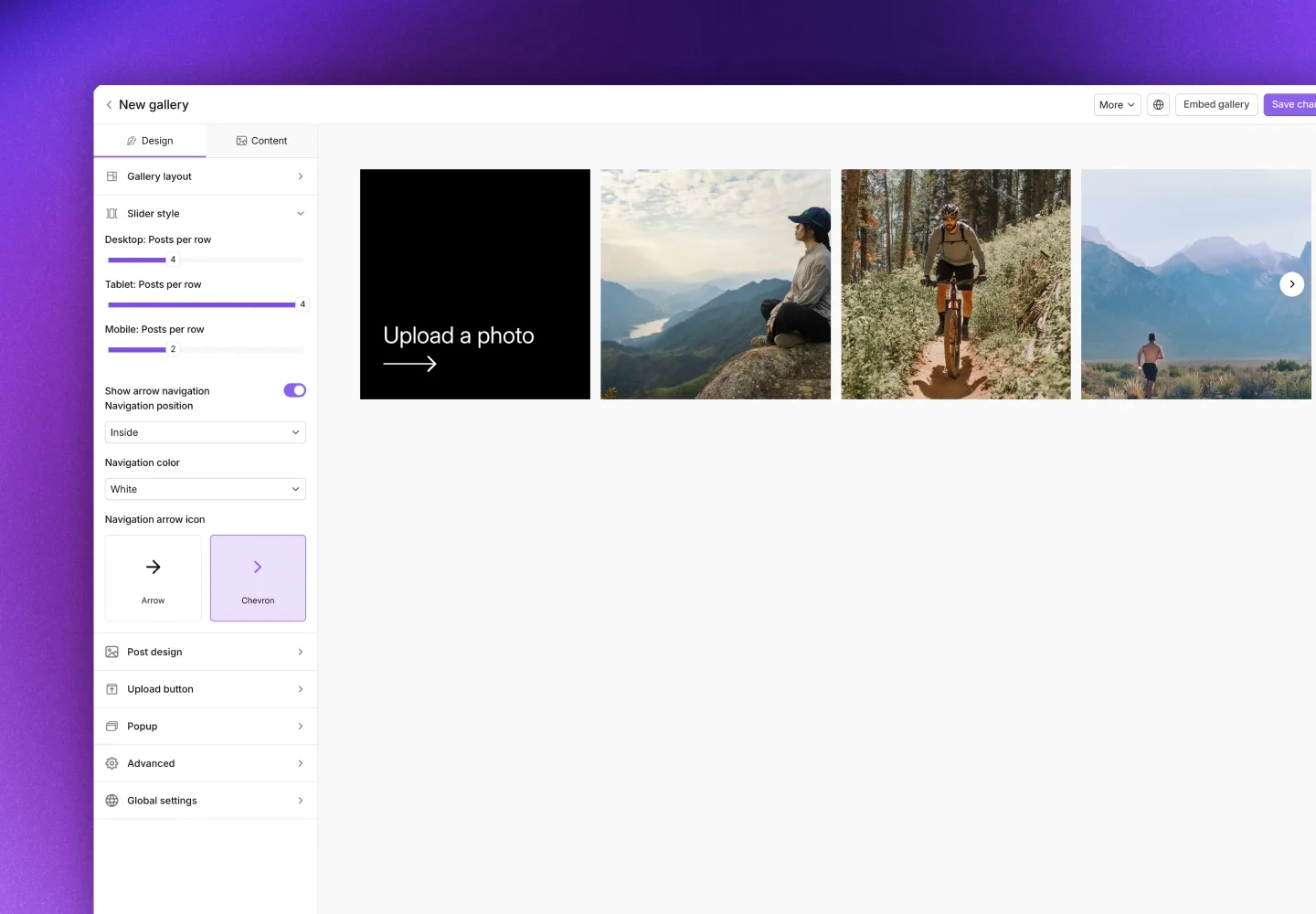
Slider layout: Posts display in a horizontal carousel that visitors can scroll through. Use it for compact spaces or to encourage browsing.
| Setting | Options |
|---|---|
| Columns | Posts visible at once: 3 to 6 on desktop, 2 to 5 on tablet, 1 to 4 on mobile (default 4, 4, and 2) |
| Space between posts | 0 to 40 px on desktop and mobile |
| Show arrows | Yes (default) or No |
| Position | Inside (default), Outside, or Center. Only with arrows |
| Color | White (default), Black, or Grey. Only with arrows |
| Icon | Arrow or Chevron (default). Only with arrows |
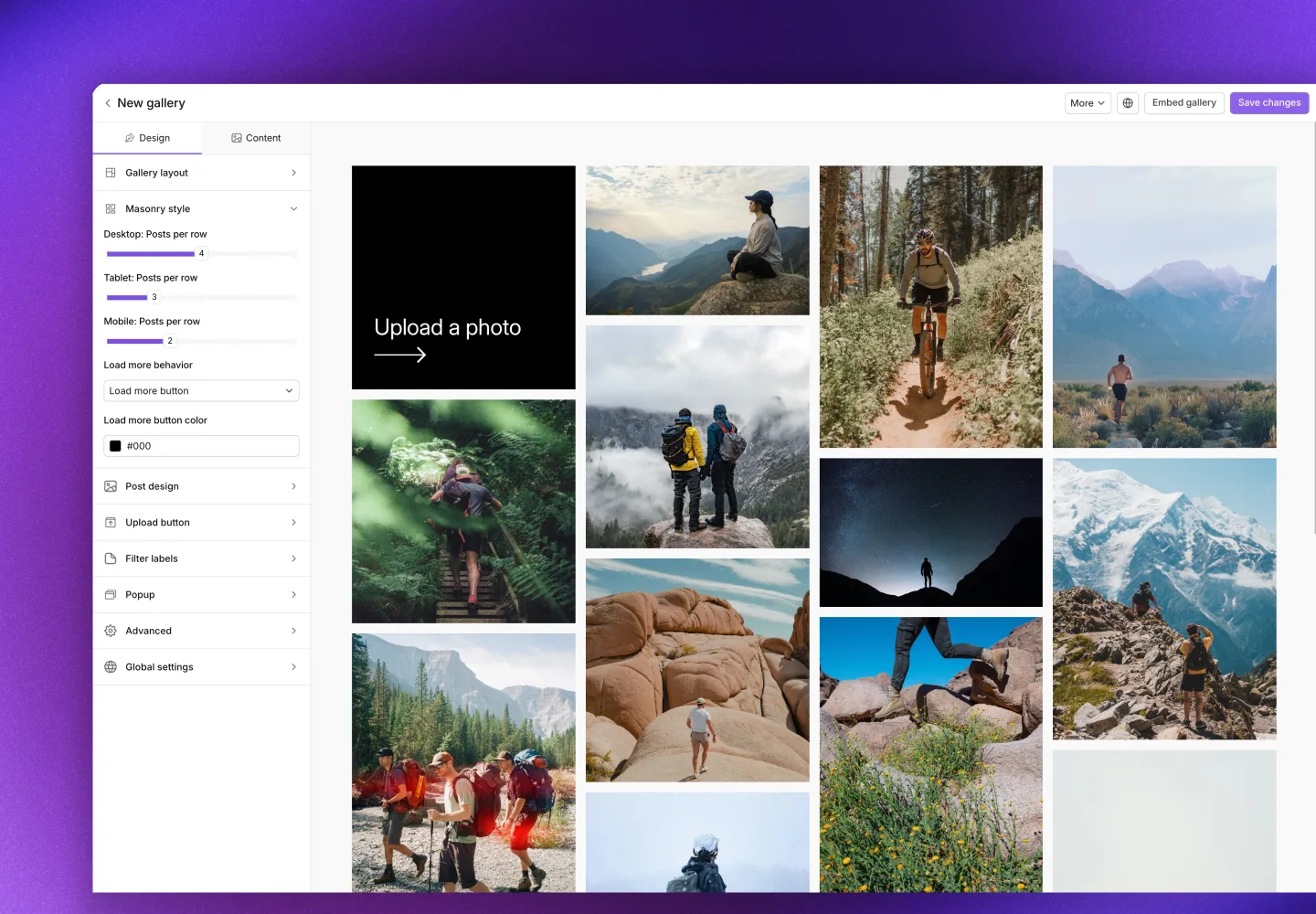
Masonry layout: Posts display in a Pinterest-style layout where images keep their original aspect ratios. This creates a more dynamic, editorial feel.
| Setting | Options |
|---|---|
| Columns | 2 to 6 on desktop and tablet, 1 to 4 on mobile |
| Space between posts | 0 to 40 px on desktop and mobile |
| Load more: Behavior | Load more button (default), Infinity scroll, or No load more |
| Load more: Color, Roundness | Button background color, and corner radius from 0 to 30 px. Only with Load more button |
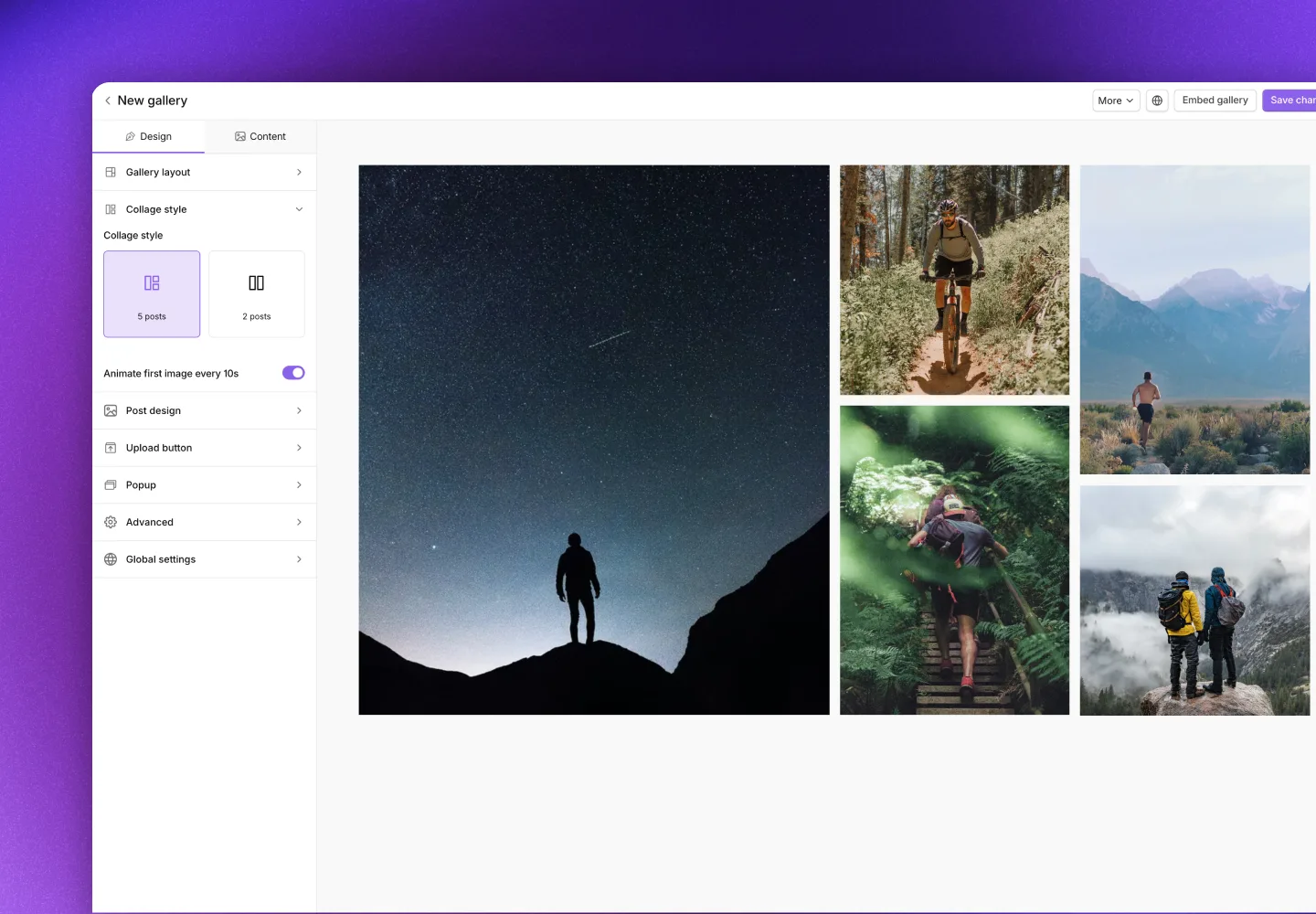
Collage layout: Posts display in a fixed artistic arrangement. Use it for hero sections or when you want a more curated, designed look.
| Setting | Options |
|---|---|
| Style | 5 posts (default) or 2 posts |
| Animate | Animate the first image every 10 seconds (Yes, the default, or No) |
| Space between posts | 0 to 40 px on desktop and mobile |
Post styles
The post style controls how individual posts look within the gallery. Each style emphasizes different information and creates a different feel. Set it in Design → Post design → Post style. The default is Tags.
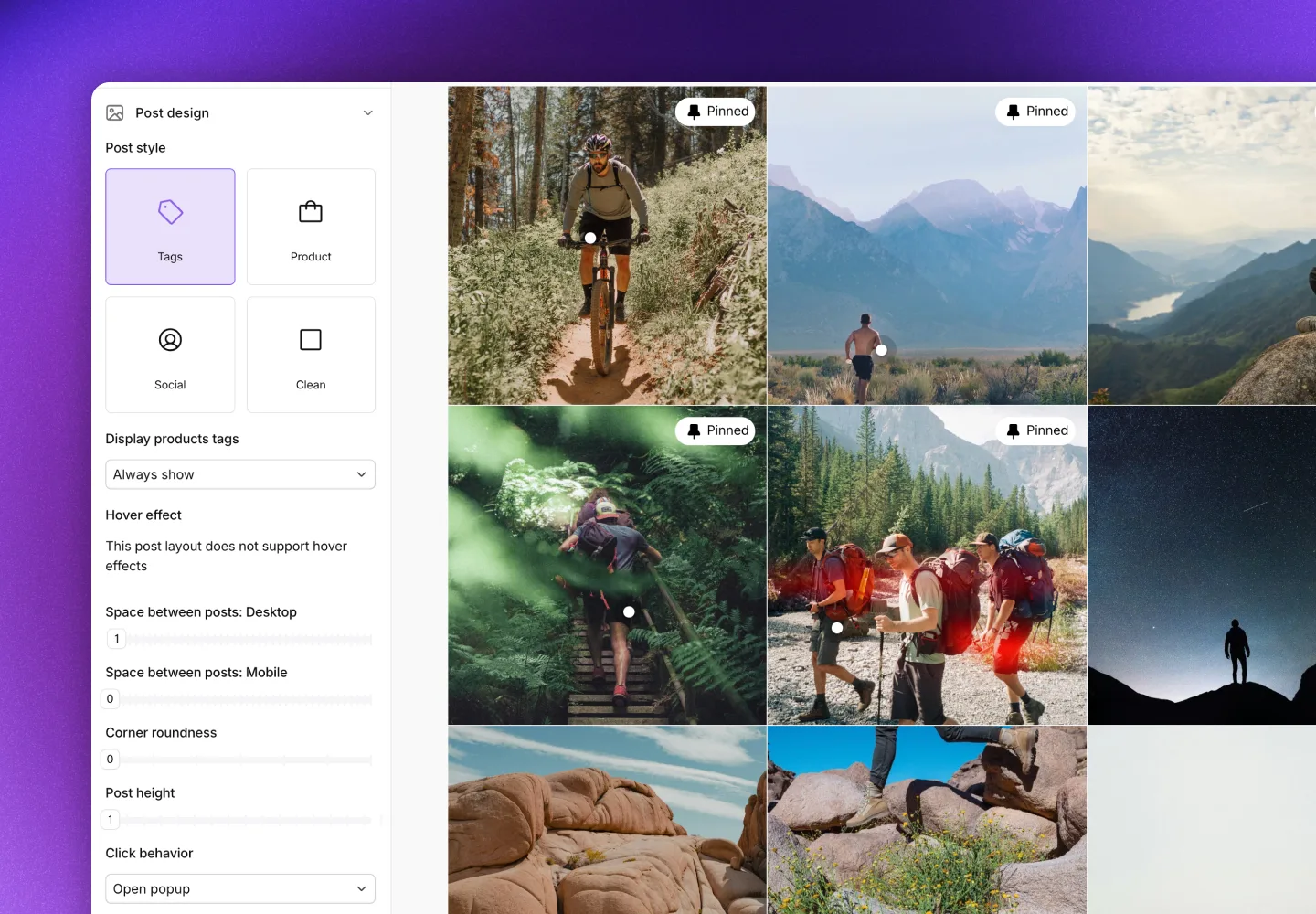
Tags style: Shows product tag hotspots directly on the posts, so visitors can see that products are shoppable and exactly where to click.
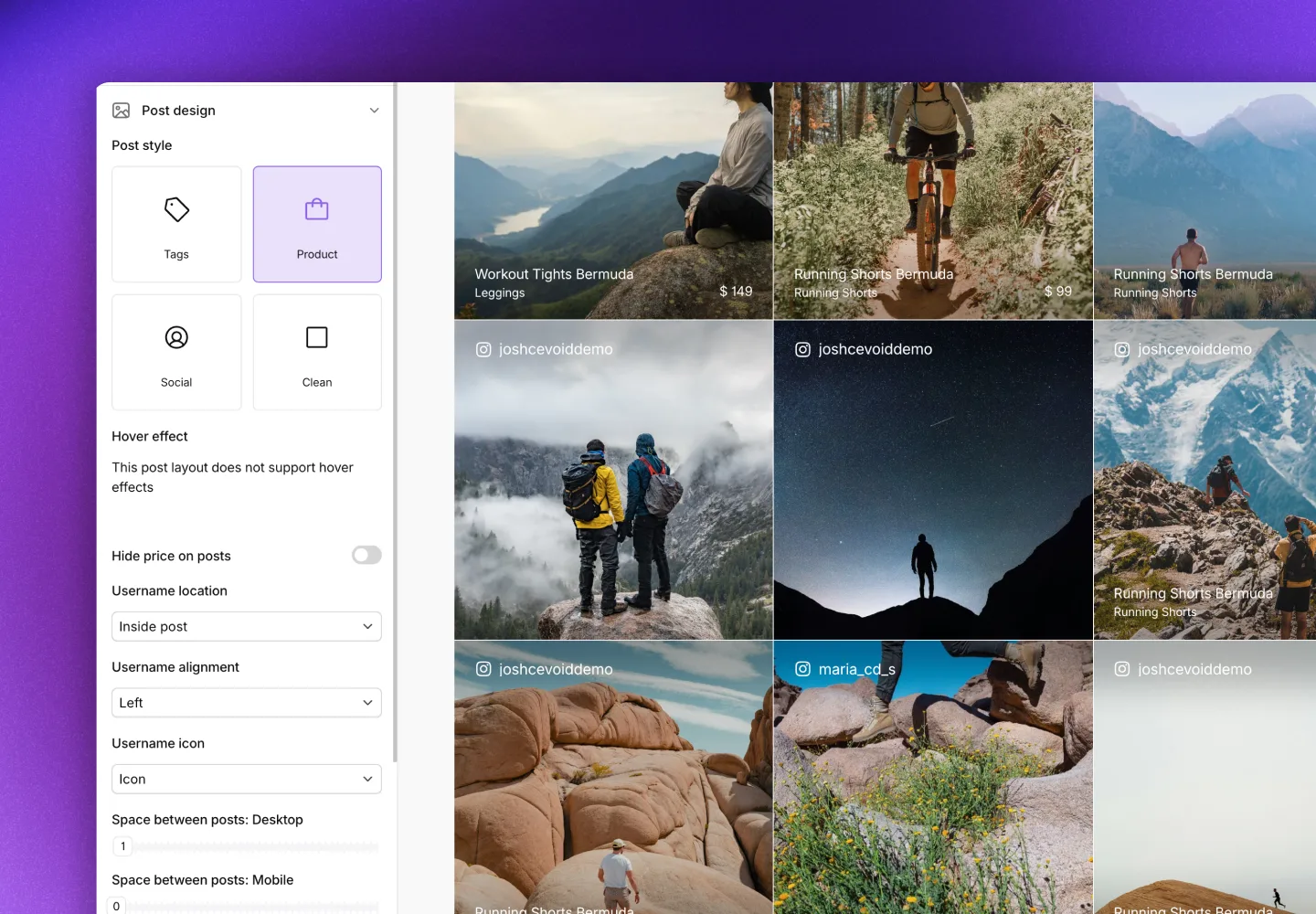
Product style: Displays product information (name, price) below each post. Use it to emphasize shopping and show visitors which products are featured.
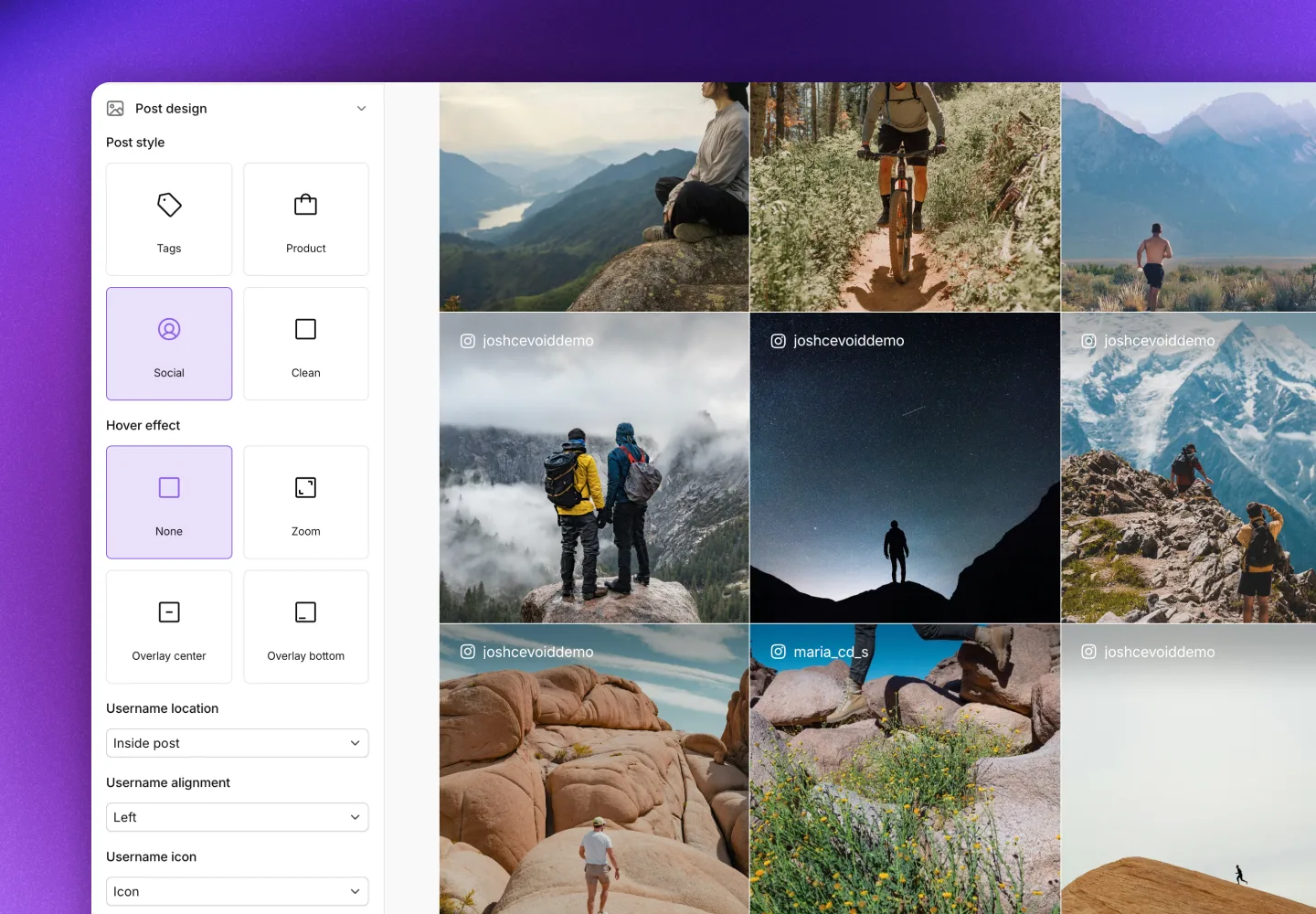
Social style: Gives posts a social media feel by showing the creator's name or handle. Use it to highlight your community and give credit to your creators.
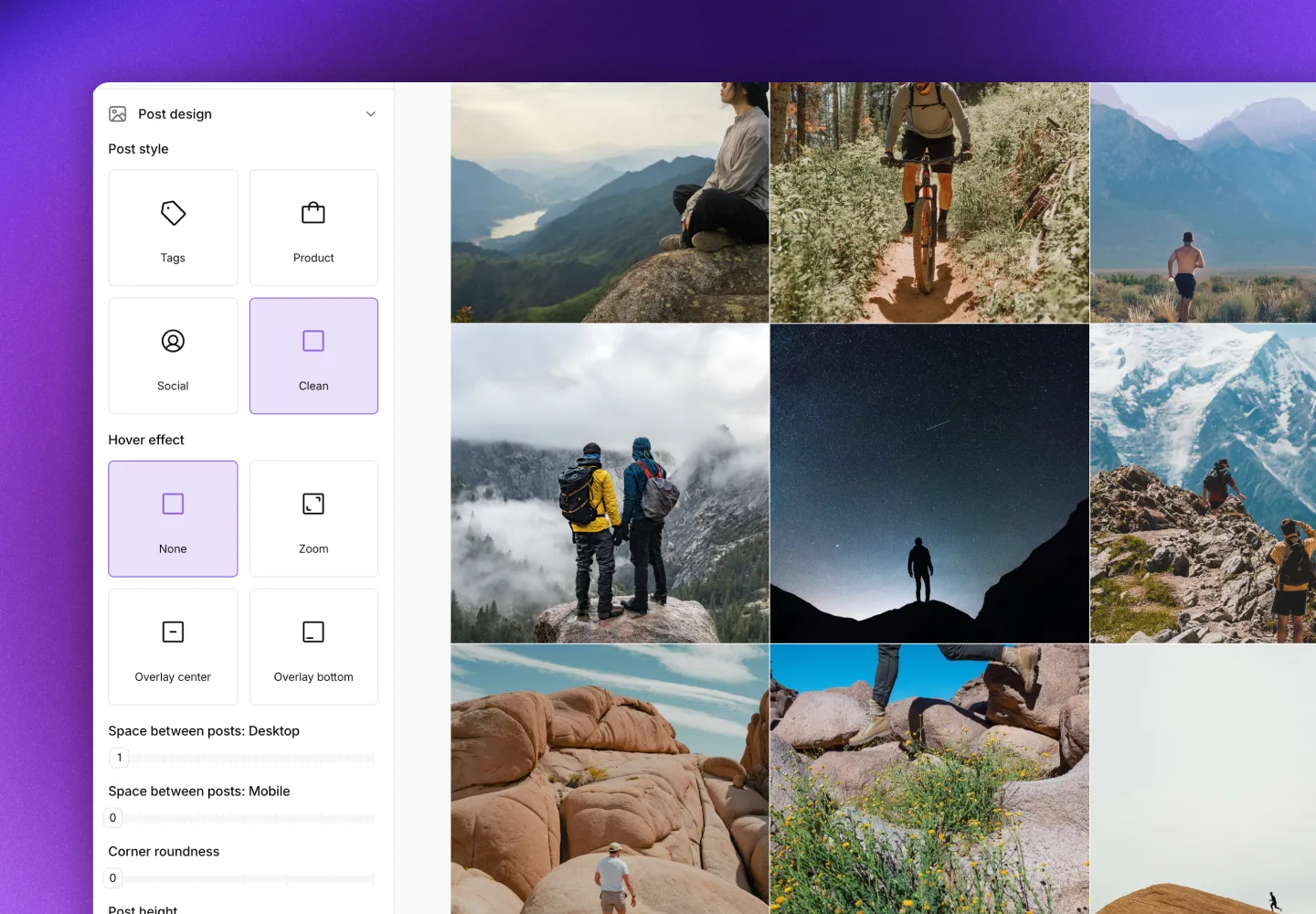
Clean style: A minimal look with no overlays or information by default, only the images and videos.
Some settings depend on the style and the layout:
| Setting | Styles | Options |
|---|---|---|
| Products tags | Tags | Display on hover (default) or Always show |
| Hide price on posts, Hide categories on posts | Product | Yes or No |
| Hover effect | Social, Clean | None (default), Zoom, Overlay center, or Overlay bottom |
| Hover styling | Social, Clean | Background, Opacity (0.2 to 0.7), and Text color of the overlay. Only with an overlay effect |
| Roundness | All | Corner radius from 0 to 30 px |
| Post height | All | Height ratio from 1 to 1.77. Only on the Grid and Slider layouts |
| On click | All | Open popup (default) or Link to product, which opens the post's first tagged product. Instagram feed galleries also have Open social media post |
| Username: Location | Social, Product | Inside post (default) or Outside post. Not on the Collage layout |
| Username: Alignment | Social, Product | Left (default), Center, or Right |
| Username: Icon | Social, Product | Icon (default), @-sign, or None |
With Link to product, a post with no tagged product opens its custom link, or the popup if it has none. With Open social media post, a post that isn't from Instagram opens the popup.
Upload button
Add an upload button to your gallery so visitors can submit their own content directly from your website. When clicked, the upload button opens a popup version of one of your upload forms. Visitors see the button as Upload a post. The upload button needs upload forms in your plan.
Content submitted through the upload button goes to your Inbox for approval before appearing in any galleries.
- Navigate to UGC → On-site widgets and open the gallery
- Click Design → Upload button
- Set Visible to Yes
- Optional: Select the upload form in Upload to
- Click Save changes
| Setting | Options |
|---|---|
| Visible | No or Yes. Yes by default, except on Instagram and TikTok feed galleries |
| Background | Button color |
| Position | Start (default) or End of the gallery |
| Upload to | The upload form the button opens. Default: your Cevoid upload form |
On the Grid layout, the upload button takes the place of one post.
Product page gallery fallback
The product page gallery shows posts featuring the product the visitor is viewing. When a product has few posts, fallback content fills the gallery, so products with limited UGC still have something to show.
How content is prioritized:
- Posts tagged with the exact product variant the visitor is viewing
- Posts tagged with other variants that share attributes (like color or size)
- Posts tagged with the primary product or any variant of the same product
- Posts featuring similar products based on Cevoid's AI, when Use AI fallback is Yes. This includes products you set up separately for each color or size, without variants. See AI fallback priority.
- Posts from the fallback gallery, when Fallback type is Gallery. The fallback gallery is also used when Cevoid can't find the page's product.
Steps 1 to 3 always apply. Manage the rest in your product page gallery under Design → Fallback.
| Setting | Options |
|---|---|
| Use AI fallback | Yes or No (default) |
| Fallback type | None (default) or Gallery |
| Fallback gallery | With Gallery: select which gallery to use as fallback. Product, collection, category, and brand page galleries can't be selected |
If no posts match any of these criteria, the gallery shows no posts on that product page. On Shopify, the gallery block's Hide section if gallery is empty hides the block too: see Embed galleries on your website.
AI fallback priority
AI fallback finds similar products based on criteria you can prioritize. The same priority applies to the Fallback posts of Post-purchase and Abandon cart email widgets.
- Navigate to Settings → AI & Agents → Products
- Under Fallback priority, drag the criteria into the order you want
- Enable or disable each criterion with its switch
- Click Save changes
| Criteria | What it matches |
|---|---|
| Names | Products with similar titles |
| Visual appearance | Products that look alike in photos |
| Categories & Collections | Products from the same or related categories and collections |
| Product specs | Products by size, color, material, and other specs |
By default, Names, Visual appearance, and Categories & Collections are on, in that order. At most 3 criteria can be on at once, and at least 1.
Advanced settings
Set these in Design → Advanced.
| Setting | Options |
|---|---|
| On product link click | Open in same window (default) or Open in new tab |
| Autoplay video | Yes (default) or No |
| Videos playing | With autoplay: 1 video (default), 2 videos, 3 videos, or All videos at a time |
Autoplaying videos are muted and have a pause button. They don't autoplay for visitors whose device is set to reduce motion.
Global settings
Global settings apply to all galleries and cards. Set them in Design → Global settings of any gallery.
| Setting | Options |
|---|---|
| html-tag | Add overflow hidden or Remove overflow hidden. Remove it if your site has a sticky header or footer |
| Product variant titles | Show to show variant titles, such as "Size: Large / Color: Blue", or Disable to show only the main product title |
| Hide product category | Hide to hide the product category label on product cards, or Disable to keep showing it |
Product variant titles and Hide product category are available for Shopify, WooCommerce, and stores connected with a product feed.