Post labels
Create post labels to organize your UGC beyond Cevoid's built-in categories.
Post labels let you categorize your posts freely. Use them to organize your UGC beyond Cevoid's built-in categorizations.
Navigate to Settings → Labels to manage your labels. The same page holds profile labels and review labels.
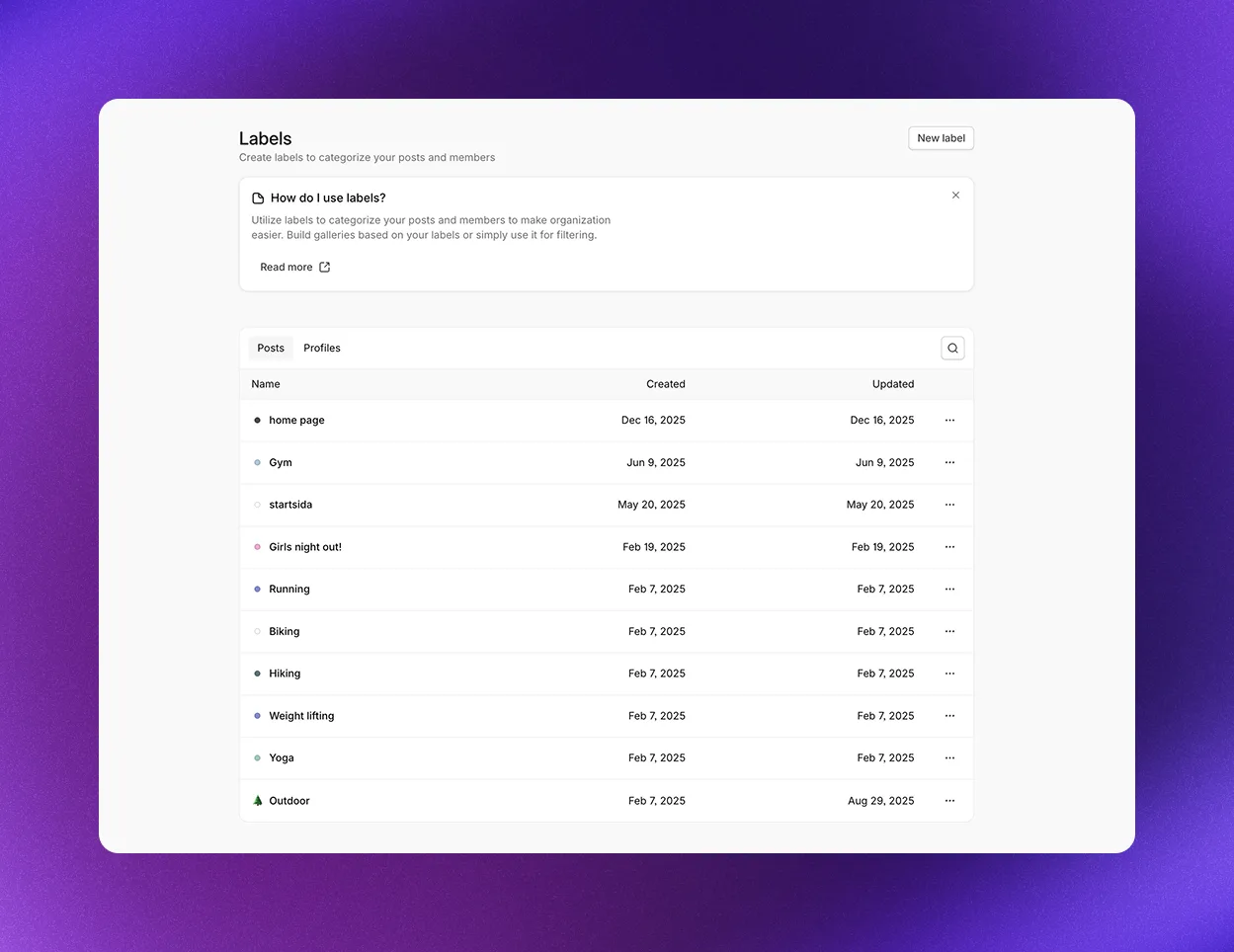
What you can use post labels for
- Filter your Library and Inbox
- Create galleries that use the label as a content source
- Exclude posts from a gallery by label
- Add filter buttons to a gallery, so visitors can filter posts by label
- Create dynamic email widgets
In most cases, you don't need to create post labels related to your product catalog. Instead, add product tags to a post to automatically relate the post to the product, its categories, and product collections.
Create a post label
From the Labels view:
- Navigate to Settings → Labels
- Click New label in the upper right corner
- Select Post in Type. It's preselected when the Posts tab is open.
- Enter the name of your new post label
- Optional: Click the color button next to the name to add a color or emoji to make your label more visually unique
- Click Create
From the Post view:
- Navigate to UGC → Library and open a post
- Click Add label in Labels on the Details tab
- Enter the name of your new post label
- Click New label: (name). It shows only when no existing label matches the name.
For several posts: Select the posts in the Library or Inbox, click Actions, and select Create label... to create a label and add it to every selected post. Change or add labels... also creates a label when you enter a new name. See Bulk actions.
Edit a post label
- Navigate to Settings → Labels
- Click ... on the label's row
- Click Edit. The Edit Label dialog opens.
- Change the name, color, or emoji
- Click Update
The Posts column in the labels table shows how many posts have each label. To copy a label's ID, click ... on its row and click Copy ID.
Delete a post label
Deleting a post label removes it from every post and gallery that uses it.
- Navigate to Settings → Labels
- Click ... on the label's row
- Click Delete
- Click Delete to confirm