Challenges
Create multi-task activities to engage customers and run competitions.
Challenges are multi-task activities where members complete a series of steps to earn rewards. Use them for UGC campaigns, competitions, seasonal promotions, or collecting customer feedback. Challenges appear in your Activities program widget on your website, where members participate directly from your store.
Navigate to Loyalty → Activities to manage your challenges.
How a challenge works
A challenge has three parts: the challenge information (title, dates, participants), the tasks members complete, and reward groups. You can combine several tasks in one challenge to build a multi-step campaign, for example photo uploads with survey questions, or an Instagram handle with profile properties. Reward groups let you give all participants one set of rewards and give winners bigger prizes in the same challenge.
A challenge runs in four steps:
- Member starts the challenge
- Member completes all required tasks and clicks submit
- Submission is added to the challenge and the member's profile
- Rewards are distributed according to the reward group settings
Members can view their submissions by clicking the challenge in the Activities widget. If they haven't reached the submission limit, they can click New submission to start another one.
If a member leaves before completing a challenge, they can return and continue where they left off: drafts are kept for 30 days, and deleted when the challenge ends. A submission can't be sent while a required task has no answer.
Create a challenge
- Navigate to Loyalty → Activities
- Click New activity
- Select Challenge
Cevoid creates a draft named "New Challenge" and opens its editor on the Challenge tab. The editor has three tabs: Challenge, Tasks, and Rewards.
Step 1: Tasks
The Tasks tab is where you define what members need to do.
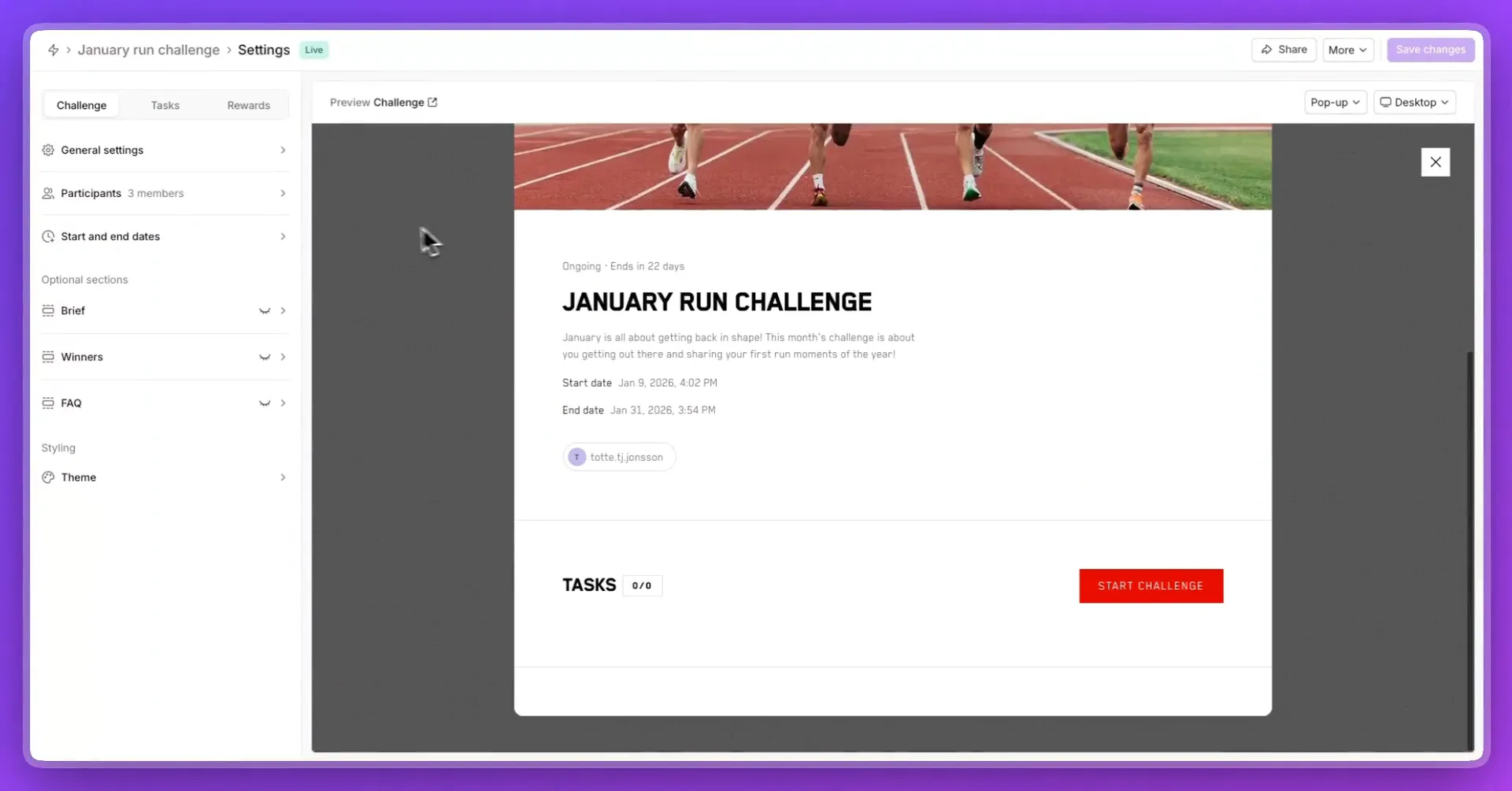
Add a task
- Click Add
- Select a task type from the list
- Configure the task settings
See Available tasks for all task types and their settings.
Task settings
| Setting | Description |
|---|---|
| Title | Name of the task shown to members |
| Description | Instructions or details about the task |
| Required | Required tasks must be completed to finish the challenge. Disable it for optional bonus tasks |
| Verification | Automatic (default, Cevoid verifies instantly) or Manual (your team reviews and approves the task) |
Customize the submission flow
Under Texts, personalize what members see:
| Setting | Description |
|---|---|
| Task overview | Description adds instructions above the task list. Enable Hide overview descriptions to hide the task descriptions there |
| Submit screen | Description customizes the message on the submission button screen |
| End screen | Description customizes the thank-you message after submission. Button link sends members to the Challenge overview or a Custom link |
Step 2: Reward groups and rewards
The Rewards tab is where you configure what members receive. Each challenge can have up to 10 reward groups.
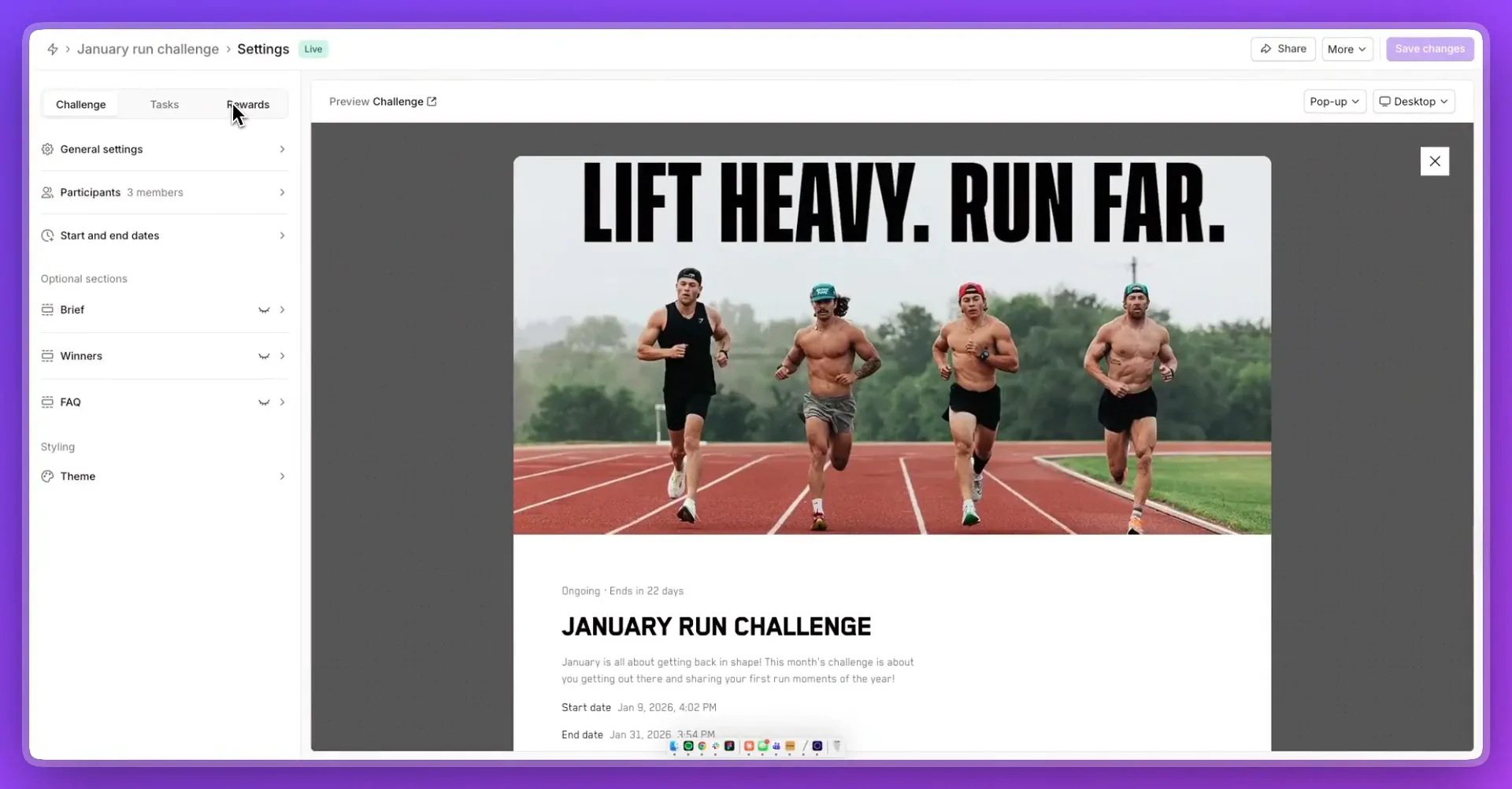
Create a reward group
- Click Add reward group
- Configure the settings
- Click Add item to add reward items
A new group is titled "Thank you for sharing", goes to All participants, and is given After challenge has ended. Who should receive the reward? is locked once the group contains a discount code.
| Setting | Description |
|---|---|
| Title | Name shown to members for this reward group |
| Who should receive the reward? | All participants or Selected winners |
| When should they receive the reward? | Timing for distribution |
| What should they receive? | The reward items to distribute |
Reward all participants
Select All participants when everyone who completes the challenge should be rewarded.
When should they receive the reward?
| Option | Best for |
|---|---|
| After user sends in submission | Rewarding members right away |
| After all tasks have been verified | Waiting until your team approves manual tasks |
| After challenge has ended | Sending all rewards at once when the challenge closes |
| At specific date | Distributing on a date you choose |
Reward selected winners
Select Selected winners for competitions where only some participants win.
| Setting | Description |
|---|---|
| How many should receive the reward? | Number of winners, at most Max participants when that's set |
| How should they be selected? | Selection method |
| When should they be selected and awarded? | Timing, by selection method below |
| Method | Best for | Timing |
|---|---|---|
| Manually by your team | Quality-based competitions where you pick the best entries | You select winners, then rewards are distributed automatically |
| Randomly by Cevoid | Fair giveaways where everyone has an equal chance | After challenge has ended or At specific date |
| First X submissions completed | First come, first served promotions | After user sends in submission, After challenge has ended, or At specific date |
Add reward items
A reward group can hold several reward items. See Available rewards for available reward types.
Every reward item in a challenge has Only received once per challenge: members receive the item only once, even with multiple submissions. On Shopify, Same code for all discount codes aren't offered in Selected winners groups.
Step 3: Challenge information and settings
The Challenge tab contains the general information, participants, dates, optional sections, and styling.
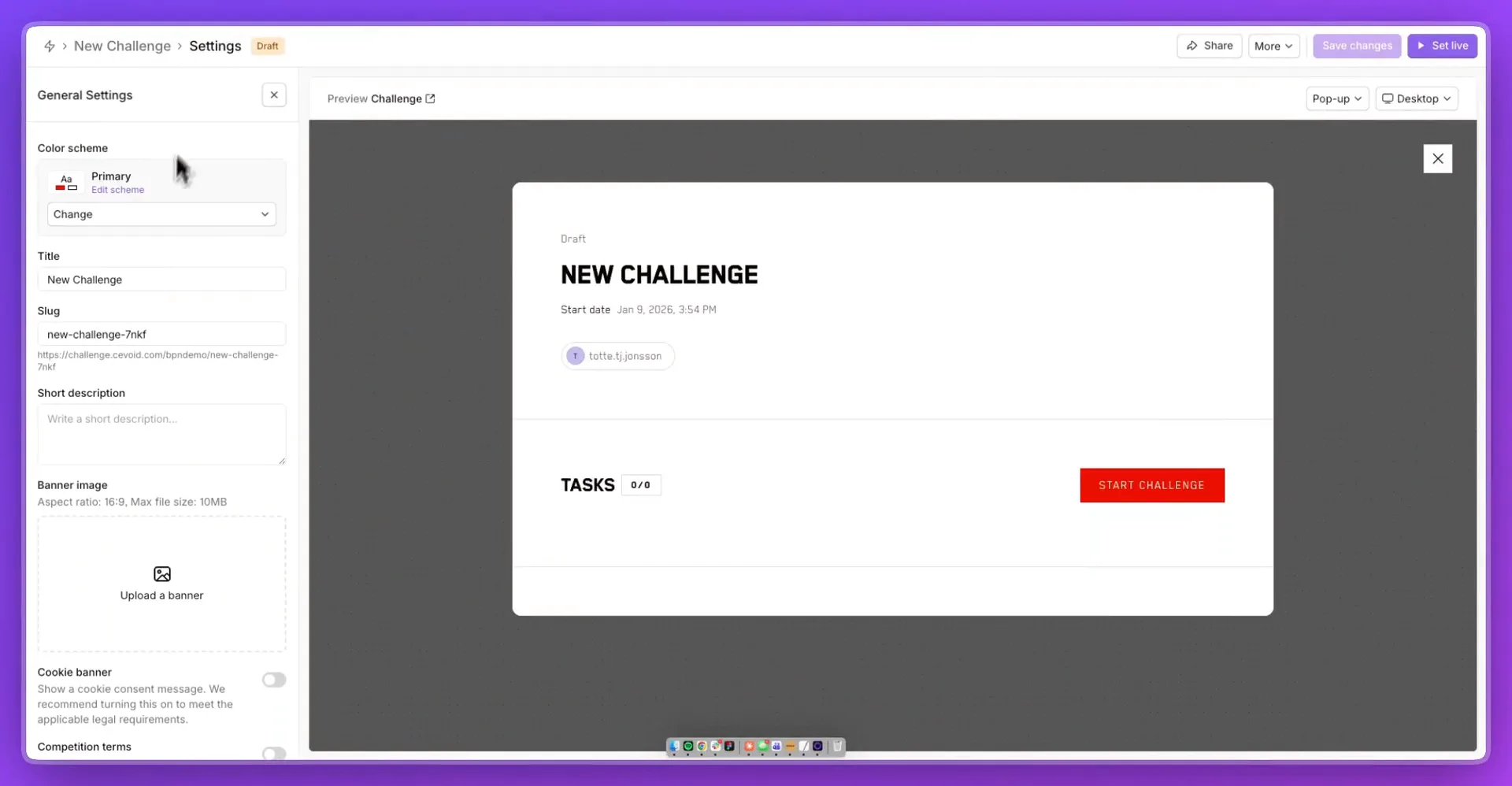
General settings
| Setting | Description |
|---|---|
| Color scheme | Which color scheme from your Loyalty theme the challenge uses: Change picks another, and Edit scheme opens the Loyalty theme's editor |
| Title | Challenge name shown to members, at least 3 characters |
| Short description | Brief description shown to members |
| Banner image | Header image (16:9 aspect ratio, max 10 MB) |
| Competition terms | "Show competition terms consent message". Off unless Default setting for competition terms in challenges is on in Settings → Legal. Needs a competition terms policy |
Participants
| Setting | Description |
|---|---|
| Who can see this challenge and participate? | The audience, Anyone by default. See Who can participate |
| Max participants | Limit how many members can participate. 100 when you enable it. Not shown for Selected profiles |
| Submission limit | How many times each member can submit. 1 when you enable it, unlimited when it's off |
Start and end dates
| Setting | Description |
|---|---|
| Start date | When the challenge becomes available |
| Hide start date | Hide the date from the challenge widget |
| Has end date? | Enable to set when the challenge ends |
Rewards given After challenge has ended, and random winners picked then, go out when the challenge ends: at its end date, or when you click End challenge. An end date isn't required.
Optional sections
| Section | Description |
|---|---|
| Brief | Give participants clear instructions on what you're looking for |
| Winners | Display winners in the challenge widget after your competition ends |
| FAQ | Answer common questions, and copy questions from other challenges to save time |
Styling
Under Styling, Theme opens the editor of your Loyalty theme, where you set the fonts and color schemes your challenges and program widgets use.
Preview and go live
Before launching, use the preview panel to check your challenge:
- Select Desktop, Tablet, or Mobile to test responsiveness
- Click through the tasks to see the full member experience
When you're ready:
- Click Save changes
- Click Set live
- Click Save and publish in Publish activity?
Your challenge now appears automatically in the Activities program widget, for the members its Participants settings allow.
Manage your challenge
Open a challenge to track it and manage participants. Its tabs are Overview, Submissions, Participants, and Rewards (only when the challenge has reward groups).
More holds Edit, Duplicate, Translate, CSV exports, End challenge, and Delete (only without submissions). Challenges can't be paused. Once a challenge has submissions, its tasks, rewards, participants, and dates are locked: "Some settings can't be changed since participants have made submissions".
Overview tab
The Overview tab shows your challenge performance at a glance:
- Date range: When the challenge runs
- Available for: Who can participate
- Participants: Members who joined this challenge
- Participation rate: Percentage of eligible members who participated
- Submissions: Number of submissions
- Submission rate: Submissions per participant
The Task breakdown section shows each task with the number of answers received. Click a task to see individual responses.
Submissions tab
The Submissions tab lists all submissions with their status. It opens on Completed; the other tabs are All, Submitted (a task still waits for verification), and Drafts.
Open a submission to see all task responses and uploaded content. For tasks with manual verification, click Verify task. Until the rewards are given, Unverify task undoes it. There's no reject action. To add uploads to your UGC Library or Inbox, and for other actions, see Submissions.
Participants tab
The Participants tab shows everyone who has participated in the challenge, including their number of submissions, rewards received, and last activity date.
Rewards tab
The Rewards tab shows each reward group and its distribution status.
For reward groups with Selected winners, the winner slots are displayed ("Not set" until picked). Select winners manually if that's your selection method, or from a submission with More → Reward. Then click Award winners to distribute the rewards. With empty slots, the app warns "Not all winners have been selected".
For reward groups with All participants, the fulfillment percentage is displayed. Click View to see who has received the reward. Fulfillment opens the Reward fulfillment page filtered to the group's rewards.
Filter challenges
To view only challenges in your activities list:
- Navigate to Loyalty → Activities
- Click + Filter
- Select Type
- Select Challenge