Social scheduling
Schedule and publish posts to Instagram and Facebook.
Social scheduling lets you schedule and publish posts to Instagram and Facebook directly from Cevoid. Select content from your Library, customize it for each platform, and schedule it for automatic publishing. Scheduling needs a connected Instagram account, and Facebook posts and videos go to the Facebook page linked to that account.
Navigate to Social scheduling to manage your scheduled posts.
Post types
Click Schedule in Social scheduling to pick a post type. The options are grouped under Instagram and Facebook. With several Instagram accounts, each option opens a list of your Instagram accounts or Facebook pages. More → Manage accounts opens Settings → Integrations → Instagram, where you connect and manage your accounts.
| Option | Published | Content | Product tags | Tag people | Caption and first comment |
|---|---|---|---|---|---|
| Instagram: Image | Automatically | 1 image | Yes | Yes | Yes |
| Instagram: Carousel | Automatically | 2 to 10 images or videos | On images | On images | Yes |
| Instagram: Reel | Automatically | 1 video, with a cover | Yes | No | Yes |
| Instagram: Story | Automatically | Up to 10 images or videos | No | No | No |
| Instagram: Story reminder | By a team member, after an email reminder | Up to 10 images or videos | No | No | No |
| Facebook: Post | Automatically | Up to 10 images | No | No | Yes |
| Facebook: Video | Automatically | 1 video | No | No | Yes |
Every post with a video can have the video trimmed and its audio turned on or off.
Calendar overview
The Social scheduling calendar shows one week at a time (Week n), with the scheduled and published posts for each day. Click Today, the arrows, or the date to move between weeks. Times are in your workspace's time zone, shown on the calendar. To change it, click More → Manage timezone.
Click Filter to filter by:
- Post status: Draft, Scheduled, Published, or Failed
- Account: Connected social accounts
- Platform: Instagram or Facebook
- Post type: Video, Reels, Image, Carousel, or Stories
You can schedule up to 50 Instagram posts and 25 Facebook posts a day. When a day reaches a platform's limit, that platform's options no longer show in Schedule.
Post statuses
| Status | Meaning |
|---|---|
| Draft | Not scheduled yet. Duplicated posts and posts started from the Library begin as drafts |
| Scheduled | Waiting for its publish time |
| Published | Published to the account |
| Failed | Not published. An automatic post also shows Failed when it isn't published within 1 hour of its scheduled time |
| Reminder sent | A story reminder whose reminder email has been sent |
A warning icon with Some posts are not approved shows on a scheduled post that uses content that isn't approved. To get an email when a post is published or fails to publish, enable Scheduled post is published or Scheduled post failed to publish in Settings → Notifications. See Notifications.
Duplicate a post
Duplicate a post in the calendar to schedule the same content to another platform or account.
- Navigate to Social scheduling
- Right-click the post
- Select Duplicate to Facebook or Duplicate to Instagram. With several Instagram accounts, select the account or page under Duplicate to account. A draft copy appears at the same time.
- Open the draft and adjust the caption or other information
- Click Schedule post
- Select Custom date and time and set the date and time, or select Now
- Click Schedule
When you duplicate to Facebook, a reel becomes a video and product and people tags are removed. A post with several items can only go to Facebook if they're all images.
The same right-click menu has Retry post for a failed post, Copy to workspace to copy the post to another workspace you have access to, and Delete for posts that aren't published yet. Delete asks you to confirm with Remove.
Schedule posts from the Library
Start a scheduled post from approved posts in your Library. The post opens in the editor as a draft, and you continue with the steps for its type below.
One post:
- Navigate to UGC → Library and open the post
- Click Social scheduling below the media
- Select the post type: Image, Carousel, Reel, or Story reminder under Instagram, or Post or Video under Facebook. Only the types that fit the post's media show.
Several posts:
- Navigate to UGC → Library
- Select the posts. See Bulk actions.
- Click Actions and select Schedule...
- Select the post type under Schedule as.... The types that show depend on your selection: Image for one image, Carousel for several posts, Reel for one video, Story reminder for up to 10 posts, and, when all posts have the same media type, Facebook Post for one image or several posts, or Video for one video.
Automatic Instagram stories can't be started from the Library. Start them from Schedule in Social scheduling.
Instagram posts, reels, and carousels
Instagram posts, reels, and carousels are published automatically at your scheduled time. They share the same flow, with minor differences: see Post types.
- Step 1
Select content
- Navigate to Social scheduling
- Click Schedule
- Select Image, Carousel, or Reel under Instagram. With several Instagram accounts, select the account.
- Select content from your Library, or click Upload to add new content
- Click Select N posts to continue
To start from a post in your Library, see Schedule posts from the Library.
Note:For carousels, select 2 to 10 images and videos. For reels and image posts, select one piece of content.
- Step 2
Crop and adjust
- Select the aspect ratio for your post. For carousels, it applies to all items.
- Optional: Scroll over the content to crop it, and drag to reposition it
- Optional: For carousels, drag items in the bottom view to reorder them
- Click Next step
- Step 3
Trim video
For posts with a video, the Video step lets you:
- Trim the video length
- Enable or disable the video's audio in Audio settings
Click Next step to continue.
- Step 4
Tag products
Add products from your Instagram shop to make the post shoppable. If the original post has product tags in Cevoid, those appear as suggestions. This step needs an Instagram Shop with a product catalog. Without one, Tag product shows "You must have an Instagram shop in order to use this feature." Cevoid uses the catalog selected in Product catalog on the Instagram account's page in Settings → Integrations → Instagram.
- Click Add product
- Search for the product in your Instagram shop catalog
- Click Add product and place it in the image
- Click Done
- Click Next step
Note:You can add up to 5 product tags. For carousels, repeat for each content piece, since products can't be tagged in carousel videos.
- Step 5
Tag people (image and carousel only)
Tag Instagram users in your post. When you repost Instagram UGC, the creator's handle appears as a suggestion.
- Click Add person
- Click where you want the tag to appear
- Enter the Instagram username
- Click Save
- Click Next step
Note:You can tag up to 20 people in a post. Don't tag private accounts. For carousels, people can't be tagged in videos.
- Step 6
Add caption and first comment
On the Preview step, enter your Caption, up to 2,200 characters and 30 hashtags. Optionally, enable Comment and enter a first comment that publishes automatically when the post goes live, up to 2,200 characters and 30 hashtags.
- Tagged products are listed. Click a product to add its name to the caption.
- Tagged people are listed. Click a username to add the handle to the caption.
For reels, set the Cover: select Set a cover photo and drag to select a frame from the video, or select Custom cover photo and click Upload.
- Step 7
Schedule
- Click Schedule post
- Select Custom date and time and set the date and time, or select Now to publish at once
- Click Schedule
Instagram stories
Share content to your Instagram story. Instagram stories can be published automatically, or scheduled as reminders for manual posting when you need features such as links, music, or text overlays. Both hold up to 10 images or videos: see Post types.
Schedule a story
Instagram stories are published automatically at your scheduled time. They don't support product tags, username tags, or captions.
- Step 1
Select content
- Navigate to Social scheduling
- Click Schedule
- Select Story under Instagram. With several Instagram accounts, select the account.
- Select images and/or videos, or click Upload to add new content
- Click Select N posts to continue
Note:You can include up to 10 images and/or videos per story. They publish directly after each other.
- Step 2
Crop and adjust
- Select the aspect ratio (applies to all items)
- Optional: Drag items to reorder them
- Optional: Scroll over the content to crop it, and drag to reposition it
- Click Next step
- Step 3
Schedule
- Click Schedule post
- Select Custom date and time and set the date and time, or select Now to publish at once
- Click Schedule
Schedule a story reminder
Story reminders are not published automatically. A team member receives an email reminder with everything needed to publish the story manually. Use story reminders when you need features such as links, music, or text overlays.
- Step 1
Select content
- Navigate to Social scheduling
- Click Schedule
- Select Story reminder under Instagram. With several Instagram accounts, select the account.
- Select images and/or videos, or click Upload to add new content
- Click Select N posts to continue
To start from posts in your Library, see Schedule posts from the Library.
Note:You can include up to 10 images and/or videos per story reminder.
- Step 2
Crop and adjust
- Select the aspect ratio (applies to all items)
- Optional: Drag items to reorder them
- Optional: Scroll over the content to crop it, and drag to reposition it
- Click Next step
- Step 3
Add reminder information
On the Story info step, add information for each content piece that the team member needs when publishing:
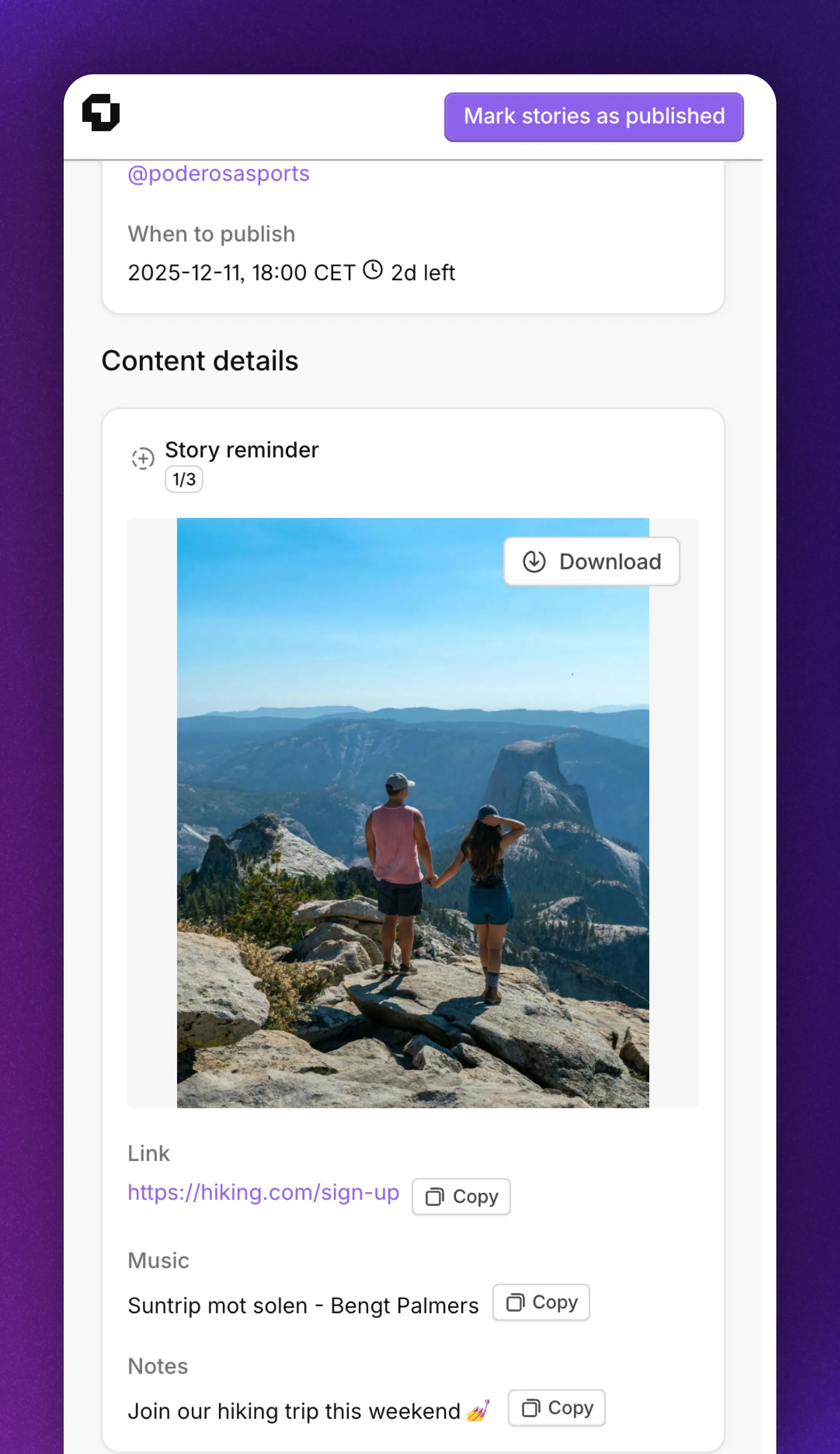
Field Description Link URL to add to the story Music Song to include in the story Notes Text to include or other instructions - Step 4
Schedule the reminder
- Click Schedule post
- Set Date & Time to when you plan to publish the story
- Select in Send reminder when the reminder goes out, from At publish time to 1 day before
- Select the team member in Send reminder to
- Click Schedule
- Step 5
Publish manually
When the reminder is due, the selected team member receives an email, "Reminder: ...", with a link to the Scheduling reminder page and all the information needed.
- Open the link from the email
- Download the content to your device
- Open Instagram and create a story
- Add the link, music, or text from your reminder
- Publish the story
- Repeat for each piece of content
- Click Mark stories as published (or Mark story as published) on the reminder page
The opened story reminder looks like this:
Facebook posts and videos
Facebook posts and videos are published automatically at your scheduled time. A Facebook post holds up to 10 images, and a Facebook video holds one video. Both can have a caption and a first comment: see Post types.
Schedule a Facebook post or video
- Step 1
Select content
- Navigate to Social scheduling
- Click Schedule
- Select Post or Video under Facebook. With several Instagram accounts, select the Facebook page to publish to.
- Select content from your Library, or click Upload to add new content
- Click Select N posts to continue
To start from posts in your Library, see Schedule posts from the Library.
Note:Facebook posts can include up to 10 images, and no videos. Facebook videos are single videos only.
- Step 2
Crop and adjust
- Select the aspect ratio
- Optional: Drag items to reorder them (posts with multiple items)
- Optional: Scroll over the content to crop it, and drag to reposition it
- Click Next step
- Step 3
Trim video (videos only)
For Facebook videos, the Video step lets you trim the video length and enable or disable its audio in Audio settings. Click Next step to continue.
- Step 4
Add text and first comment
On the Preview step, enter the text for your post in Caption. Optionally, enable Comment and enter a first comment that publishes automatically when the post goes live, up to 8,000 characters.
The first time you add a comment to a Facebook post, Cevoid asks for more Facebook permissions. In Update permissions, click Update permissions using Facebook.
- Step 5
Schedule
- Click Schedule post
- Select Custom date and time and set the date and time, or select Now to publish at once
- Click Schedule