Legal policies
Configure consent policies for content submissions, reviews, and program opt-ins.
Legal policies help you collect consent from customers when they submit content, write a review, or join your loyalty program. Configure the messages your customers see, and give markets with other legal requirements their own versions.
Navigate to Settings → Legal to manage your policies.
Customers see a policy once you publish it.
Policies can be localized for different jurisdictions to align with regional legal requirements.
Available policies
| Policy | Description |
|---|---|
| Content consent | Displayed when someone submits content through upload forms, DM rights requests, challenges, Upload content activities, or review forms |
| Program opt-in consent | Displayed when someone joins your loyalty program through a Cevoid widget |
| Competition terms | Optional terms for challenges that are competitions |
Content consent
The content consent policy ensures that anyone submitting content to your brand approves your UGC policy and grants permission to use their content. This protects both you and the creator by making the terms of use clear upfront.
Include a link to your website where the full content consent terms are available. See Content consent example for sample copy you can adapt.
Where it's displayed:
| Solution | When displayed |
|---|---|
| Upload forms | When someone submits a post |
| DM rights requests | When approving a rights request |
| Challenges | When someone submits a challenge with an Upload content task |
| Single-task activities | When a member uploads content in an Upload content activity |
| Review forms | When someone writes a product or company review |
Comment rights requests don't display the policy. The comment links to your terms through the %{terms}% value in the request template: the URL of the first link in the policy chosen in Terms of Service, or its Custom URL.
Activate content consent
- Navigate to Settings → Legal
- Open Content consent
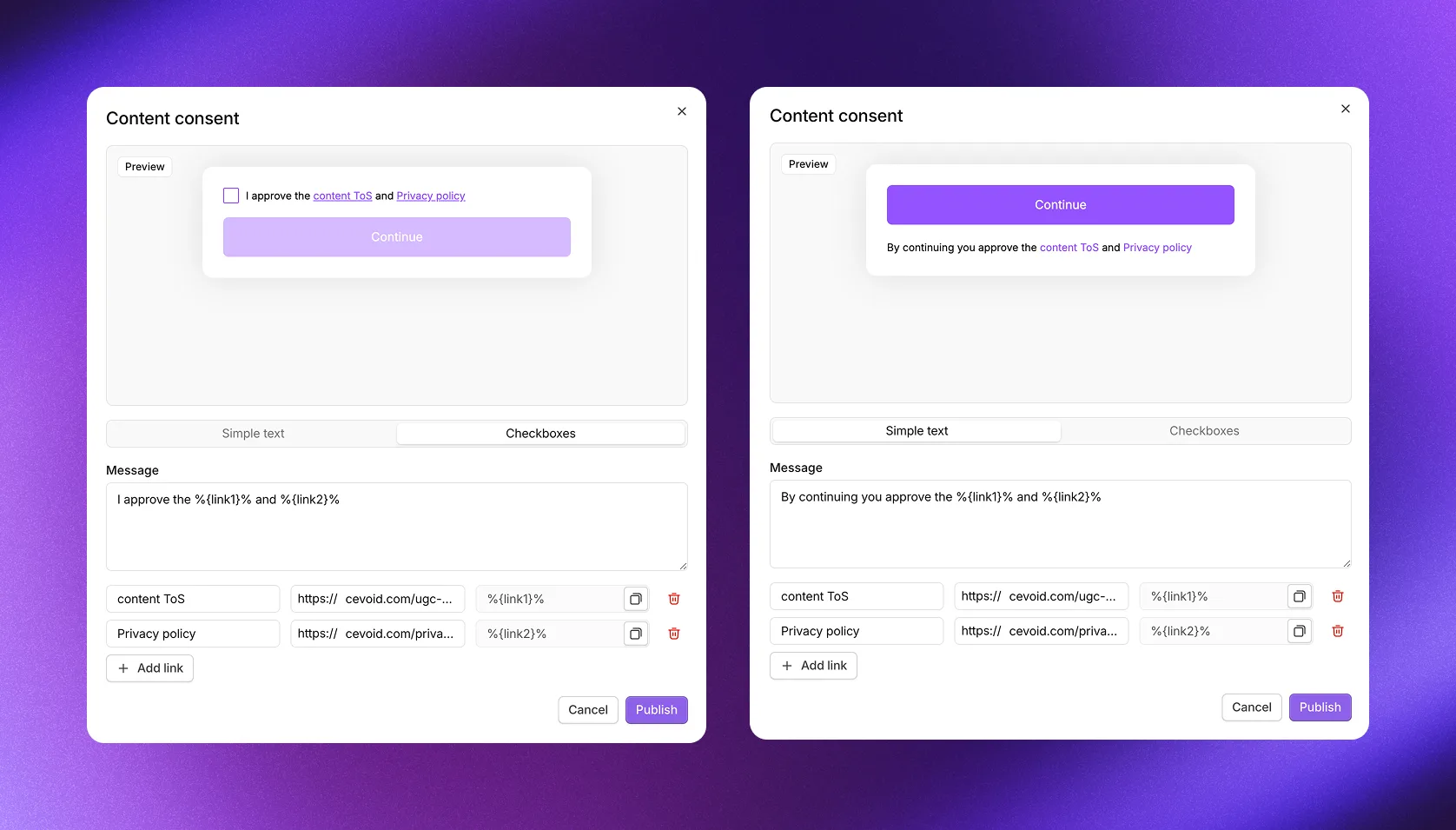
- Select Simple text or Checkboxes based on your requirements
- Enter your message in Message
- Enter the link text and URL for
%{link1}%. For more links, see Add links to a policy. - Click Publish
To give the markets of a jurisdiction their own version, see Jurisdictions.
Program opt-in consent
The program opt-in consent policy ensures that members agree to your program terms before participating in any activities. This is essential for transparency and helps you stay compliant with consumer protection regulations.
You can also collect marketing consent at the same time, streamlining the opt-in experience while keeping consent properly documented.
Include a link to your website where the full program terms are available.
Where it's displayed:
| Solution | When displayed |
|---|---|
| All program widgets | When a new member opts in to your loyalty program |
| Challenges | When someone who isn't a member signs up for a challenge or submits one |
| Klaviyo newsletter subscription activities | When a member subscribes to your newsletter |
This policy is only enforced through Cevoid widgets. Members may opt in through other methods depending on your opt-in settings.
With the opt-in rule Widget opt-in, Rewards program opt-in consent shows Required on Settings → Legal until you publish it.
Activate program opt-in consent
- Navigate to Settings → Legal
- Open Rewards program opt-in consent
- Select Simple text or Checkboxes under Program opt-in, based on your requirements
- Enter your message in Message
- Enter the link text and URL for
%{link1}%. For more links, see Add links to a policy. - Optional: Under Marketing communication, edit the message that collects email consent at the same time. It starts as "I want to receive newsletter and promotion emails", with Checkboxes.
- Simple text automatically approves everyone for marketing communications
- Checkboxes only approves members who explicitly check the marketing box
- Click Publish
To give the markets of a jurisdiction their own version, see Jurisdictions.
Competition terms
When running challenges that are formal competitions, you may need to display specific legal terms beyond your standard content consent. The competition terms policy lets you add these requirements to specific challenges. Competition terms aren't displayed on all challenges automatically, since not every challenge is a competition: you enable them per challenge.
Include a link to your website where the full competition terms are available.
Where it's displayed:
| Solution | When displayed |
|---|---|
| Challenges | When submitting challenges with competition terms enabled |
Activate competition terms
- Navigate to Settings → Legal
- Open Competition terms
- Select Simple text or Checkboxes based on your requirements
- Enter your message in Message
- Enter the link text and URL for
%{link1}%. For more links, see Add links to a policy. - Click Publish
To give the markets of a jurisdiction their own version, see Jurisdictions.
Enable competition terms on a challenge
- Navigate to Loyalty → Activities and open the challenge
- Click More
- Select Edit
- Click General settings on the Challenge tab
- Enable Competition terms ("Show competition terms consent message")
- Click Save changes
If you haven't created a competition terms policy yet, the switch stays off and Edit competition consents appears: click it to create one.
New challenges take their Competition terms setting from Default setting for competition terms in challenges, at the bottom of Settings → Legal. The switch is off by default, so new challenges start with competition terms off. When you enable it, new challenges start with them on. Existing challenges keep their own setting.
Consent options
Each policy can be configured to use either checkboxes or simple text. You can use different options for different jurisdictions based on local requirements.
| Option | How it works |
|---|---|
| Checkboxes | Visitors must check the box before they can proceed. This provides explicit consent documentation. |
| Simple text | Visitors see the message and can continue without taking action. The act of proceeding implies consent. |
The marketing communication message in program opt-in consent has its own Simple text or Checkboxes option, separate from the main consent. With Checkboxes, its box is optional: members can join without checking it. In a Klaviyo newsletter subscription activity, members must check it to subscribe.
Add links to a policy
A policy's message can link to pages on your website, such as your full terms. Each link has a link text, a URL, and a value, such as %{link1}%, that marks its place in Message. Customers see the link text in that place, and it opens the URL in a new tab. A new policy starts with one link, with %{link1}% already in its message, so for that link you only enter its link text and URL.
- Navigate to Settings → Legal and open the policy
- Click Add link. A new link appears with the next value, such as
%{link2}%. - Enter the link text, the words customers see as the link
- Enter the URL without
https://, which the field already shows, for exampleyourbrand.com/terms - Copy the link's value from the field after the URL
- Paste the value into Message where the link text should appear
- Click Publish
A message can have up to 5 links, and every link needs a link text and a URL. Every link's value must be in Message, and every value in Message must belong to a link: otherwise Publish shows an error under Message. To remove a link, click the trash icon next to it and delete its value from Message.
The marketing communication message in program opt-in consent has its own links, added the same way below its own Message, with the same limit of 5.
Jurisdictions
Different markets often have different legal requirements. Jurisdictions let you configure separate policy versions for different regions. Cevoid widgets automatically display the correct policy based on the market they're shown in. Two exceptions in UGC: upload forms always display your default content consent policy, and DM rights requests display the policy chosen in the request template's Terms of Service, or your default one.
A jurisdiction with at least one policy replaces all your default policies in its markets. A policy type the jurisdiction doesn't have isn't shown in its markets, even when you have a default one. Only review forms fall back: when the jurisdiction has no content consent, they show your default one.
You only need to set up jurisdictions if you want different policies for different markets. The default policy applies to all markets that don't have a specific jurisdiction assigned.
Create a jurisdiction
- Navigate to Settings → Legal
- Click Add jurisdiction
- Enter a name for the jurisdiction in Name, for example
EUorUK - Click Add market and select a market that should use this jurisdiction's policies. Repeat for each market.
- Click Create
To add a policy to a jurisdiction, click Add policy in it, select the policy, and set it up like your default one. To change one of its policies, click the policy, edit it, and click Publish.
Edit a jurisdiction
- Navigate to Settings → Legal
- Click ... in the jurisdiction's upper right corner, under Market-specific policies
- Select Edit
- Optional: Enter a new name in Name
- Optional: Click Add market and select a market to add it
- Optional: Hover over a market and click the x on its flag to remove it
- Click Update
Delete a jurisdiction
Deleting a jurisdiction can't be undone. Its policies are deleted with it, and its markets show your default policies again.
- Navigate to Settings → Legal
- Click ... in the jurisdiction's upper right corner, under Market-specific policies
- Select Delete
- Click Delete to confirm
Localization
Write each policy in the language its Message field names. On a jurisdiction's policies, the field names the language of the jurisdiction's markets, such as Message (in German). On your default policies, the field is Message, with no language: write them in your primary language. When you publish a policy, Cevoid translates its message and link texts into your market languages, and review forms show each reviewer the translation for their market. See Translations.