Translations
Manage translations for all customer-facing copy across your markets.
Most customer-facing content is automatically translated for each of your market languages. Write copy in your primary language where you create it, and Cevoid's AI translates it to all your other languages when you save. In most cases, you won't need to visit the Translations page at all.
Navigate to Settings → Translations to view and adjust translations.
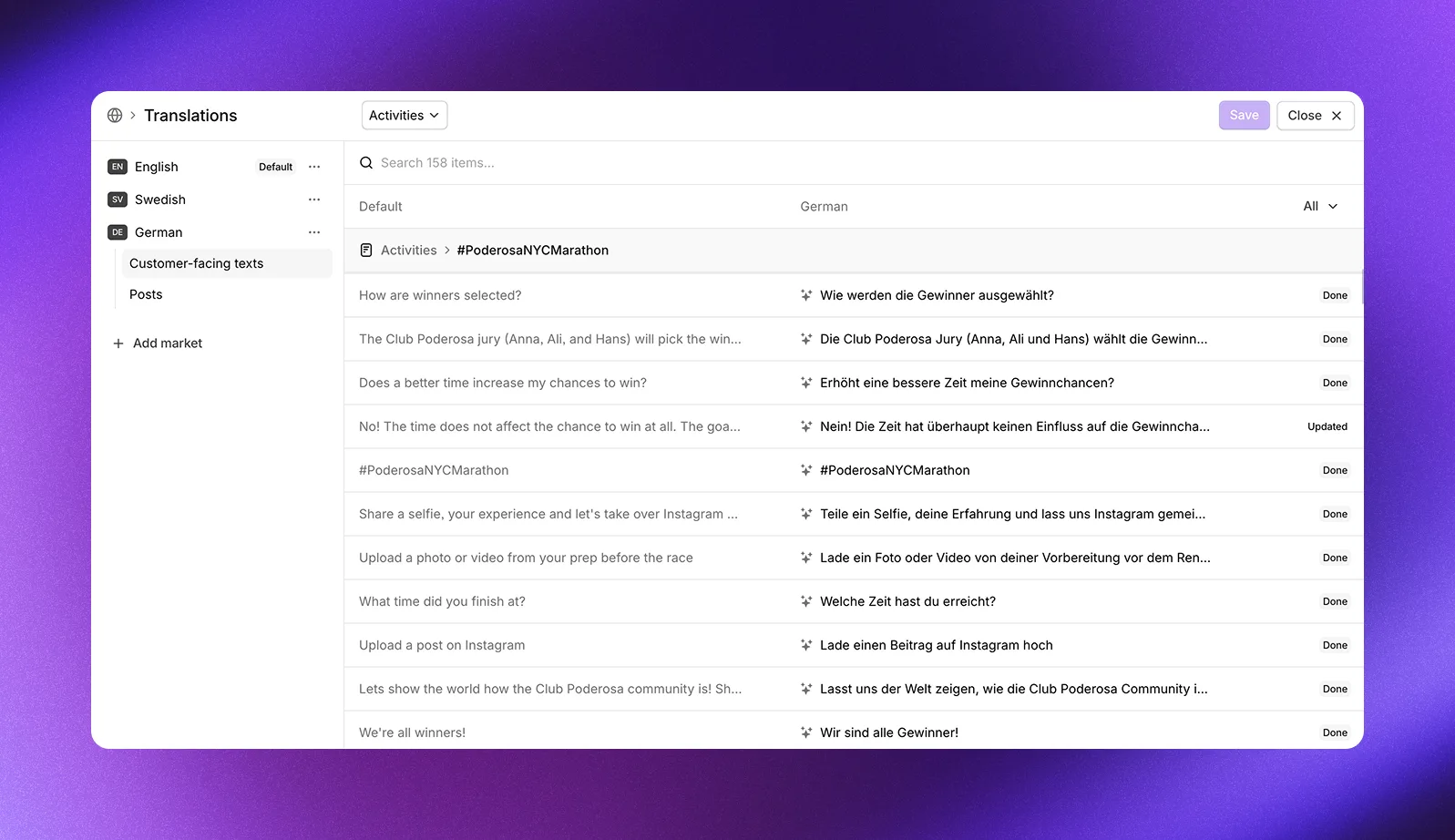
Automatic translations
Cevoid's AI translates this content automatically:
Widget copy: The copy you write for your loyalty program and review widgets is translated when you create or edit it, such as activity descriptions, reward names, and the button labels you enter in a review widget's settings. The same goes for your labels, profile properties, review forms, review questions, and email templates. UGC widget copy is edited in the translation editor instead: see Where to write customer-facing copy. A card's Caption and Hover text show as you write them, in every language.
Post content: Captions and accessibility text (alt text, video captions, video descriptions) are translated automatically for each market. Accessibility text, and captions written in another language, are also translated into your primary language. Your team sees these translations in the translation editor for your primary language, under Posts, and the post itself shows its text as written. Hashtags and @mentions in captions are kept in their original form.
Review content: Published reviews are translated into every market language: their titles, text, public replies, and the accessibility text of their photos and videos. Private replies aren't translated. A review written in a language other than your primary language is also translated into your primary language when it arrives, so your team can moderate it. An imported review gets this translation when it's published. AI review summaries are translated into every market language too.
You can still make manual adjustments to any translation if needed, except a post's text in your primary language, which shows Not editable.
Set a custom tone
Give Cevoid's AI language-specific guidelines to ensure translations match your brand voice for each market.
- Navigate to Settings → Translations
- Click Localize on a language
- Click ... next to the language's name in the sidebar
- Select Language settings
- Enter your guidelines in Custom tone
- Click Save
Primary language
Your workspace's primary language is the source for all translations, the language you write customer-facing copy in for Cevoid to translate into your other market languages: to change it, see Change the primary language.
Where to write customer-facing copy
Copy is written in different places depending on what you're editing:
Program content: Activities, rewards, tiers, and other program content is written where you create it. Navigate to the activity, reward, or tier and edit the copy there.
Navigation and general copy: Button labels, headings, and other general copy come pre-written, and can be adjusted. Edit them in Settings → Translations, in each language you want to change.
UGC copy: UGC widget copy is shared across multiple interfaces, so it's edited in the same place as navigation and general copy. Filter by On-site widgets (Galleries and cards) to find gallery, card, and popup text.
Review copy: Review widgets, review forms, and review questions are written where you create them, in Reviews → On-site widgets and Settings → Reviews. Built-in review widget copy, such as button labels, is edited in the same place as navigation and general copy.
Email copy: The emails your flows send, such as review requests, UGC upload requests, and loyalty program emails, are written in their email templates, in Settings → Emails (new) → Email templates. See Email templates.
Texts that need to be edited elsewhere are marked with an Edit in source button in the translation editor.
Navigate the translations page
The Translations page lists your languages under Languages, with your primary language first, marked Default. Each of your markets adds its language. To add a language, click Add market, which opens Products and markets, and create a market in that language.
Click Localize on any language to open the translation editor.
The sidebar shows, for each language:
- Customer-facing texts: Widget copy and other customer-facing content
- Emails: Translations of your email templates, such as review requests and reminders
- Posts: Caption and accessibility translations for your posts
- Reviews: Translations of your published reviews
Use the filters to find specific translations:
- Search bar to find specific text
- Dropdown filter by area, grouped under Program, UGC, Reviews, and Workspace. The UGC areas are On-site widgets (Galleries and cards), Request forms, and Upload forms.
- Status filter: All, Need action, or Done. Need action shows the texts marked New, with no translation yet, and Updated, whose text in your primary language changed after it was translated.
Translate all translates the texts that have no translation yet. To Clear a translation, or to Mark as done a text that needs none, hover over the text and click ....
Adjust a translation manually
While translations happen automatically, you can adjust any translation manually.
- Navigate to Settings → Translations
- Click Localize on the language you want to edit
- Enter part of the text in the search bar. The matching texts are listed.
- Enter your translation in the text's row
- Click Save
In your primary language, the text you enter replaces the pre-written one. In Emails, Posts, and Reviews, your changes save as you type.
Dynamic values like {pointsAmount} and {pointsName} must be kept in your translations. These ensure correct data is displayed in your widgets.
Delete a language
You can delete a language that's neither your primary language nor the language of one of your markets, such as the language of a market you deleted. Deleting a language removes its translations and can't be undone.
- Navigate to Settings → Translations
- Click Localize on any language
- Click ... next to the language's name in the sidebar
- Select Delete
- Click Yes in Delete translation
Translation exceptions
Some branded content works better when kept consistent across all languages. Use translation exceptions to control whether tier names and points names are translated or kept in your primary language.
| Setting | Options |
|---|---|
| Name of tiers | Should be translated (default) / Should not be translated |
| Name of points | Should be translated (default) / Should not be translated |
To change a translation exception:
- Navigate to Settings → Translations
- Select an option in Name of tiers or Name of points, under Translation exceptions
- Click Save changes
For example, if your points are called "Stars" as part of your brand identity, you may want to keep that name across all markets rather than translating it to "Sterne" in German or "Stjärnor" in Swedish.
Learn more about customizing your points name in Points.