Loyalty theme
Control the fonts, colors, and layout of your loyalty program widgets and challenges from one place.
The Loyalty theme controls fonts, colors, and layout for your loyalty program widgets and challenges. Instead of styling each widget individually, you set your brand's visual identity once and it applies to all of them.
Navigate to Settings → Loyalty → Theme to manage your Loyalty theme.
The Loyalty theme styles only loyalty program widgets and challenges. Review widgets, review forms, and emails are styled in your BrandKit instead.
Import a theme
Set up your Loyalty theme by importing it from your existing website. Cevoid's AI analyzes your site and applies matching fonts, colors, and styling automatically.
Click Import and select one of two options: Import from Shopify or Import from website. Import from Shopify shows only on workspaces whose ecommerce platform is Shopify. Fonts the import finds that aren't available yet are added to your custom fonts.
Importing a theme overwrites your current theme settings. You're asked to confirm before the import starts.
Import from Shopify
Import from Shopify, marked Recommended, is the recommended option for Shopify stores. Cevoid reads your Shopify theme files directly to extract fonts and color settings.
- Navigate to Settings → Loyalty → Theme
- Click Import
- Select Import from Shopify
- Click Import to confirm
Import from website
Use Import from website for stores not on Shopify, or to import from a specific URL. Cevoid's AI scans your website's code and takes a screenshot to extract design settings.
- Navigate to Settings → Loyalty → Theme
- Click Import
- Select Import from website
- Enter the URL you want to import from in Website URL. The field starts with your storefront domain.
- Click Import
- Click Import to confirm
Customize your theme
Navigate to Settings → Loyalty → Theme and click Customize to open the theme editor. The theme editor has two tabs: Components and Color schemes. Click Save changes to save your edits.
The theme editor previews your changes as you make them, on sample headings, text, buttons, badges, tabs, cards, and a popup in each color scheme. To check your theme on a widget on desktop, tablet, and mobile, edit it in the Theme area of the program widget editor: see On-site widgets.
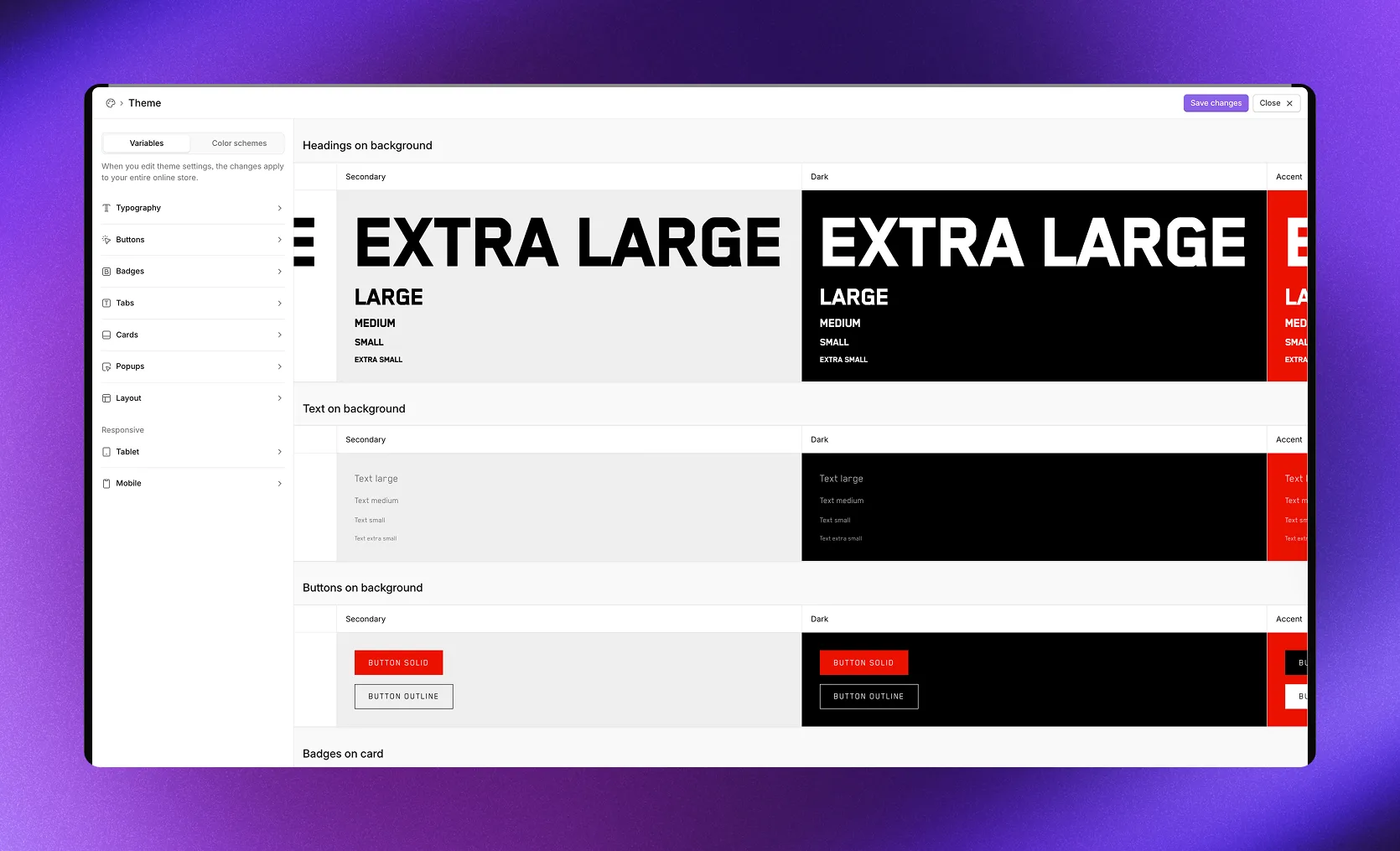
The theme editor with Components and Color schemes tabs.
Components
The Components tab controls typography, buttons, badges, tabs, cards, popups, layout, and responsive behavior across all widgets. Its settings come in this order: Typography, Buttons, Badges, Tabs, Cards, Popups, Layout, and under Responsive, Tablet and Mobile.
Typography
Set fonts and text styling for your widgets.
Headings
| Setting | Description |
|---|---|
| Font | Select from custom fonts, web fonts, or upload a new one |
| Weight | Font weight, such as Regular or Bold |
| Letter spacing | Space between letters |
| Line height | Space between lines |
| Text transform | Default or Uppercase |
| Extra large | Size in pixels for extra large headings |
| Large | Size in pixels for large headings |
| Medium | Size in pixels for medium headings |
| Small | Size in pixels for small headings |
| Extra small | Size in pixels for extra small headings |
Text
| Setting | Description |
|---|---|
| Font | Select from custom fonts, web fonts, or upload a new one |
| Weight | Font weight |
| Letter spacing | Space between letters |
| Line height | Space between lines |
| Large | Size in pixels for large text |
| Medium | Size in pixels for medium text |
| Small | Size in pixels for small text |
| Extra small | Size in pixels for extra small text |
Buttons, badges, tabs, and cards
Set the size and shape of buttons, badges, tabs, and cards. Their colors come from your color schemes.
| Component | Settings |
|---|---|
| Buttons | Padding, Border radius, Border width, Font size, Letter spacing, Text transform |
| Badges | Padding, Border radius, Font size |
| Tabs | Padding, Border radius, Font size |
| Cards | Padding, Border radius |
Popups
Control the appearance of popup dialogs.
| Setting | Description |
|---|---|
| Color scheme | Which color scheme to use for popups |
| Backdrop | Background overlay color and opacity |
| Border radius | Corner roundness in pixels |
Layout
Set spacing and width for your widgets.
| Setting | Description |
|---|---|
| Content width | Fixed (with max width) or Fluid (full width) |
| Max width | Maximum width in pixels when using Fixed |
| Padding | Vertical and horizontal spacing around content |
| Title spacing | Space below section titles |
| Grid gap | Space between grid items |
Tablet
| Setting | Description |
|---|---|
| Breakpoint | Screen width where tablet styles apply |
Mobile
Adjust layout and sizing for mobile screens.
| Setting | Description |
|---|---|
| Breakpoint | Screen width where mobile styles apply |
Layout
| Setting | Description |
|---|---|
| Padding | Vertical and horizontal spacing on mobile |
| Title spacing | Space below section titles on mobile |
| Grid gap | Space between grid items on mobile |
Headings
Override heading sizes for mobile screens.
| Setting | Description |
|---|---|
| Extra large | Size in pixels |
| Large | Size in pixels |
| Medium | Size in pixels |
| Small | Size in pixels |
| Extra small | Size in pixels |
Text
Override text sizes for mobile screens.
| Setting | Description |
|---|---|
| Large | Size in pixels |
| Medium | Size in pixels |
| Small | Size in pixels |
| Extra small | Size in pixels |
Cards
| Setting | Description |
|---|---|
| Padding | Card padding on mobile |
Color schemes
Color schemes are color palettes you apply to individual widget sections. Use them to give sections different looks while keeping your brand consistent.
The theme editor shows four default schemes: Primary, Secondary, Dark, and Accent. Click a scheme in the sidebar to edit its colors.
The preview shows each scheme on sample headings, text, buttons, badges, tabs, cards, and a popup.
Edit a color scheme
Each color scheme contains settings for sections, buttons, badges, tabs, and cards.
Section
| Setting | Description |
|---|---|
| Background | Section background color |
| Accent | Accent color for highlights |
| Accent contrast | Text color on accent backgrounds |
| Border | Border color |
| Heading text | Heading text color |
| Body text | Body text color |
Solid button
| Setting | Description |
|---|---|
| Button solid background | Background color |
| Button solid text | Text color |
| Button solid border | Border color |
Outline button
| Setting | Description |
|---|---|
| Button outline background | Background color (with opacity) |
| Button outline text | Text color |
| Button outline border | Border color |
Badges
| Setting | Description |
|---|---|
| Badge background | Background color |
| Badge text | Text color |
| Badge border | Border color |
Tabs
| Setting | Description |
|---|---|
| Tab inactive background | Background for inactive tabs |
| Tab inactive text | Text color for inactive tabs |
| Tab inactive border | Border for inactive tabs |
| Tab active background | Background for active tabs |
| Tab active text | Text color for active tabs |
| Tab active border | Border for active tabs |
Cards
| Setting | Description |
|---|---|
| Card background | Card background color |
| Card accent | Accent color within cards |
| Card accent contrast | Text on card accent backgrounds |
| Card border | Card border color |
| Card heading text | Card heading color |
| Card body text | Card body text color |
| Card shadow | Card shadow, set by X, Y, Blur, Spread, and Color |
Create or delete a color scheme
- Navigate to Settings → Loyalty → Theme and click Customize
- Click the Color schemes tab
- Click Create new
- Enter a name, up to 40 characters
- Click Create scheme. The new scheme opens.
- Edit its colors
- Click Save changes
To delete a color scheme, open the menu next to it, select Delete, and click Delete scheme. The same menu has Rename, which applies the new name everywhere the scheme is used, and Duplicate. Save your changes before you rename or delete a scheme. You can't delete your last color scheme, or one that popups, a widget section, or an activity still uses: the app lists where it's used, so you can assign another scheme first.
Use color schemes
When you edit a widget section or a challenge, click Change under Color scheme and select a scheme. Edit scheme opens the scheme's colors. Use different color schemes to create visual contrast between sections on the same page.
Custom fonts
If your brand uses a font that isn't available in the theme editor, upload it as a custom font. Custom fonts are shared with your BrandKit: a font uploaded on either page shows in both.
- Navigate to Settings → Loyalty → Theme and scroll to the Custom fonts section
- Click Upload font
- Select your font file
You can upload up to 5 font files at a time. Supported formats are .otf, .ttf, .woff, and .woff2. To rename an uploaded font, select Edit name in the menu next to it. To remove one, select Delete and click Remove font.
After you upload a custom font, it appears under Custom fonts in the Font picker when you edit the Typography settings. The picker can add fonts too: click Upload, then Upload font for a file, or Link to external font to enter a Font URL and click Add font.
Popular fonts, including Google Fonts, are already available in the theme editor. Only upload custom fonts if you need one that isn't listed.