> ## Documentation Index
> Fetch the complete documentation index at: https://docs.cevoid.com/llms.txt
> Use this file to discover all available pages before exploring further.
# UGC popup
> Customize the popup that appears when visitors click on posts in galleries and cards.
Related articles:
[Galleries](/ugc/showcase/galleries), [Cards](/ugc/showcase/cards), [Posts](/ugc/manage/posts), [Translations](/general/translations), [Profile properties](/general/profiles/profile-properties)
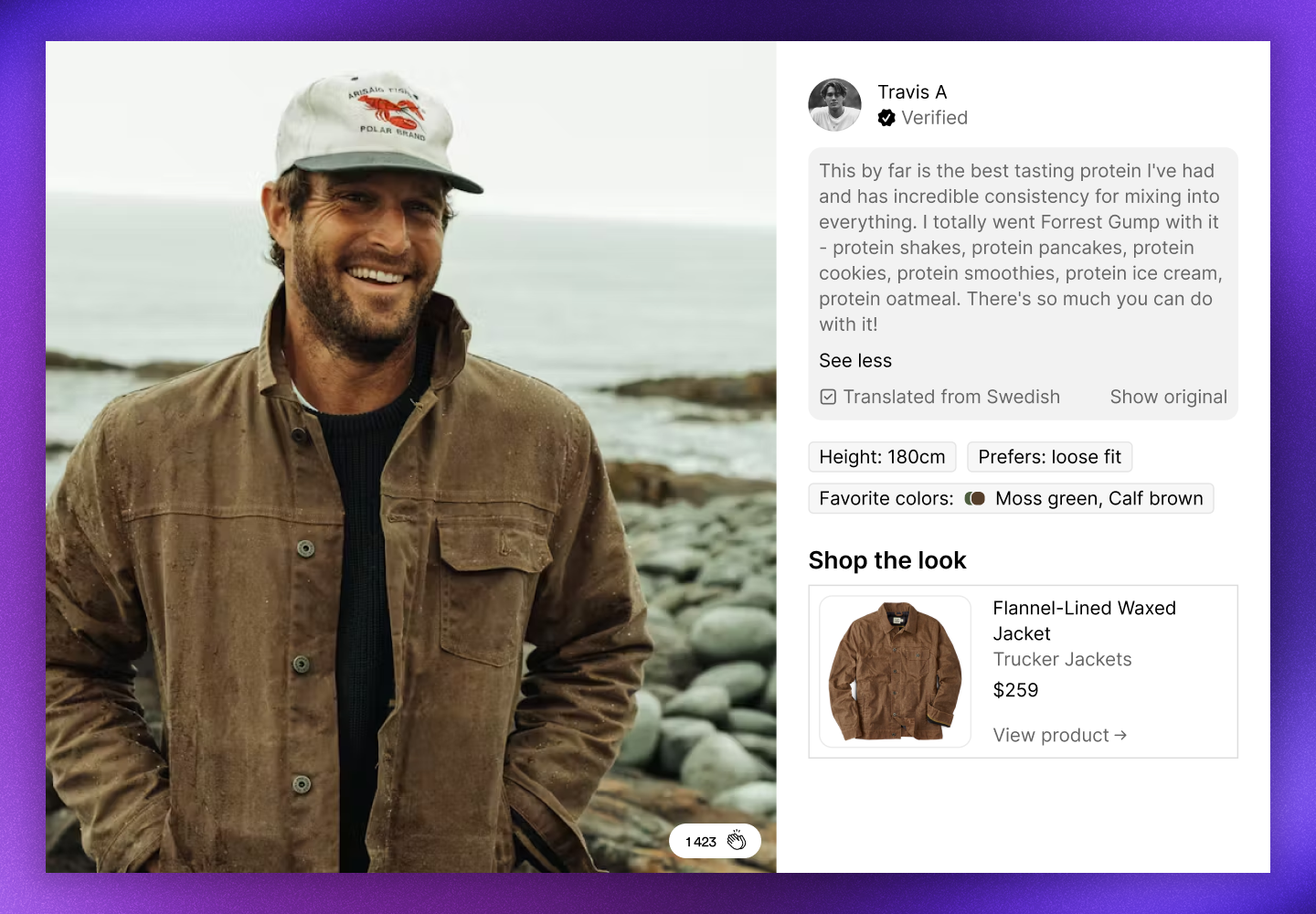
When a visitor clicks on a post in a gallery or card, a popup opens showing the post in full size along with additional information. The popup displays the image or video, creator details, caption, product tags, and any profile properties you've enabled.
 ***
## Popup features
The popup includes several elements that help visitors engage with your content:
* **Full-size media**: The image or video displays at full resolution
* **Creator information**: Shows the creator's name and verification badge
* **Caption**: The post caption with "See more" / "See less" toggle for longer text
* **Translated captions**: Automatically translated with "Show original" option
* **Profile properties**: Custom properties like height, preferences, or favorite colors
* **Shop the look**: Product tags with image, name, price, and link to product page
* **Claps**: Visitors can show appreciation with the clap button
* **Hotspots**: Product tag markers on the image itself
***
## Customize popup appearance
Popup settings are configured per gallery or card. Each widget can have its own popup styling.
1. Navigate to [UGC -> On-site widgets](https://app.cevoid.com/on-site-widgets)
2. Select your gallery or card
3. Click *Design* -> *Popup*
4. Adjust the settings
5. Click **Save changes**
| Setting | Options |
| --------------- | ------------------------------------------------------------- |
| *Display claps* | Show or Hide |
| *Hotspots* | Show or Hide |
| *Product hover* | Swap image (shows alternate product image on hover) or Static |
| *Video sound* | Muted or On |
| *Background* | Color picker for popup background |
| *Opacity* | Background opacity value |
***
## Translated captions
Captions are automatically translated based on the market the gallery is loaded on. Visitors see the caption in their local language, with a note showing "Translated from \[language]" and the option to click **Show original** to view the original caption text.
***
## Profile properties
Display custom profile properties in the popup to show additional information about the content creator. This could include details like height, preferences, favorite colors, or any other [profile properties](/general/profiles/profile-properties) you've collected.
This is a global setting that applies to all galleries and cards.
1. Navigate to [UGC -> On-site widgets](https://app.cevoid.com/on-site-widgets)
2. Select any gallery or card
3. Click *Design* -> *Profile properties*
4. Set *Profile props* to ***Enable***
5. Click **Add property** to select which properties to display
6. Click **Save changes**
| Setting | Options |
| -------------------- | --------------------------------------- |
| *Profile props* | Enable or Disable |
| *Visible properties* | Select which profile properties to show |
This is a global setting that displays the selected profile properties in all gallery popups.
All measurement-related properties are displayed in the correct measurement system (metric or imperial) based on your markets.
***
## Popup features
The popup includes several elements that help visitors engage with your content:
* **Full-size media**: The image or video displays at full resolution
* **Creator information**: Shows the creator's name and verification badge
* **Caption**: The post caption with "See more" / "See less" toggle for longer text
* **Translated captions**: Automatically translated with "Show original" option
* **Profile properties**: Custom properties like height, preferences, or favorite colors
* **Shop the look**: Product tags with image, name, price, and link to product page
* **Claps**: Visitors can show appreciation with the clap button
* **Hotspots**: Product tag markers on the image itself
***
## Customize popup appearance
Popup settings are configured per gallery or card. Each widget can have its own popup styling.
1. Navigate to [UGC -> On-site widgets](https://app.cevoid.com/on-site-widgets)
2. Select your gallery or card
3. Click *Design* -> *Popup*
4. Adjust the settings
5. Click **Save changes**
| Setting | Options |
| --------------- | ------------------------------------------------------------- |
| *Display claps* | Show or Hide |
| *Hotspots* | Show or Hide |
| *Product hover* | Swap image (shows alternate product image on hover) or Static |
| *Video sound* | Muted or On |
| *Background* | Color picker for popup background |
| *Opacity* | Background opacity value |
***
## Translated captions
Captions are automatically translated based on the market the gallery is loaded on. Visitors see the caption in their local language, with a note showing "Translated from \[language]" and the option to click **Show original** to view the original caption text.
***
## Profile properties
Display custom profile properties in the popup to show additional information about the content creator. This could include details like height, preferences, favorite colors, or any other [profile properties](/general/profiles/profile-properties) you've collected.
This is a global setting that applies to all galleries and cards.
1. Navigate to [UGC -> On-site widgets](https://app.cevoid.com/on-site-widgets)
2. Select any gallery or card
3. Click *Design* -> *Profile properties*
4. Set *Profile props* to ***Enable***
5. Click **Add property** to select which properties to display
6. Click **Save changes**
| Setting | Options |
| -------------------- | --------------------------------------- |
| *Profile props* | Enable or Disable |
| *Visible properties* | Select which profile properties to show |
This is a global setting that displays the selected profile properties in all gallery popups.
All measurement-related properties are displayed in the correct measurement system (metric or imperial) based on your markets.