Profile labels
Create profile labels to organize your brand community and build segments.
Profile labels let you categorize your profiles freely. Use them to organize your brand community beyond Cevoid's built-in categorizations.
Navigate to Settings → Labels to manage your labels. The same page holds post labels and review labels.
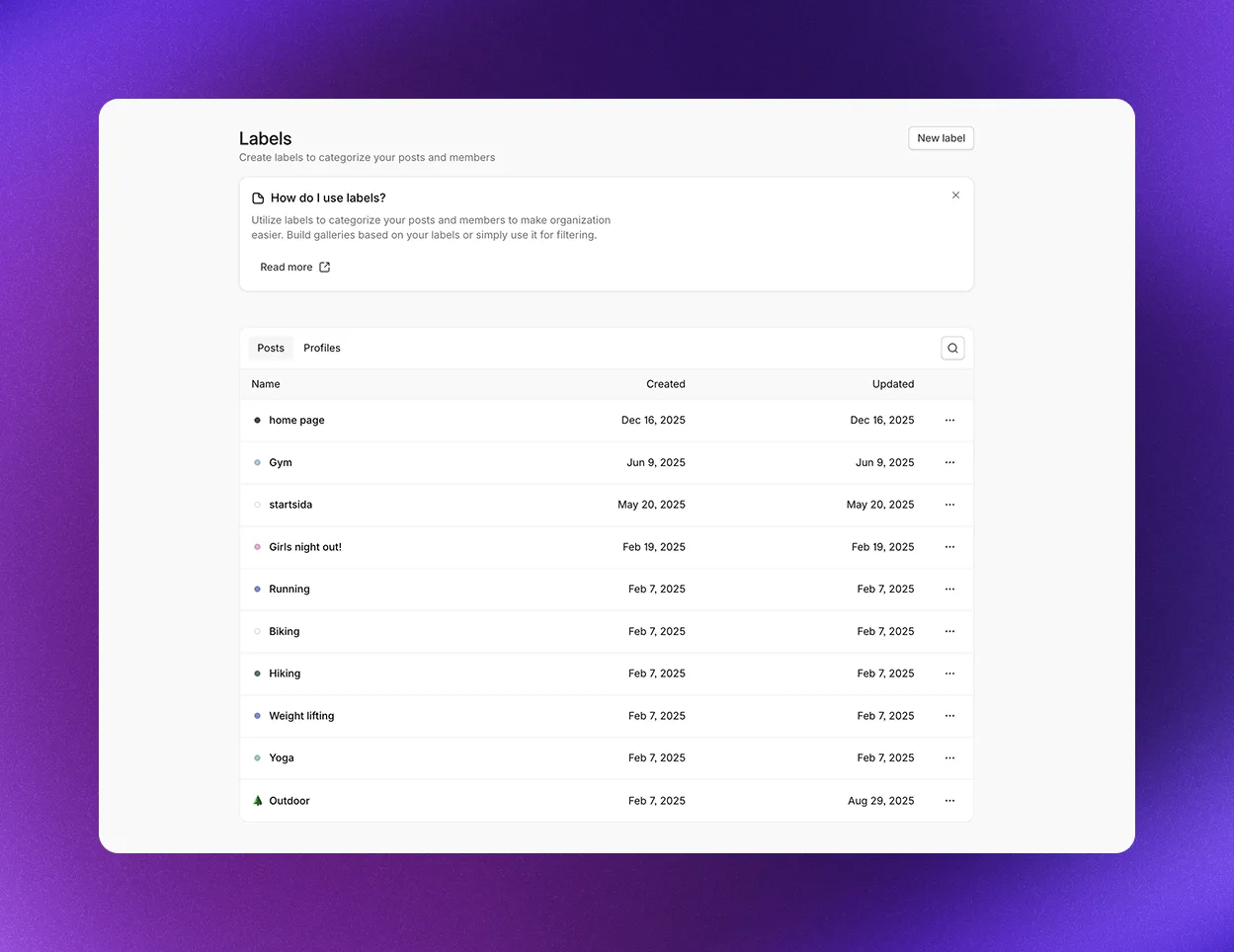
What you can use profile labels for
Create a profile label
From the Labels view:
- Navigate to Settings → Labels
- Click New label
- Select Profile in Type. It's preselected when the Profiles tab is open.
- Enter the name of your new profile label
- Optional: Click the color button next to the name to add a color or emoji to make your label more visually unique
- Click Create
From the Profile view:
- Navigate to Profiles and open a profile
- Click Add label next to Labels under Profile information
- Enter the name of your new profile label
- Click New label: followed by the name. It shows only when no existing label matches the name.
The label is added to the profile. To add an existing label, select it in the same list. To remove a label from a profile, hover over the label and click the x on its icon.
Edit a profile label
- Navigate to Settings → Labels and click the Profiles tab
- Click ... on the label's row
- Select Edit. The Edit Label dialog opens.
- Change the name, color, or emoji
- Click Update
The Profiles column in the labels table shows how many profiles have each label. To copy a label's ID, click ... on its row and select Copy ID.
Delete a profile label
Deleting a profile label removes it from every profile that has it.
- Navigate to Settings → Labels and click the Profiles tab
- Click ... on the label's row
- Select Delete
- Click Delete to confirm