Cevoid’s widgets are built to make your rewards program both functional and aligned with your site’s design. There are widgets for each part of your program, handling all the interactive elements like displaying member status, listing available rewards, and letting members complete activities. Navigate to Rewards program -> On-site widgets to manage your widgets. All program widgets follow your design theme. This ensures a consistent look across all widgets. You can do layout fine-tuning, write copy, and select color schemes on widget level, but fonts, colors, and styling are controlled by your design theme.
The copy you write is automatically translated for each of your languages. Learn more about translations.

Available widgets and sections

Each section of your rewards program is available as a standalone widget you can embed individually. There is also a Full landing page widget that combines all sections into one embed for a complete rewards page. We recommend highlighting your program in at least these two places: A dedicated rewards landing page where visitors can learn about your program, participate in activities, and manage their rewards. Use the Full landing page widget for a complete, ready-to-embed solution, or combine standalone sections for more control over layout and placement. Your customer account page where logged-in members see their membership status. At minimum, include widgets showing their membership details and available rewards. You can expand this with activities, tier progress, or the points shop depending on your preferences. The widget editor shows a live preview of your changes as you make them. Switch between desktop, tablet, and mobile views to check the layout before publishing. Sections that require login, such as My account and My rewards, are collapsed and hidden for visitors who aren’t logged in as a member. Sections that have both a logged out and signed in state, like Hero, Activities, and Tier cards, let you toggle between both views in the preview.

Hero

The Hero section is a full-width banner that introduces your program. It’s typically the first thing visitors see on your rewards landing page, setting the tone for your program and encouraging sign-ups. The section displays your program title and description over a customizable background image, with prominent Join Now and Sign In buttons for visitors. When a member is logged in, the buttons are hidden since they’re already part of the program.
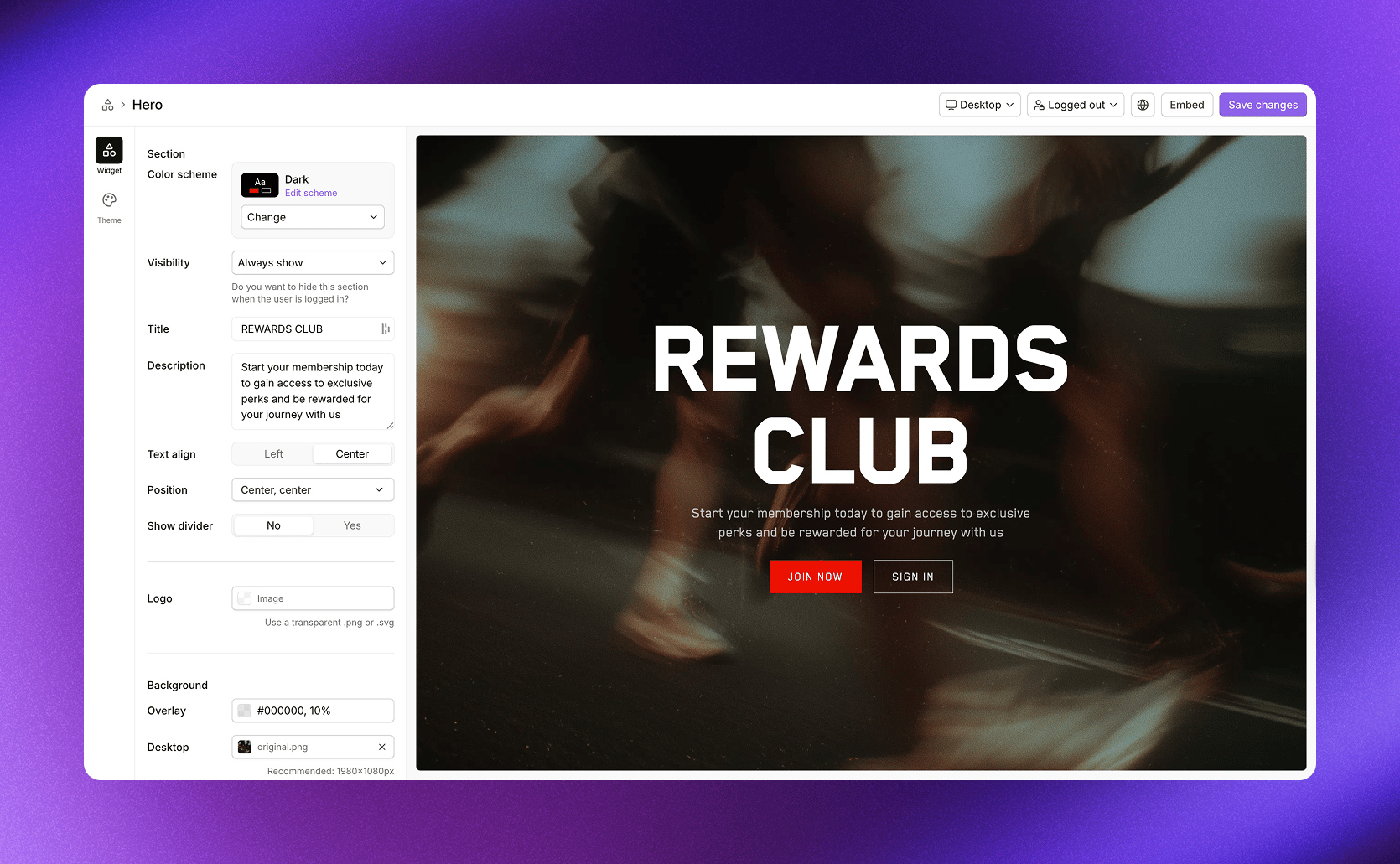
Hero section widget editor showing title, description, and background settings with a live preview

Example from our demo store. Customize the look in your [design theme](/program/program-setup/design-theme).

The Hero section contains static content you define. If you prefer more control over layout, you can build your own hero banner in your CMS or ecommerce platform and embed the other program sections below it.
Available settings for this section
SettingDescription
Color schemeSelect from your theme’s color schemes
VisibilityAlways show, or Hidden if signed in
TitleMain heading displayed on the banner
DescriptionSupporting text below the title
Text alignLeft or Center
PositionWhere to position the content on the background
Show dividerDisplay a divider line below the section
LogoOptional logo image (transparent .png or .svg recommended)
Under Background, customize the banner appearance:
SettingDescription
OverlayColor overlay with opacity (e.g., #000000, 10%)
DesktopBackground image for desktop (1980×1080px recommended)
HeightBanner height as percentage
MobileBackground image or video for mobile (1080×1980px recommended)

About

The About section explains how your program works using a multi-column layout. Each column walks visitors through a step of your program, typically covering how to join, earn points, level up through tiers, and redeem rewards. This section helps set expectations for new visitors and gives them a clear understanding of what they’ll get by joining. The columns are fully customizable, so you can adapt the messaging to match your program’s unique structure.
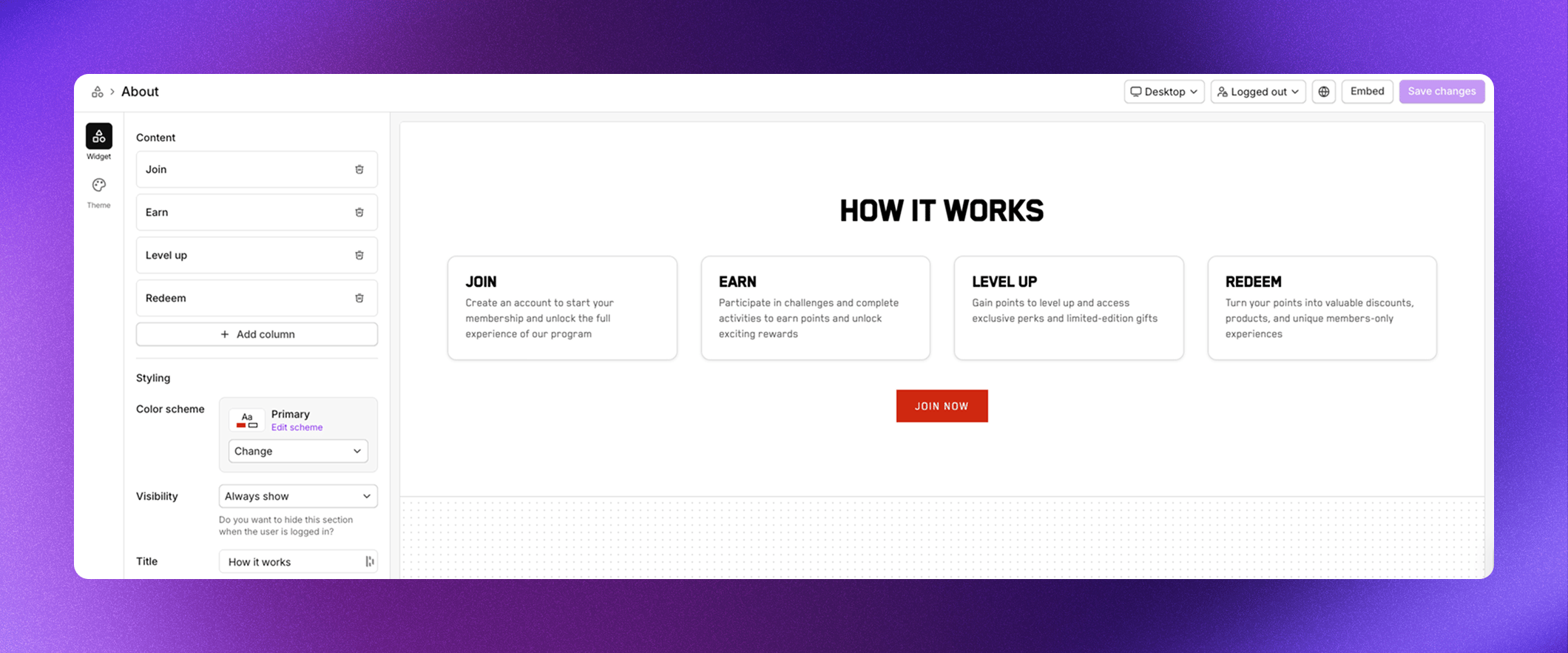
About section widget editor showing multi-column layout with how it works steps

Example from our demo store. Customize the look in your [design theme](/program/program-setup/design-theme).

The About section contains static content you define. If you prefer more control over layout, you can build your own “how it works” section in your CMS or ecommerce platform and embed the other program sections alongside it.
Available settings for this section Under Content, add and manage columns:
  • Click Add column to create a new step
  • Drag columns to reorder them
  • Click a column to edit its icon, title, and description
SettingDescription
Color schemeSelect from your theme’s color schemes
VisibilityAlways show, or Hidden if signed in
TitleSection heading (e.g., “How it works”)
DescriptionOptional supporting text below the heading
Text alignLeft or Center
Show dividerDisplay a divider line below the section
Include join program buttonShow a join button for logged-out visitors
Under Columns, control the layout:
SettingDescription
DesktopNumber of columns on desktop
TabletNumber of columns on tablet
MobileNumber of columns on mobile
Boxed layoutDisplay columns in bordered boxes
Icon layoutFull width or Icon only
Icon sizeSize of column icons in pixels

Account summary

The Account summary section gives logged-in members a complete overview of their membership in three summary cards. It combines membership status, their rewards, and points history into one compact view. The first card shows their tier status, including your program name, their current tier, member name, progress bars for each milestone, and join date. The second card displays their available rewards with a list they can browse, plus a button to see all rewards. The third card shows their points balance and recent points history, with buttons to redeem rewards or view full history. This section is only visible when a member is logged in.
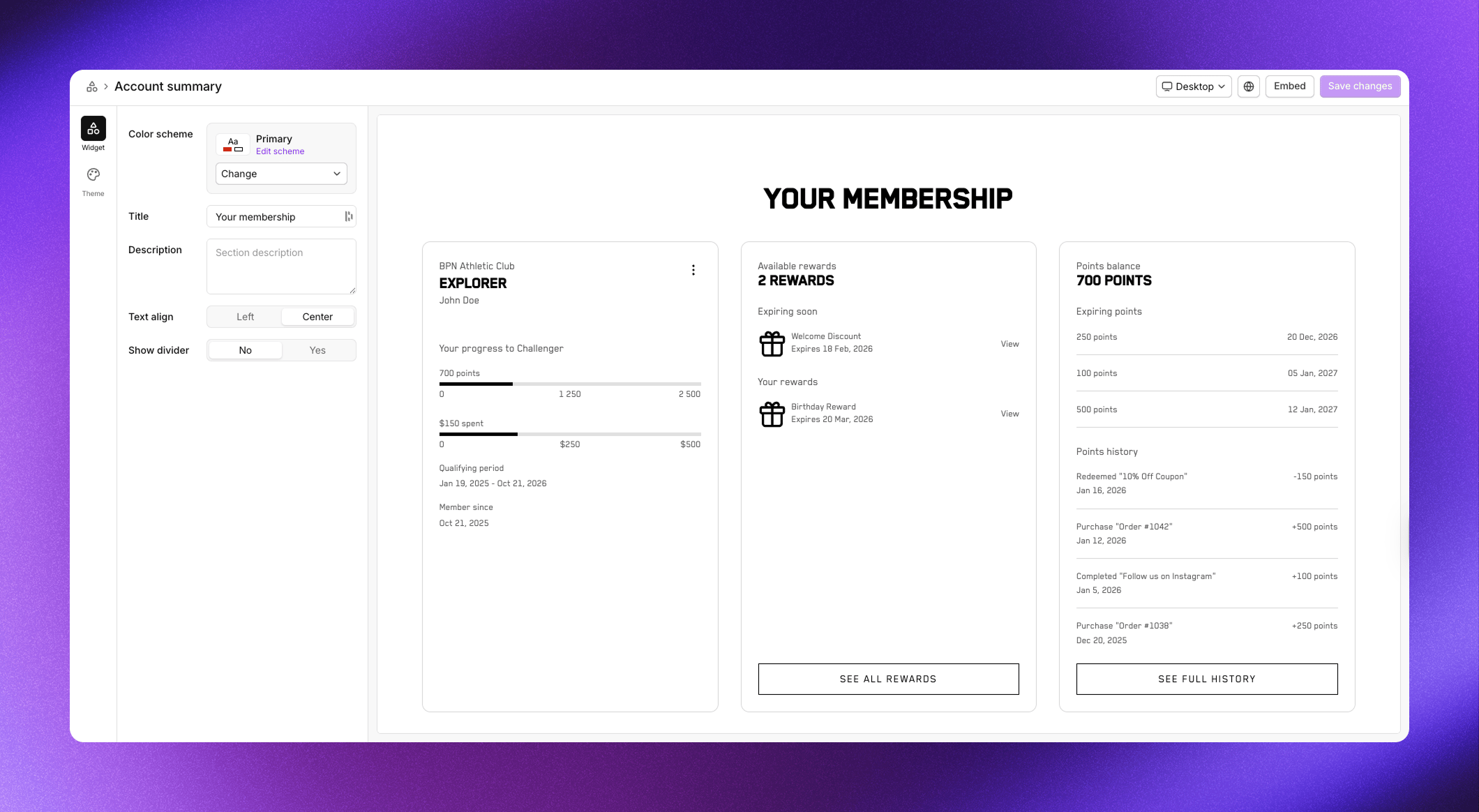
Account summary section showing membership status, rewards, and points history in three cards

Example from our demo store. Customize the look in your [design theme](/program/program-setup/design-theme).

Available settings for this section
SettingDescription
Color schemeSelect from your theme’s color schemes
TitleSection heading (e.g., “Your membership”)
DescriptionOptional supporting text
Text alignLeft or Center
Show dividerDisplay a divider line below the section

My account

The My account section shows the member’s current tier status and progress toward the next tier. It displays the program name, their tier, name, progress bars for each milestone used in your program, and when they joined. Use this section when you want a focused view of membership status without the rewards and points history included in Account summary. It works well on customer account pages where space is limited. This section is only visible when a member is logged in.
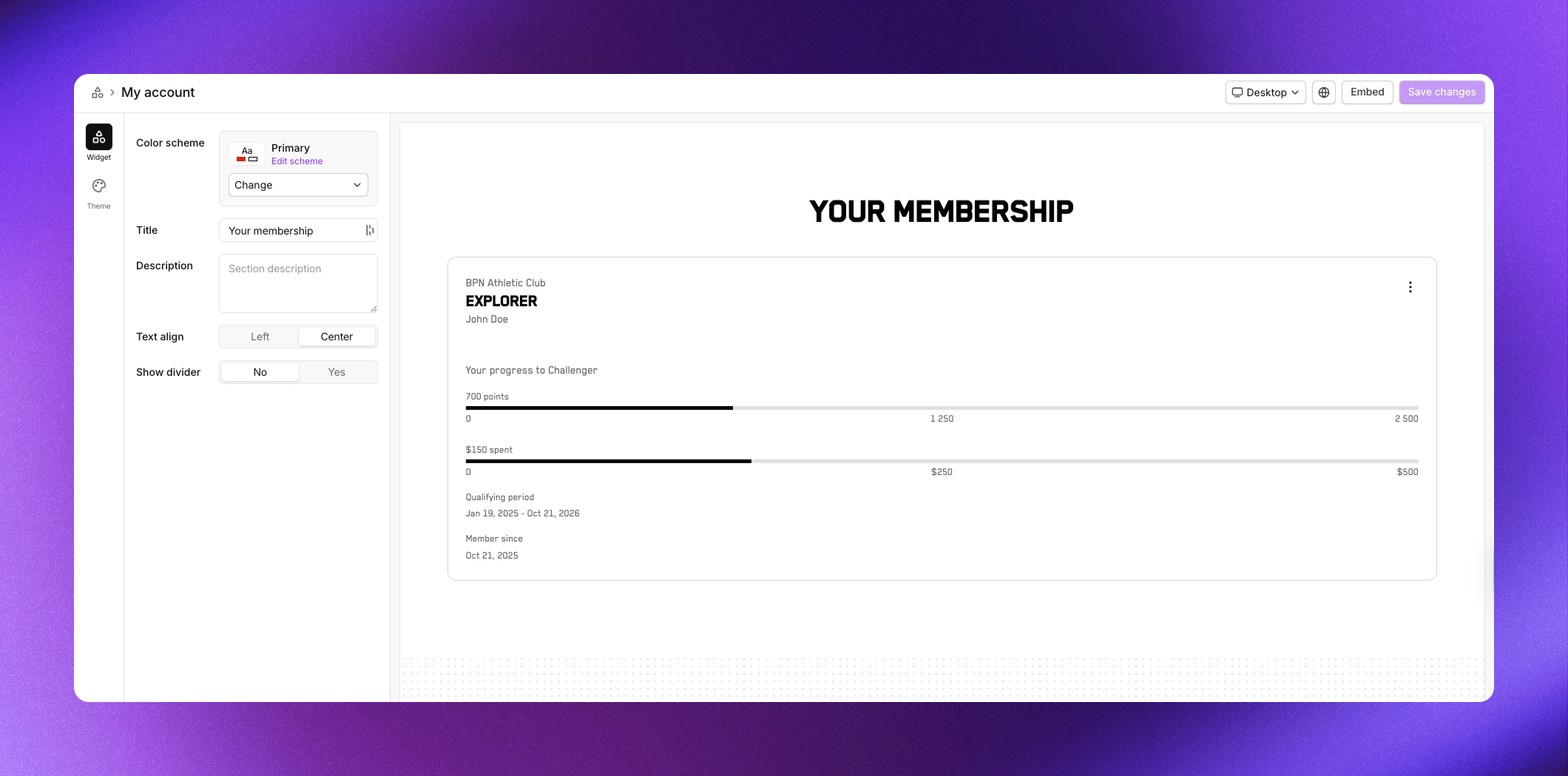
My account section showing tier status and progress bar

Example from our demo store. Customize the look in your [design theme](/program/program-setup/design-theme).

Available settings for this section
SettingDescription
Color schemeSelect from your theme’s color schemes
TitleSection heading (e.g., “Your membership”)
DescriptionOptional supporting text
Text alignLeft or Center
Show dividerDisplay a divider line below the section

Tier progress

The Tier progress section shows the member’s journey through all tiers in a horizontal progress layout. It displays progress bars for each milestone used in your program, highlights the member’s current tier, and shows each tier with its rewards and perks listed below. Unlike Tier cards which shows tiers in a grid, Tier progress emphasizes the progression from one tier to the next. Members can see exactly how far they are from the next level and preview the rewards waiting for them. This section is only visible when a member is logged in.
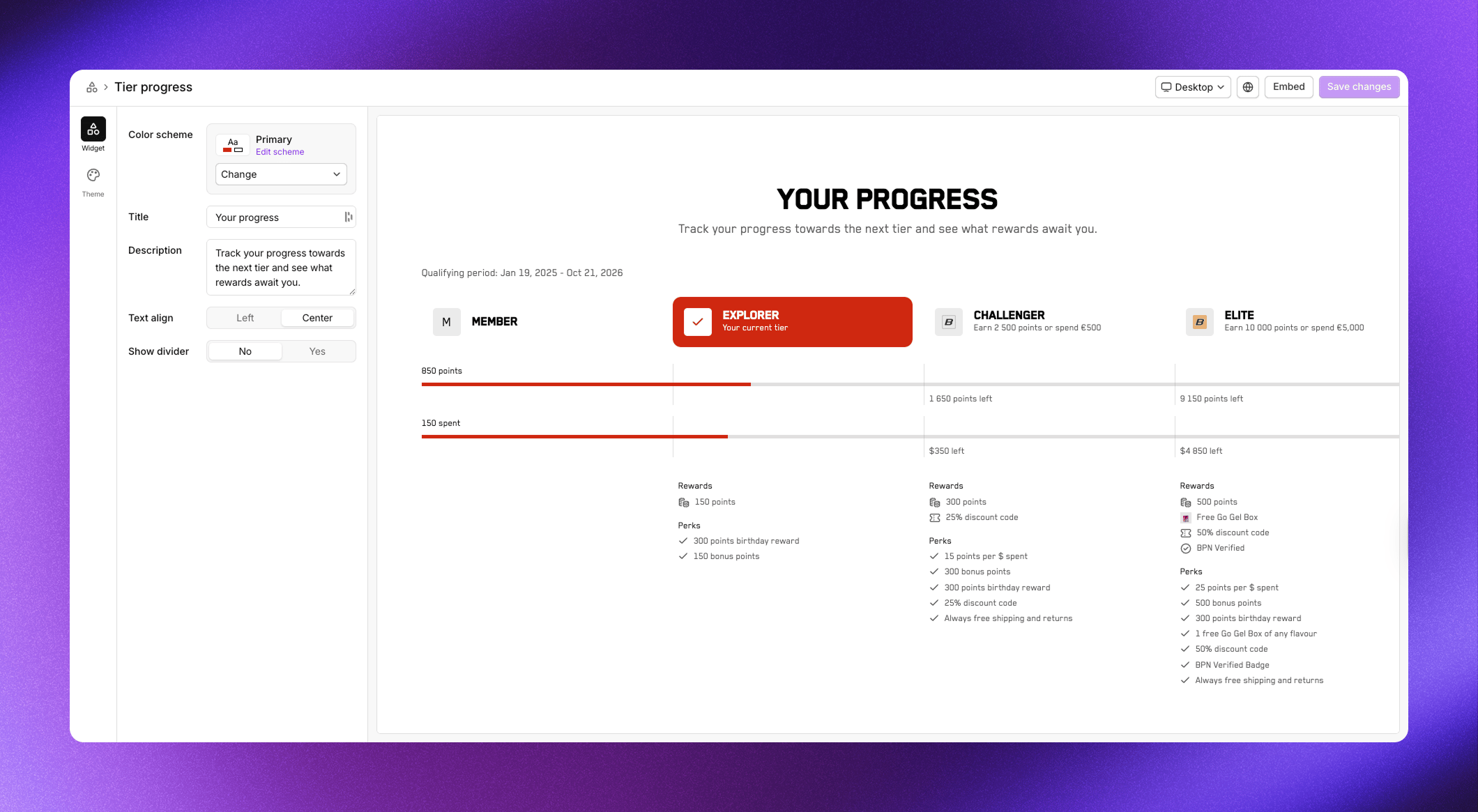
Tier progress section showing horizontal progression through tiers with rewards and perks

Example from our demo store. Customize the look in your [design theme](/program/program-setup/design-theme).

Available settings for this section
SettingDescription
Color schemeSelect from your theme’s color schemes
TitleSection heading (e.g., “Your progress”)
DescriptionText explaining tier progression
Text alignLeft or Center
Show dividerDisplay a divider line below the section

My rewards

The My rewards section displays all rewards the member has received in a grid layout. Each reward card shows the reward name, icon, and when it was received. Members can click on rewards to view details or copy discount codes. Use this section to give members easy access to their earned rewards. It’s particularly useful on customer account pages where members want to quickly find and use their discount codes. This section is only visible when a member is logged in.
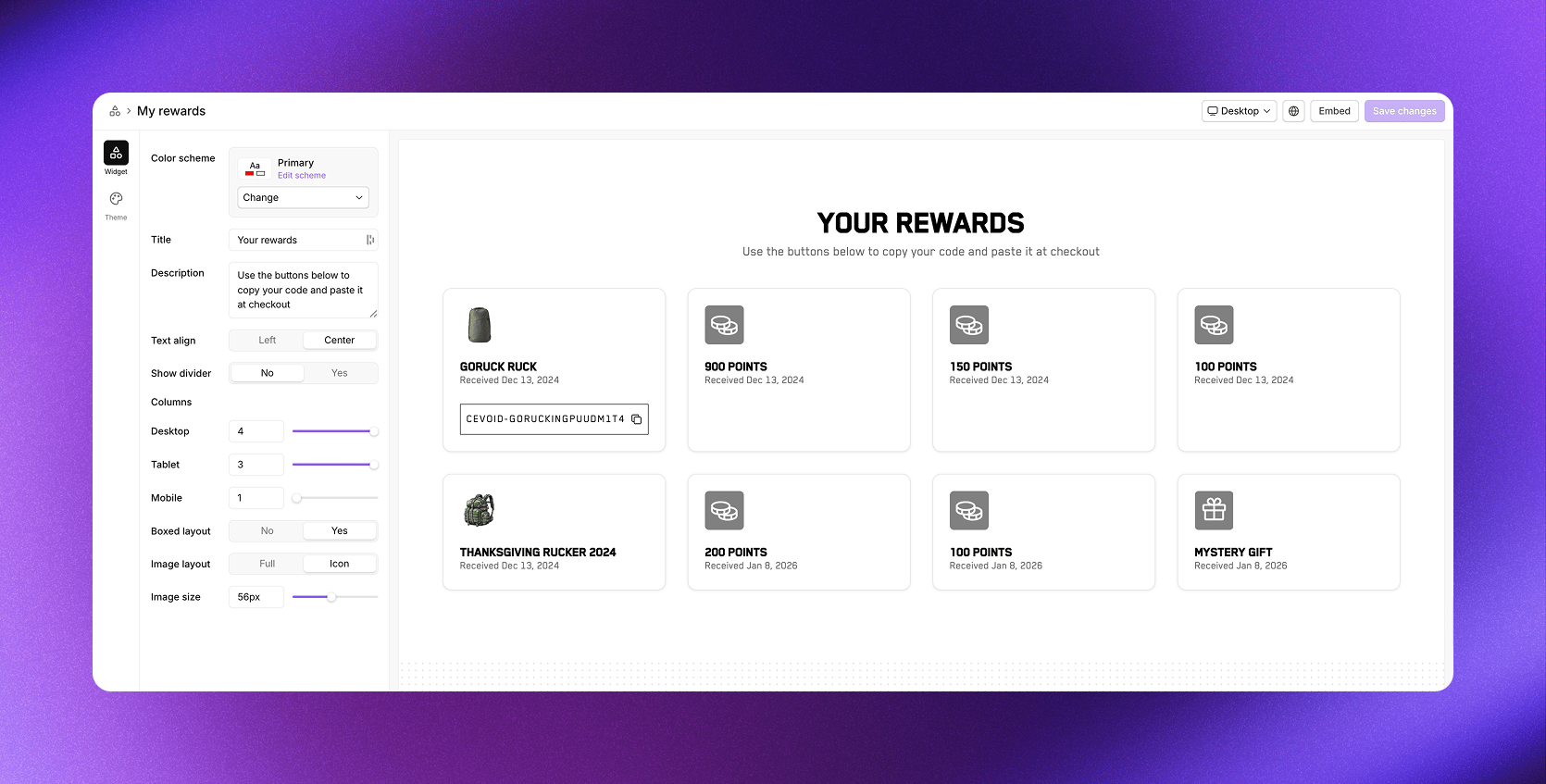
My rewards section showing earned rewards in a grid layout

Example from our demo store. Customize the look in your [design theme](/program/program-setup/design-theme).

Available settings for this section
SettingDescription
Color schemeSelect from your theme’s color schemes
TitleSection heading (e.g., “Your rewards”)
DescriptionOptional supporting text
Text alignLeft or Center
Show dividerDisplay a divider line below the section
Under Columns, control the grid layout:
SettingDescription
DesktopNumber of columns on desktop
TabletNumber of columns on tablet
MobileNumber of columns on mobile
Boxed layoutDisplay rewards in bordered boxes
Image layoutFull width or Icon only
Image sizeSize of reward images in pixels

Purchase incentives

The Purchase incentives section shows visitors how they can earn points on purchases. It displays your points-per-currency-spent rate prominently, encouraging visitors to sign in and start earning.
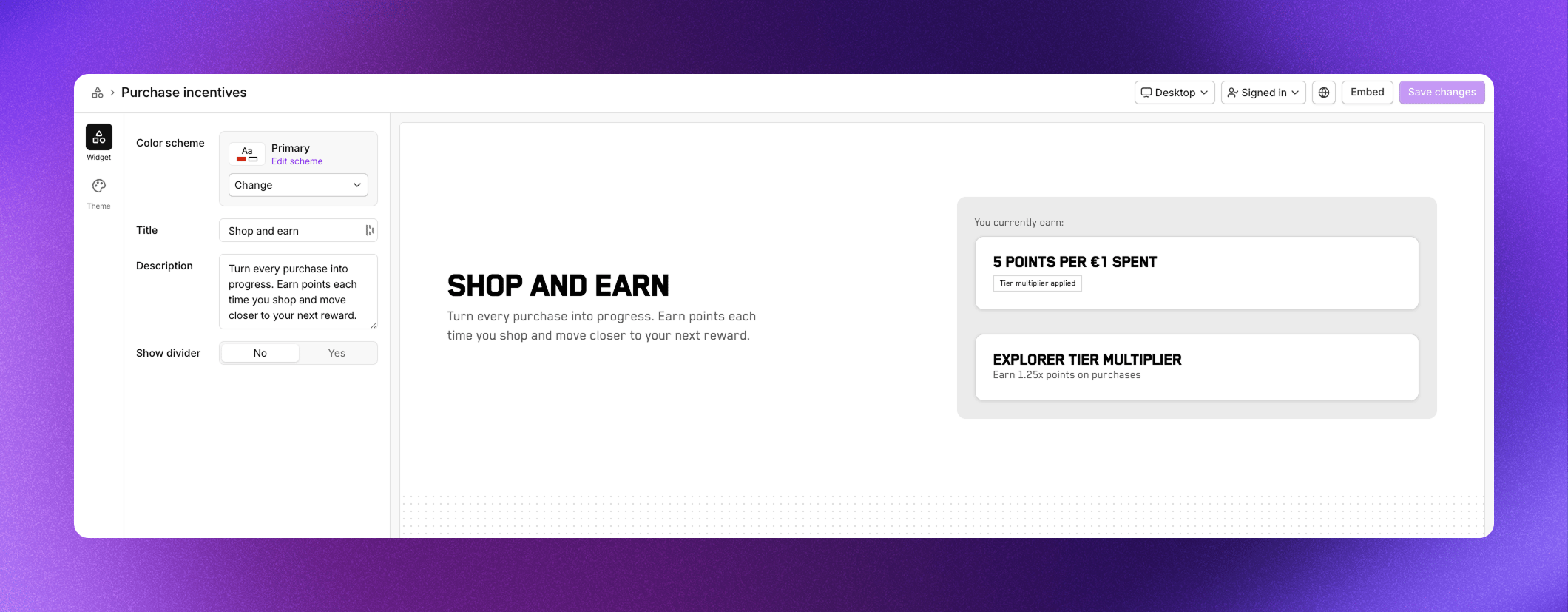
Purchase incentives section showing points earning rate

Example from our demo store. Customize the look in your [design theme](/program/program-setup/design-theme).

This section pulls information from your purchase incentives settings. Make sure those are configured before adding this widget.
Available settings for this section
SettingDescription
Color schemeSelect from your theme’s color schemes
TitleSection heading (e.g., “Shop and earn”)
DescriptionText explaining the earning rate
Show dividerDisplay a divider line below the section

Activities

The Activities section displays your single-task activities and challenges in a grid. Members can browse available activities, see the points or rewards they’ll earn, and click to participate. Each activity card shows the activity icon, title, and reward. Challenges display additional information like end dates and descriptions. When members complete activities, those move based on your sorting settings so active opportunities stay prominent.
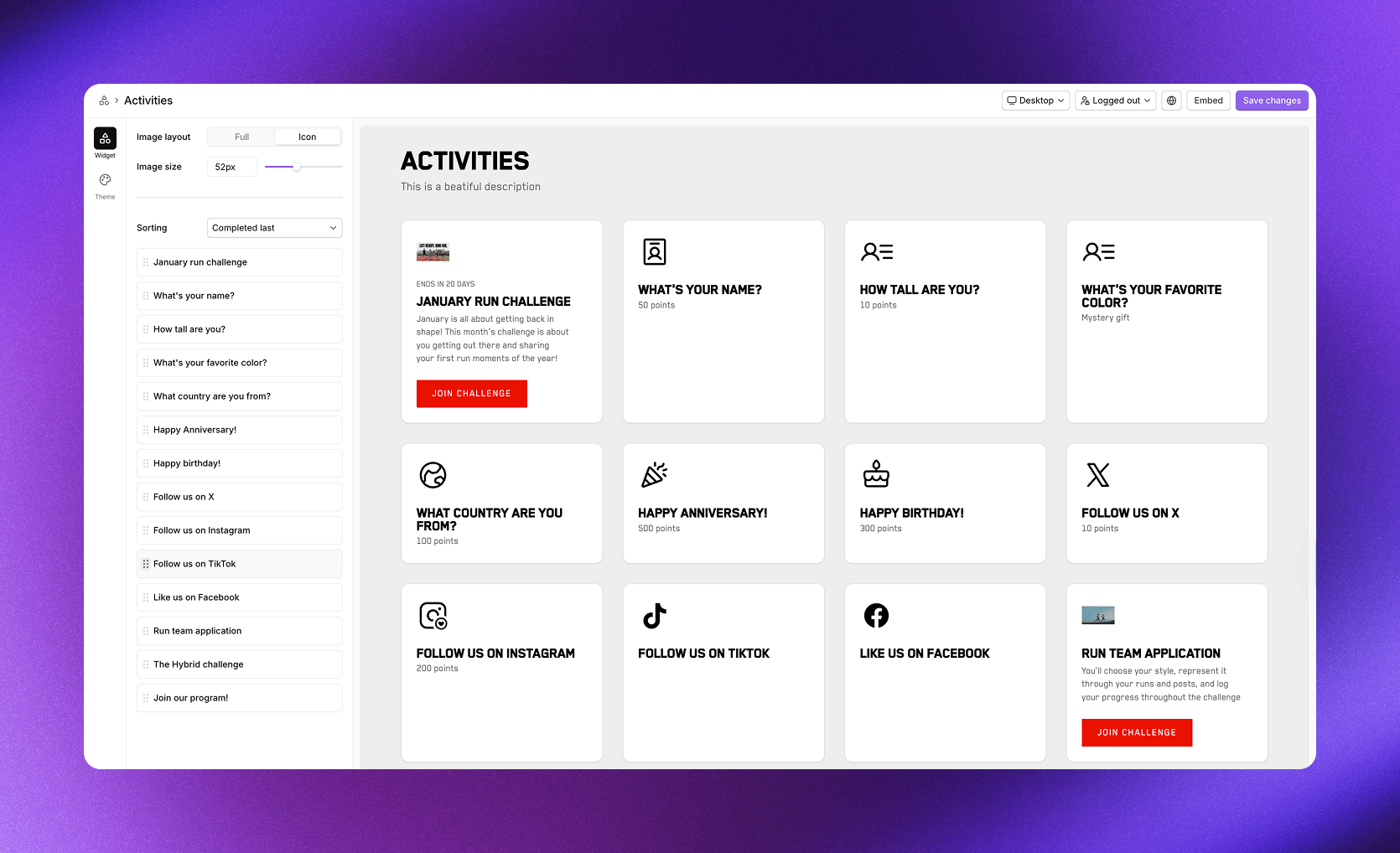
Activities section showing available activities and challenges in a grid

Example from our demo store. Customize the look in your [design theme](/program/program-setup/design-theme).

Available settings for this section
SettingDescription
Color schemeSelect from your theme’s color schemes
TitleSection heading (e.g., “Activities”)
DescriptionOptional supporting text
Text alignLeft or Center
Show dividerDisplay a divider line below the section
Under Columns, control the grid layout:
SettingDescription
DesktopNumber of columns on desktop
TabletNumber of columns on tablet
MobileNumber of columns on mobile
Boxed layoutDisplay activities in bordered boxes
Image layoutFull width or Icon only
Image sizeSize of activity icons in pixels
Under Sorting, control the display order:
SettingDescription
SortingCompleted last (default) or Completed first
Drag activities in the list to set a custom display order.

Redeemable rewards

The Redeemable rewards section shows your points shop, where members can browse and redeem rewards using their points. Each reward card displays the reward name, icon, and points cost.
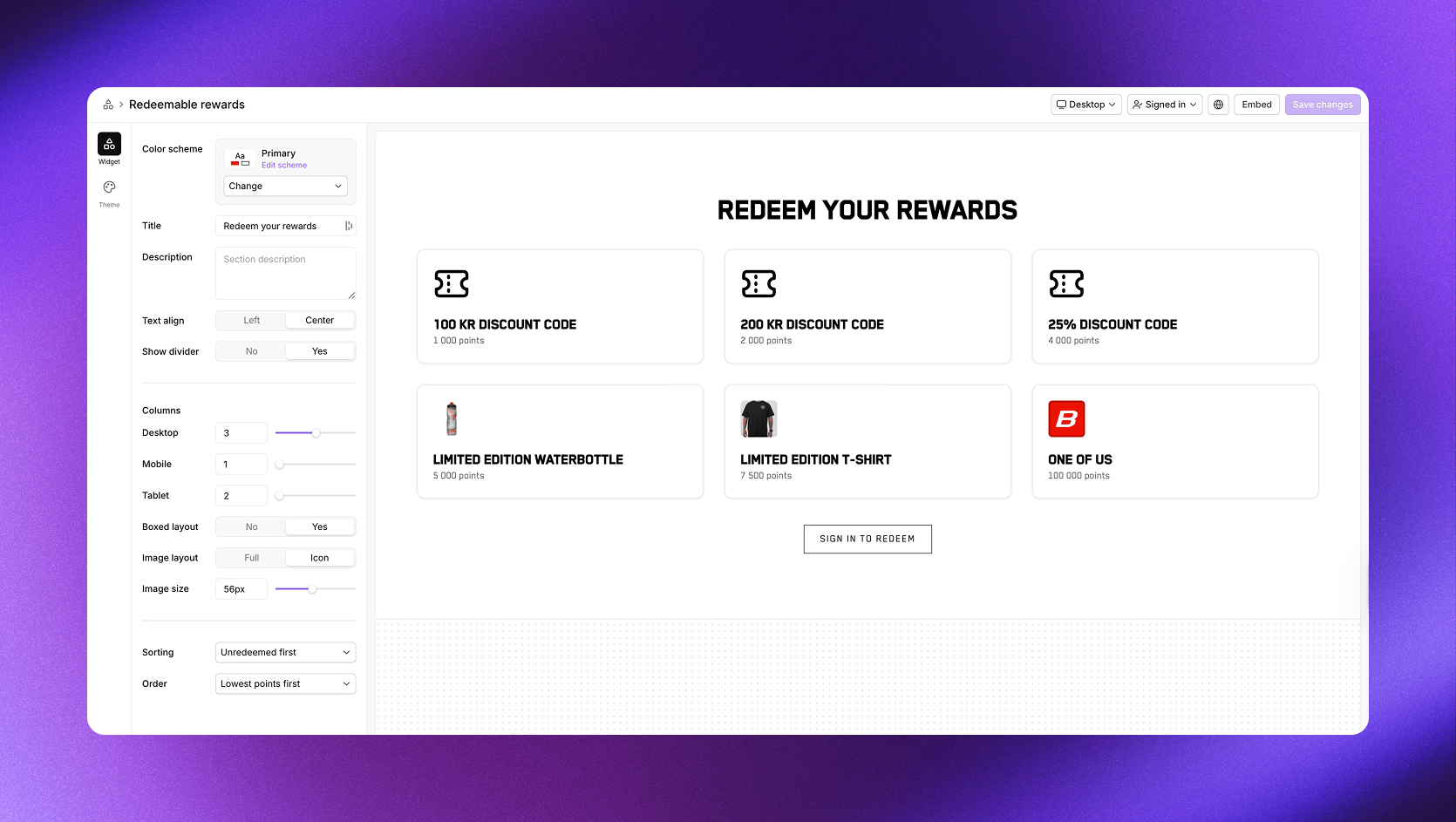
Redeemable rewards section showing available rewards to redeem

Example from our demo store. Customize the look in your [design theme](/program/program-setup/design-theme).

This section displays rewards from your redeemable rewards. Make sure you have redeemable rewards configured before adding this widget.
Available settings for this section
SettingDescription
Color schemeSelect from your theme’s color schemes
TitleSection heading (e.g., “Redeem your rewards”)
DescriptionOptional supporting text
Text alignLeft or Center
Show dividerDisplay a divider line below the section
Under Columns, control the grid layout:
SettingDescription
DesktopNumber of columns on desktop
TabletNumber of columns on tablet
MobileNumber of columns on mobile
Boxed layoutDisplay rewards in bordered boxes
Image layoutFull width or Icon only
Image sizeSize of reward images in pixels
Under Sorting, control the display order:
SettingDescription
SortingUnredeemed first or Unredeemed last
OrderLowest points first, Highest points first, or Custom
When Order is set to Custom, drag rewards in the list to set the display order.

Tier cards

The Tier cards section displays all your program tiers in a card layout. Each card shows the tier name, icon, required points, entry rewards, and perks. Visitors can see exactly what benefits they’ll unlock at each level. This section works well on your landing page to showcase the value of progressing through your program. When a member is logged in, their current tier is highlighted so they can easily see where they are and what’s next.
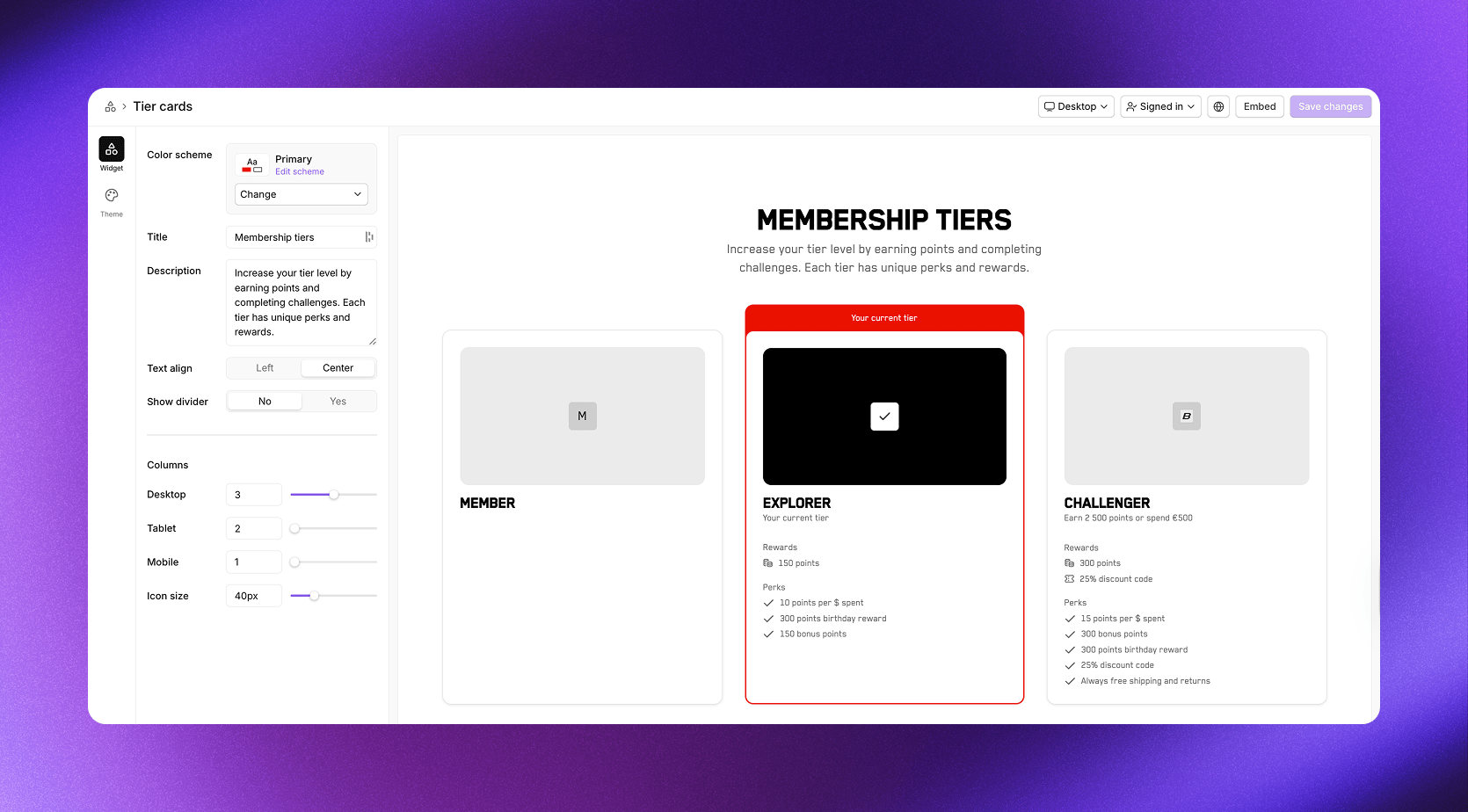
Tier cards section showing all program tiers with their rewards and perks

Example from our demo store. Customize the look in your [design theme](/program/program-setup/design-theme).

Available settings for this section
SettingDescription
Color schemeSelect from your theme’s color schemes
TitleSection heading (e.g., “Membership tiers”)
DescriptionText explaining your tier structure
Text alignLeft or Center
Show dividerDisplay a divider line below the section
Under Columns, control the layout:
SettingDescription
DesktopNumber of columns on desktop
TabletNumber of columns on tablet
MobileNumber of columns on mobile
Icon sizeSize of tier icons in pixels

FAQ

The FAQ section lets you answer common questions about your program. Add questions and answers to help visitors and members understand how earning, redeeming, tiers, and other aspects of your program work. A well-crafted FAQ reduces support questions and helps visitors feel confident about joining. You can add as many questions as needed and reorder them by dragging.
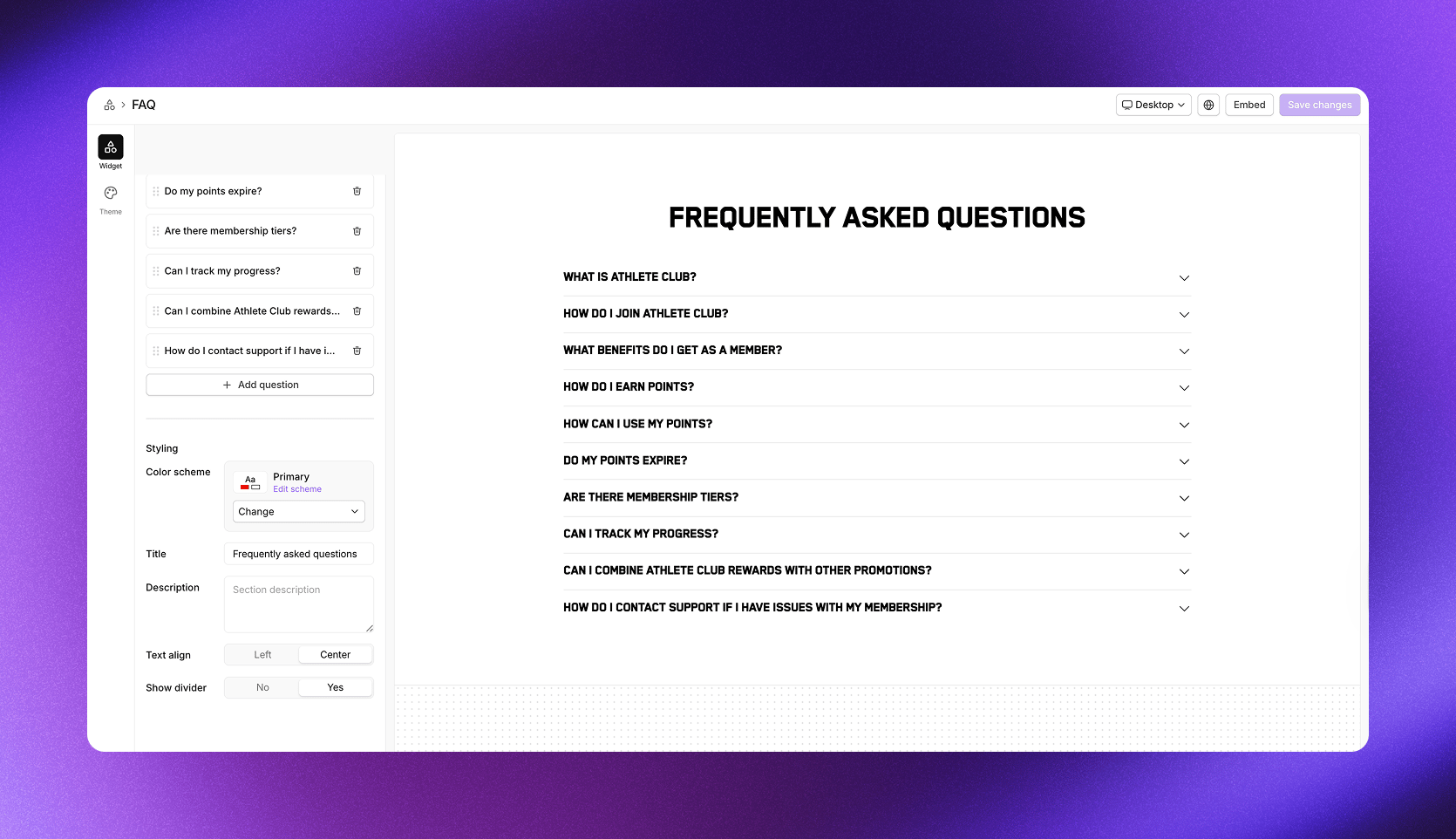
FAQ section showing expandable questions and answers

Example from our demo store. Customize the look in your [design theme](/program/program-setup/design-theme).

The FAQ section contains static content you define. If you prefer more control over layout, you can build your own FAQ in your CMS or ecommerce platform.
Available settings for this section Under Content, click Add question to create FAQ items. Each item has a question and answer field.
SettingDescription
Color schemeSelect from your theme’s color schemes
TitleSection heading (e.g., “Frequently asked questions”)
DescriptionOptional supporting text
Text alignLeft or Center
Show dividerDisplay a divider line below the section

Full landing page

The Full landing page widget combines multiple sections into a single embeddable widget, giving you a complete rewards program page with one embed code. It’s the fastest way to launch your program’s online presence. Navigate to Rewards program -> On-site widgets and select Full landing page.
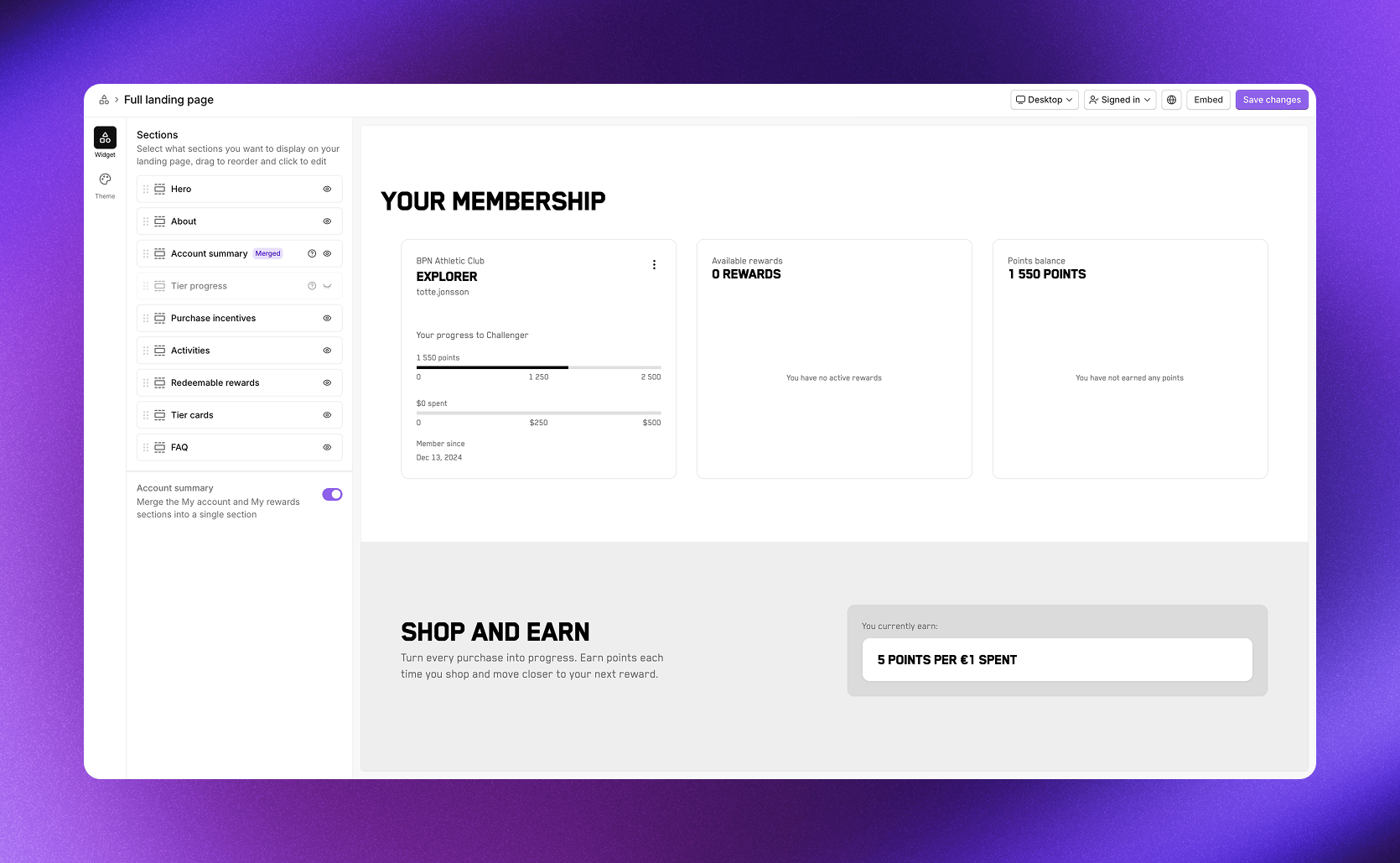
Full landing page widget editor showing section management

Example from our demo store. Customize the look in your [design theme](/program/program-setup/design-theme).

The Full landing page includes all available sections: Hero, About, My account, My rewards, Tier progress, Purchase incentives, Activities, Redeemable rewards, Tier cards, and FAQ. You control which sections appear and in what order.

Managing sections

Under Sections, you can:
  • Toggle visibility using the eye icon next to each section
  • Reorder sections by dragging them up or down
  • Edit settings by clicking on a section name
Sections marked with a question mark icon (?) only appear when the member is logged in. Logged-out visitors won’t see these sections.

Account summary toggle

At the bottom of the section list, the Account summary toggle changes how member information is displayed:
  • On: Merges My account and My rewards into a single Account summary section with three summary cards
  • Off: Shows My account and My rewards as separate sections
Use the merged view for a compact overview on your landing page, or keep them separate when you want more flexibility in placement.

Preview options

Toggle between Logged out and Signed in in the preview to see how the page looks for visitors versus members. Switch between Desktop, Tablet, and Mobile to check the responsive layout.

Embedding widgets

Click Embed in the top right corner of any widget editor to see your embedding options and follow the embed instructions.

Shopify

If you’re using Shopify, our prebuilt blocks are the easiest way to add widgets to your store. Through the Cevoid Shopify app, you can add widget sections directly in the Shopify theme editor without writing any code.
  1. Open the Shopify theme editor
  2. Click Add section or Add block
  3. Select the Cevoid widget you want to add
All widgets are compatible with both Shopify legacy customer accounts and Shopify’s new customer accounts for authentication.

General implementation

For non-Shopify platforms or headless setups, embed widgets manually using code:
  1. Add the Cevoid script to your site’s <head> tag
  2. Paste the widget code where you want the widget to appear
General implementation requires custom customer authentication to connect your store’s user system with Cevoid widgets.

Logged-in non-members

Based on your opt-in settings, customers might be logged in to your store but not yet part of your program. When this happens, sections show a Join button where the sign-in elements would normally appear. Opening an activity shows a message that they need to join before completing it, along with a Join button. Clicking the Join button opts them into the program. If you’ve added a program opt-in consent policy in your legal settings, that information and any consent requirements are included in the join flow.