> ## Documentation Index
> Fetch the complete documentation index at: https://docs.cevoid.com/llms.txt
> Use this file to discover all available pages before exploring further.
# Social scheduling
> Schedule and publish posts to Instagram and Facebook.
Related articles:
[Instagram integration](/integrations/instagram), [Library & Inbox](/ugc/manage/library-and-inbox)
Schedule and publish posts to Instagram and Facebook directly from Cevoid. Select content from your library, customize it for each platform, and schedule for automatic publishing.
Navigate to [Social scheduling](https://app.cevoid.com/schedule) to manage your scheduled posts.
***
## Calendar overview
The calendar shows all scheduled and published posts. Filter by:
* **Date range**
* **Post status** - Draft, Scheduled, Published, Failed
* **Account** - Connected social accounts
* **Platform** - Instagram or Facebook
* **Post type**
***
### Duplicate posts
Duplicate a post to schedule the same content to another platform or account.
1. Right-click on the post
2. Select the account you want to duplicate to
3. Adjust the caption or other information
4. Click **Schedule post**
5. Select the date and time
6. Click **Schedule**
***
## Instagram posts, reels, and carousels
These post types are published automatically at your scheduled time and share the same flow with minor differences.
| Feature | Reel | Image | Carousel |
| ----------------- | ---- | ----- | -------- |
| **Product tags** | ✓ | ✓ | ✓ |
| **Tag usernames** | | ✓ | ✓ |
| **First comment** | ✓ | ✓ | ✓ |
| **Trim video** | ✓ | | |
| **Cover photo** | ✓ | | |
For carousels, product tags and usernames can only be added to images, not videos.
***
**From Social scheduling:**
1. Navigate to [Social scheduling](https://app.cevoid.com/schedule)
2. Click **Schedule**
3. Select **Instagram Reel**, **Instagram Image**, or **Instagram Carousel**
4. Select the Instagram account to publish to
5. Select content from your library, or click **Upload** to add new content
6. Click **Select posts** to continue
**From your library:**
1. Navigate to [UGC -> Library](https://app.cevoid.com/library)
2. Select the content you want to schedule
3. Click **Social scheduling** (or select **Schedule** as bulk action for carousel)
4. Select the post type and Instagram account
5. Click **Select posts** to continue
For carousels, select multiple images and videos. For reels and image posts, select one piece of content.
1. Select the aspect ratio for your post
2. Optional: Scroll over the content to crop, drag to reposition
3. Click **Next step**
For carousels, the aspect ratio of the first item applies to all. Drag and drop items in the bottom view to reorder.
For reels, you can:
* Trim the video length
* Disable audio
Click **Next step** to continue.
Add products from your Instagram shop to make the post shoppable.
1. Click **Add product**
2. Search for the product in your Instagram shop catalog
3. Click **Add product** and place it in the image
4. Click **Done**
5. Click **Next step**
If the original post has product tags in Cevoid, those appear as suggestions.
You can add up to 5 product tags. For carousels, repeat for each content piece. Products cannot be tagged in carousel videos.
Tag Instagram users in your post.
1. Click **Add person**
2. Click where you want the tag to appear
3. Enter the Instagram username
4. Click **Save**
5. Click **Next step**
The creator's handle appears as a suggestion when reposting Instagram UGC.
You can tag up to 20 usernames. For carousels, usernames cannot be tagged in videos.
Write your caption and optionally add a first comment that publishes automatically when the post goes live.
* Tagged products are listed - click to copy the product name
* Tagged usernames are listed - click to copy the handle
For reels, you can also select a cover photo from the video or upload a custom one.
1. Click **Schedule post**
2. Select the date and time to publish
3. Click **Schedule**
Select **now** to publish instantly.
***
## Instagram stories
Share content to your Instagram story. Stories can be auto-published or scheduled as reminders for manual posting when you need features like links, music, or text overlays.
| Feature | Story | Story reminder |
| ---------------------------- | ----- | -------------- |
| **Auto-published** | ✓ | |
| **Multiple content pieces** | ✓ | ✓ |
| **Link/music/text overlays** | | ✓ |
***
### Schedule a story
Stories are published automatically at your scheduled time. They don't support product tags, username tags, or captions.
**From Social scheduling:**
1. Navigate to [Social scheduling](https://app.cevoid.com/schedule)
2. Click **Schedule**
3. Select **Instagram Story**
4. Select the Instagram account to publish to
5. Select images and/or videos, or click **Upload** to add new content
6. Click **Select posts** to continue
**From your library:**
1. Navigate to [UGC -> Library](https://app.cevoid.com/library)
2. Select the images and videos you want to schedule
3. Select **Schedule** as bulk action
4. Select **Instagram Story** and the Instagram account
5. Click **Apply action**
6. Click **Select posts** to continue
You can include up to 10 images and/or videos per story. They publish directly after each other.
1. Select the aspect ratio (applies to all items)
2. Optional: Drag and drop items to reorder
3. Optional: Scroll over content to crop, drag to reposition
4. Click **Next step**
1. Click **Schedule post**
2. Select the date and time to publish
3. Click **Schedule**
Select **now** to publish instantly.
***
### Schedule a story reminder
Story reminders are not auto-published. A team member receives an email reminder with everything needed to manually publish the story. Use this when you need features like links, music, or text overlays.
**From Social scheduling:**
1. Navigate to [Social scheduling](https://app.cevoid.com/schedule)
2. Click **Schedule**
3. Select **Instagram Story reminder**
4. Select the Instagram account
5. Select images and/or videos, or click **Upload** to add new content
6. Click **Select posts** to continue
**From your library:**
1. Navigate to [UGC -> Library](https://app.cevoid.com/library)
2. Select the images and videos you want to schedule
3. Select **Schedule** as bulk action
4. Select **Instagram Story reminder** and the Instagram account
5. Click **Apply action**
6. Click **Select posts** to continue
You can include up to 10 images and/or videos per story reminder.
1. Select the aspect ratio (applies to all items)
2. Optional: Drag and drop items to reorder
3. Optional: Scroll over content to crop, drag to reposition
4. Click **Next step**
Add information for each content piece that the team member will need when publishing:
| Field | Description |
| --------- | ------------------------------------- |
| **Link** | URL to add to the story |
| **Music** | Song to include in the story |
| **Note** | Text to include or other instructions |
1. Click **Schedule post**
2. Select when you plan to publish the story
3. Select how long before that you want to receive the reminder
4. Select which team member should receive the reminder
5. Click **Schedule**
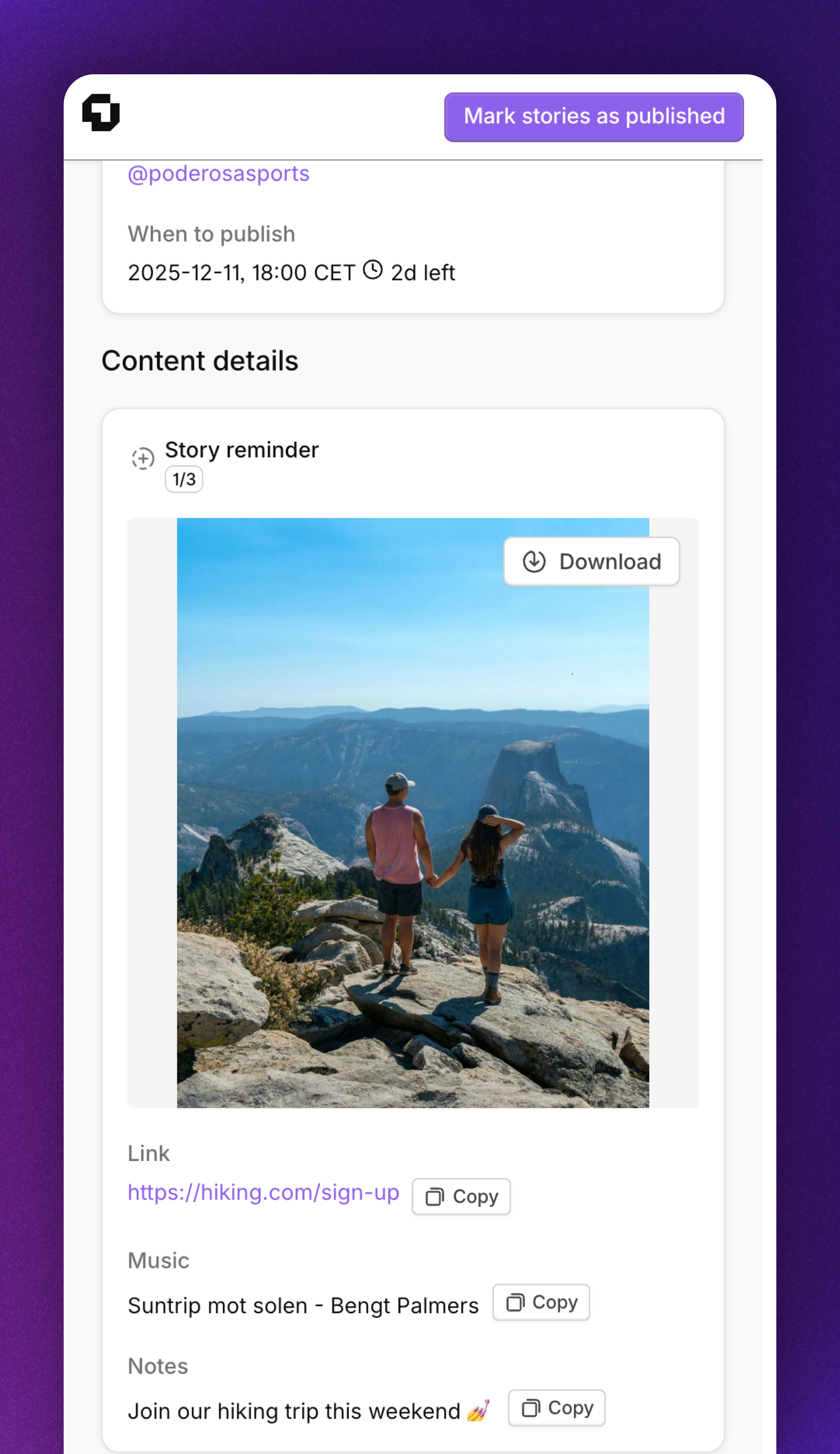
When the reminder is triggered, the selected team member receives an email with a link containing all the information needed.
1. Open the link from the email
2. Download the content to your device
3. Open Instagram and create a story
4. Add the link, music, or text from your reminder
5. Publish the story
6. Repeat for each piece of content
7. Click **Mark stories as published** in Cevoid
This is how the story reminder looks when opened:
 ***
## Facebook posts and videos
Facebook posts and videos are published automatically at your scheduled time.
| Feature | Post | Video |
| --------------------------- | ---- | ----- |
| **Multiple content pieces** | ✓ | |
| **Add text** | ✓ | ✓ |
***
## Schedule a Facebook post or video
**From Social scheduling:**
1. Navigate to [Social scheduling](https://app.cevoid.com/schedule)
2. Click **Schedule**
3. Select **Facebook post** or **Facebook video**
4. Select the Facebook account to publish to
5. Select content from your library, or click **Upload** to add new content
6. Click **Select posts** to continue
**From your library:**
1. Navigate to [UGC -> Library](https://app.cevoid.com/library)
2. Select the content you want to schedule
3. Select **Schedule** as bulk action
4. Select the post type and Facebook account
5. Click **Apply action**
6. Click **Select posts** to continue
Facebook posts can include up to 10 images and/or videos. Facebook videos are single videos only.
1. Select the aspect ratio
2. Optional: Drag and drop items to reorder (posts with multiple items)
3. Optional: Scroll over content to crop, drag to reposition
4. Click **Next step**
1. Click **Schedule post**
2. Add the text for your post
3. Select the date and time to publish
4. Click **Schedule**
Select **now** to publish instantly.
***
## Facebook posts and videos
Facebook posts and videos are published automatically at your scheduled time.
| Feature | Post | Video |
| --------------------------- | ---- | ----- |
| **Multiple content pieces** | ✓ | |
| **Add text** | ✓ | ✓ |
***
## Schedule a Facebook post or video
**From Social scheduling:**
1. Navigate to [Social scheduling](https://app.cevoid.com/schedule)
2. Click **Schedule**
3. Select **Facebook post** or **Facebook video**
4. Select the Facebook account to publish to
5. Select content from your library, or click **Upload** to add new content
6. Click **Select posts** to continue
**From your library:**
1. Navigate to [UGC -> Library](https://app.cevoid.com/library)
2. Select the content you want to schedule
3. Select **Schedule** as bulk action
4. Select the post type and Facebook account
5. Click **Apply action**
6. Click **Select posts** to continue
Facebook posts can include up to 10 images and/or videos. Facebook videos are single videos only.
1. Select the aspect ratio
2. Optional: Drag and drop items to reorder (posts with multiple items)
3. Optional: Scroll over content to crop, drag to reposition
4. Click **Next step**
1. Click **Schedule post**
2. Add the text for your post
3. Select the date and time to publish
4. Click **Schedule**
Select **now** to publish instantly.