> ## Documentation Index
> Fetch the complete documentation index at: https://docs.cevoid.com/llms.txt
> Use this file to discover all available pages before exploring further.
# Cards
> Create shoppable widgets that showcase a single image or video on your website.
Related articles: [Galleries](/ugc/showcase/galleries), [Posts](/ugc/manage/posts), [UGC popup](/ugc/showcase/ugc-popup), [Labels](/general/labels)
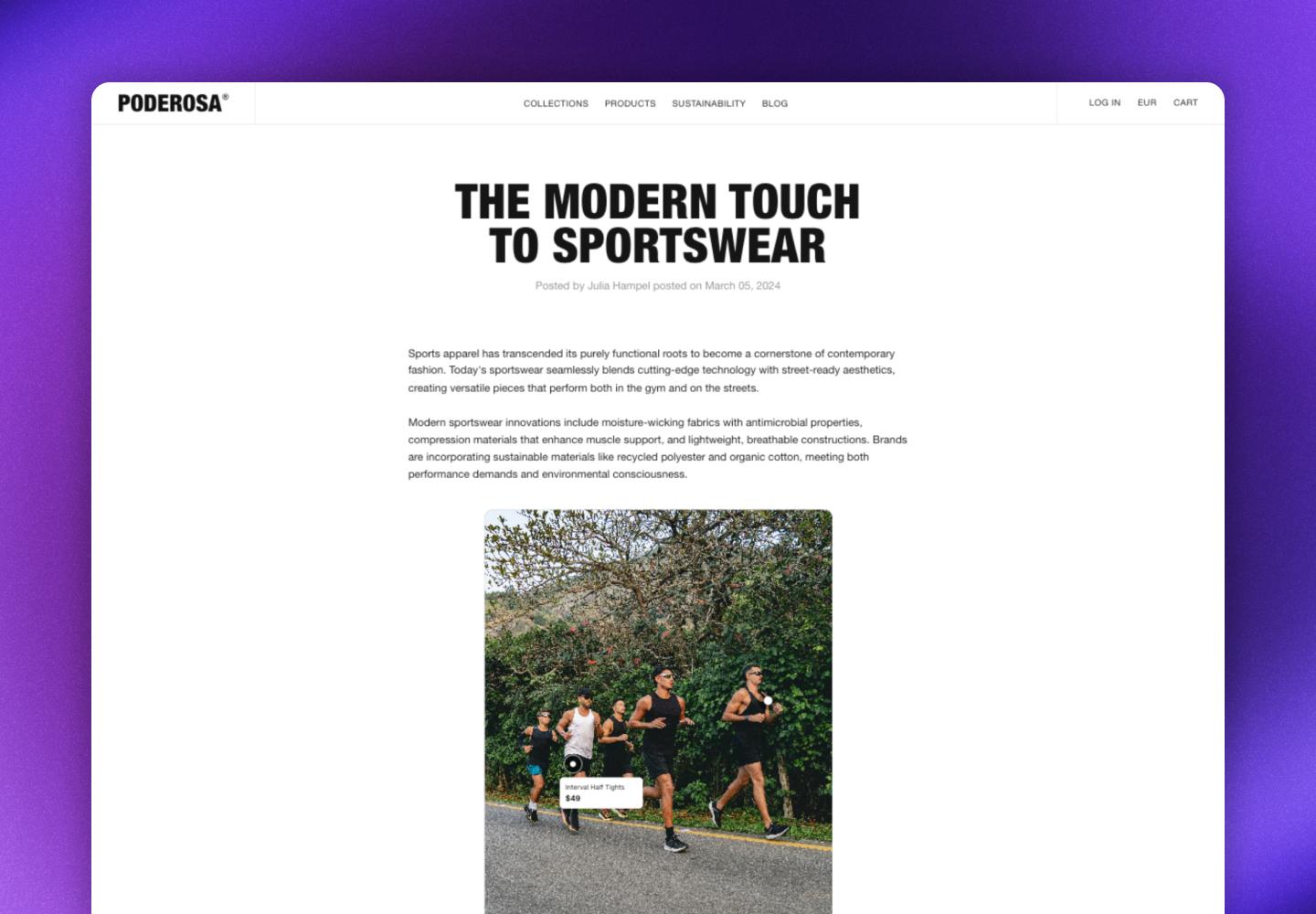
Cards are single-post widgets that display one specific piece of content on your website. Use them to add a shoppable image or video anywhere on your site.
Navigate to [UGC -> On-site widgets](https://app.cevoid.com/on-site-widgets) to manage your cards.
Use [Galleries](/ugc/showcase/galleries) to showcase multiple posts in a single widget.
***
## How cards work
Cards display a single, specific post that you select. Unlike galleries, cards show static content and don't update automatically. When visitors click on the card, a [popup](/ugc/showcase/ugc-popup) opens with the full post, creator information, caption, and shoppable product tags.
**Key features:**
* **Static content**: Cards display the exact post you select
* **Photo or video**: Display either images or videos
* **Shoppable experience**: Product tags link directly to your product pages
* **Customizable design**: Adjust the look for each card
* **Localized**: Adjusts language, links, currency, and prices based on the market
* **Responsive design**: Adapts to different screen sizes and devices
***
## Create a card
1. Navigate to [UGC -> On-site widgets](https://app.cevoid.com/on-site-widgets)
2. Click **New widget**
3. Select **Card**
4. Click the *Content* tab
5. Choose the post you want to display
6. Optional: Click **More** and rename your card
7. Click **Save changes**
You can also create a card directly from the Library by opening a post and clicking **Create Card**.
***
## Design and customize cards
Each card can be customized to fit the page it's embedded on.
Styling changes apply on the next page view after clicking **Save changes**.
Cards automatically inherit typography and fonts from your website once embedded.
1. Navigate to [UGC -> On-site widgets](https://app.cevoid.com/on-site-widgets)
2. Select your card
3. Click the *Design* tab
4. Apply your changes
5. Click **Save changes**
***
### Card size
Control how the card fills its container.
| Option | Description |
| ------------------------------------- | --------------------------------------------------------------------- |
| **Fill parent width, dynamic height** | Default. Card fills available width and adjusts height automatically. |
| **Fixed width, dynamic height** | Set a specific width for the card. |
| **Fixed aspect ratio** | Maintain a specific aspect ratio. |
| **Cover parent element size** | Use when placing the card over a server-side hosted image. |
***
### Corner roundness
Adjust the corner radius in pixels to match your site's design.
***
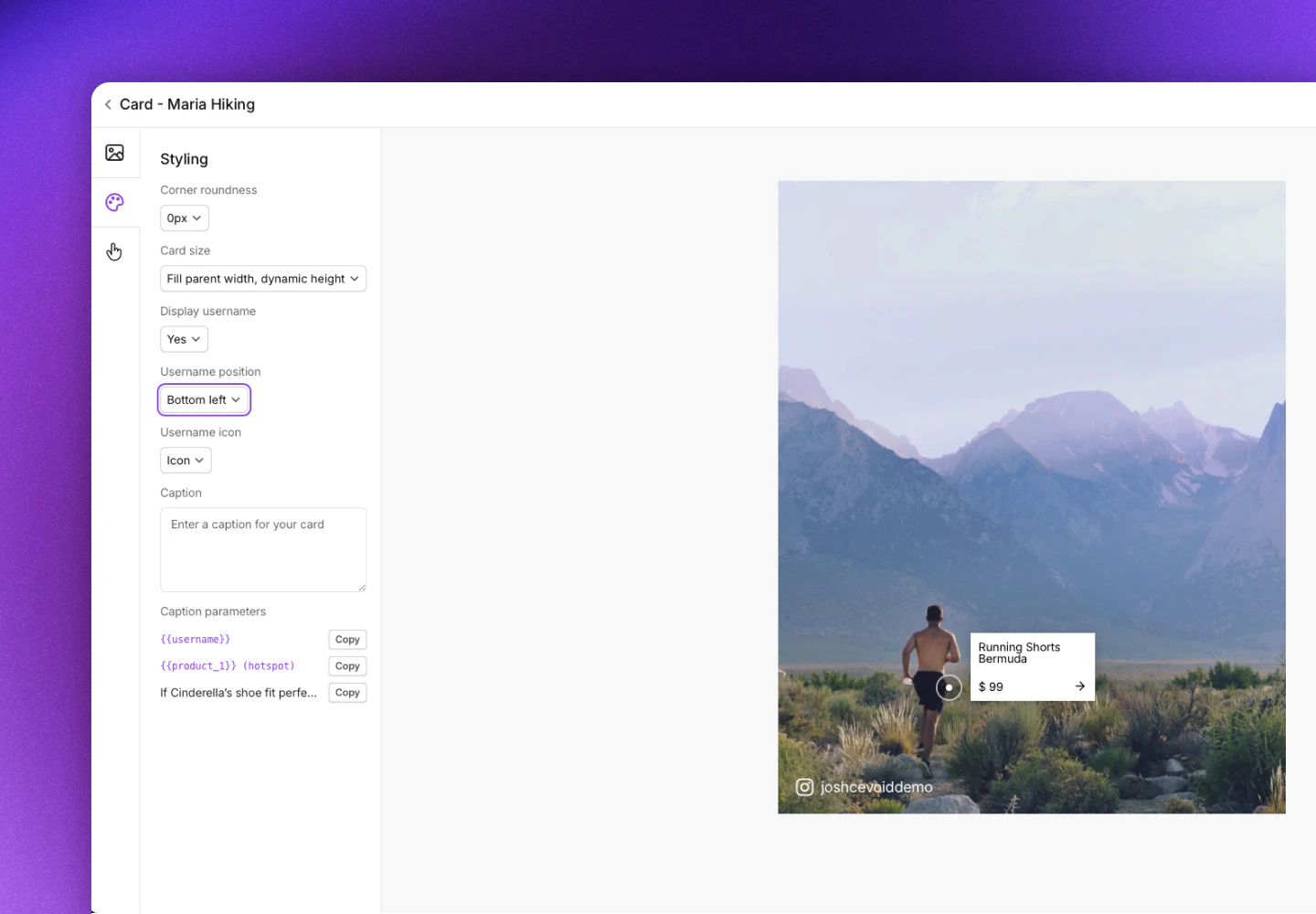
### Username display
Show the creator's username on the card for social proof.
| Setting | Options |
| --------------- | ------------------------------------------------- |
| *Show username* | Yes or No |
| *Position* | Top left, Top right, Bottom left, or Bottom right |
| *Icon* | Social media icon, @-sign, or None |
Show the username for UGC posts to highlight real customers. Hide it for brand-created content.
***
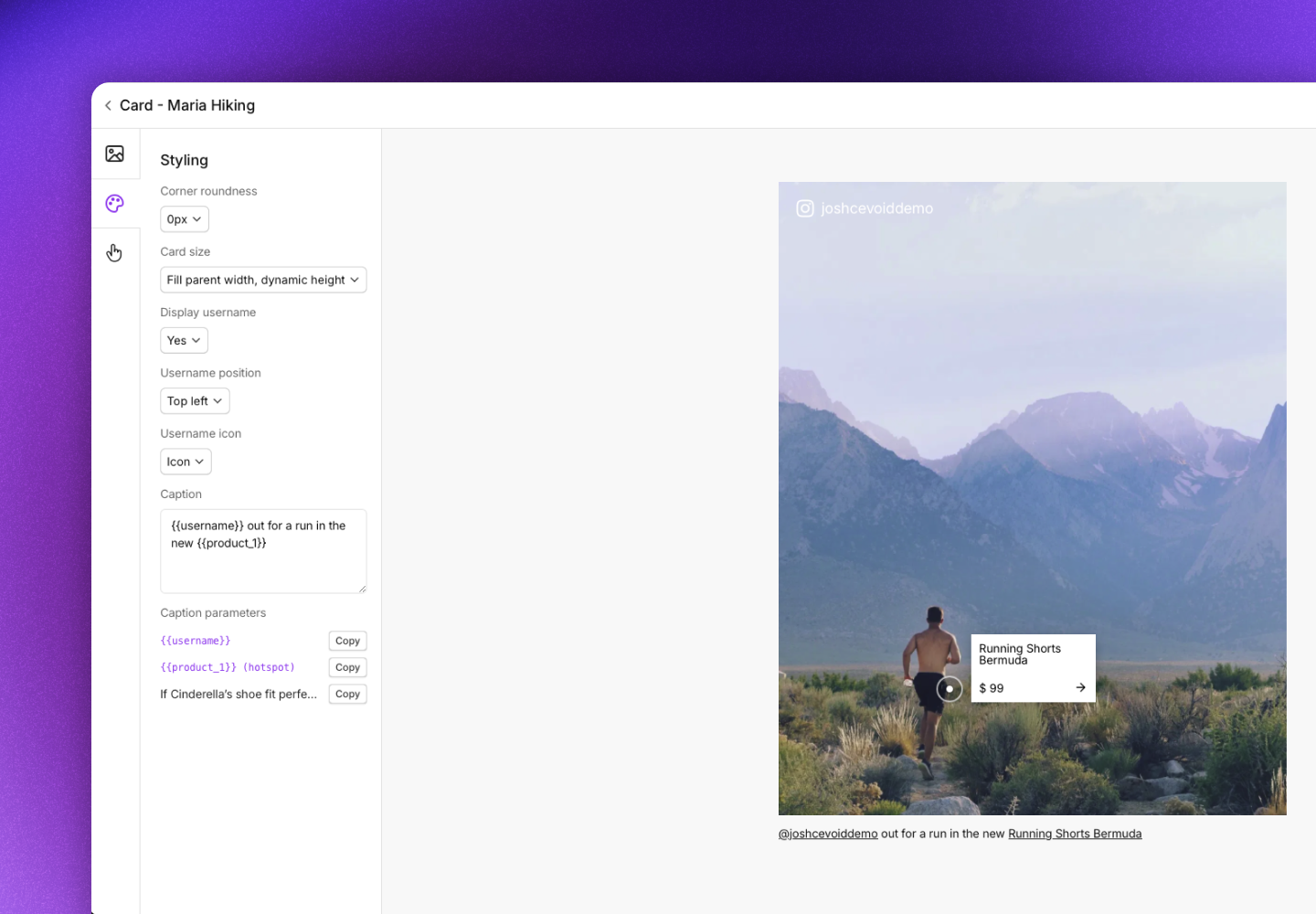
### Caption
Add text below the card. You can include dynamic values:
* **Username**: The creator's username
* **Product**: Names of tagged products with clickable links
* **Original caption**: The post's original caption
***
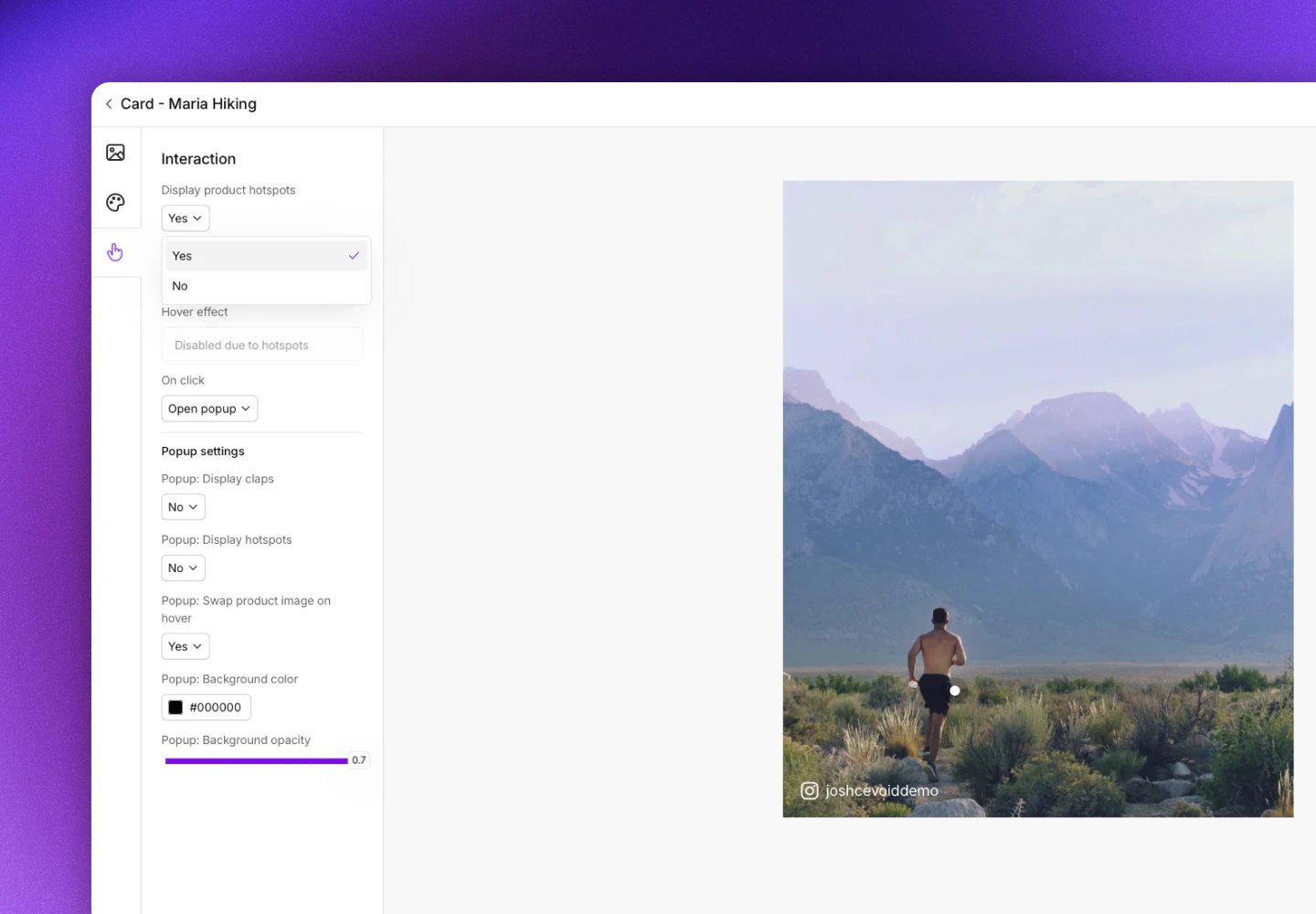
### Product hotspots
Hotspots highlight tagged products on the image. The product name and price display when visitors hover over each hotspot.
| Setting | Options |
| -------------------------- | ------------------------------------------------------------------------------- |
| *Display product hotspots* | Yes or No |
| *Highlight product* | Select one product to always display (only available when hotspots are enabled) |
When you highlight a product, its name and price are always visible without requiring visitors to hover.
***
### Hover effect
Add a hover effect when visitors mouse over the card. Only available when hotspots are disabled.
| Setting | Options |
| -------------------------- | --------------------------------------------- |
| *Hover effect* | None, Zoom, Overlay center, or Overlay bottom |
| *Hover background color* | Color picker |
| *Hover background opacity* | Opacity value |
| *Hover text* | Custom text (default: "Shop the look") |
| *Hover text color* | Color picker |
***
### Click behavior
Control what happens when visitors click the card.
| Option | Description |
| --------------------- | ----------------------------------------------------------------------------- |
| **Open post popup** | Default. Opens the full post in a popup. |
| **Link to product** | Links to the first tagged product. |
| **Link to Instagram** | Links to the creator's Instagram profile. |
| **Custom link** | Add any URL. |
| **Do nothing** | Disables click. Useful when you want visitors to only interact with hotspots. |
***
### Popup settings
Customize how the popup appears when visitors click the card. See [UGC popup](/ugc/showcase/ugc-popup) for all popup settings.
***
## Change the post in a card
Cards display static content, but you can change which post is shown at any time.
1. Navigate to [UGC -> On-site widgets](https://app.cevoid.com/on-site-widgets) and select the card
2. Click the *Content* tab
3. Select a new post
4. Click **Save changes**
Unlike galleries, cards don't automatically update. You must manually change the post when you want to display different content.
***
## Embed cards on your website
Developers building a custom storefront or CMS block should use the [UGC Widgets developer docs](../../developer-docs/ugc-widgets).
Embed cards on any HTML-based website using Cevoid's script and a div element.
1. Add Cevoid's script to your website's `` or `
If your development team has built a Cevoid card block in your CMS:
1. Navigate to [UGC -> On-site widgets](https://app.cevoid.com/on-site-widgets) and select your card
2. Click **Embed card**
3. Copy the Card ID
4. In your CMS, add a Cevoid card block and paste the ID
 ***
## How cards work
Cards display a single, specific post that you select. Unlike galleries, cards show static content and don't update automatically. When visitors click on the card, a [popup](/ugc/showcase/ugc-popup) opens with the full post, creator information, caption, and shoppable product tags.
**Key features:**
* **Static content**: Cards display the exact post you select
* **Photo or video**: Display either images or videos
* **Shoppable experience**: Product tags link directly to your product pages
* **Customizable design**: Adjust the look for each card
* **Localized**: Adjusts language, links, currency, and prices based on the market
* **Responsive design**: Adapts to different screen sizes and devices
***
## Create a card
1. Navigate to [UGC -> On-site widgets](https://app.cevoid.com/on-site-widgets)
2. Click **New widget**
3. Select **Card**
4. Click the *Content* tab
5. Choose the post you want to display
6. Optional: Click **More** and rename your card
7. Click **Save changes**
***
## How cards work
Cards display a single, specific post that you select. Unlike galleries, cards show static content and don't update automatically. When visitors click on the card, a [popup](/ugc/showcase/ugc-popup) opens with the full post, creator information, caption, and shoppable product tags.
**Key features:**
* **Static content**: Cards display the exact post you select
* **Photo or video**: Display either images or videos
* **Shoppable experience**: Product tags link directly to your product pages
* **Customizable design**: Adjust the look for each card
* **Localized**: Adjusts language, links, currency, and prices based on the market
* **Responsive design**: Adapts to different screen sizes and devices
***
## Create a card
1. Navigate to [UGC -> On-site widgets](https://app.cevoid.com/on-site-widgets)
2. Click **New widget**
3. Select **Card**
4. Click the *Content* tab
5. Choose the post you want to display
6. Optional: Click **More** and rename your card
7. Click **Save changes**
 | Setting | Options |
| --------------- | ------------------------------------------------- |
| *Show username* | Yes or No |
| *Position* | Top left, Top right, Bottom left, or Bottom right |
| *Icon* | Social media icon, @-sign, or None |
| Setting | Options |
| --------------- | ------------------------------------------------- |
| *Show username* | Yes or No |
| *Position* | Top left, Top right, Bottom left, or Bottom right |
| *Icon* | Social media icon, @-sign, or None |
 ***
### Product hotspots
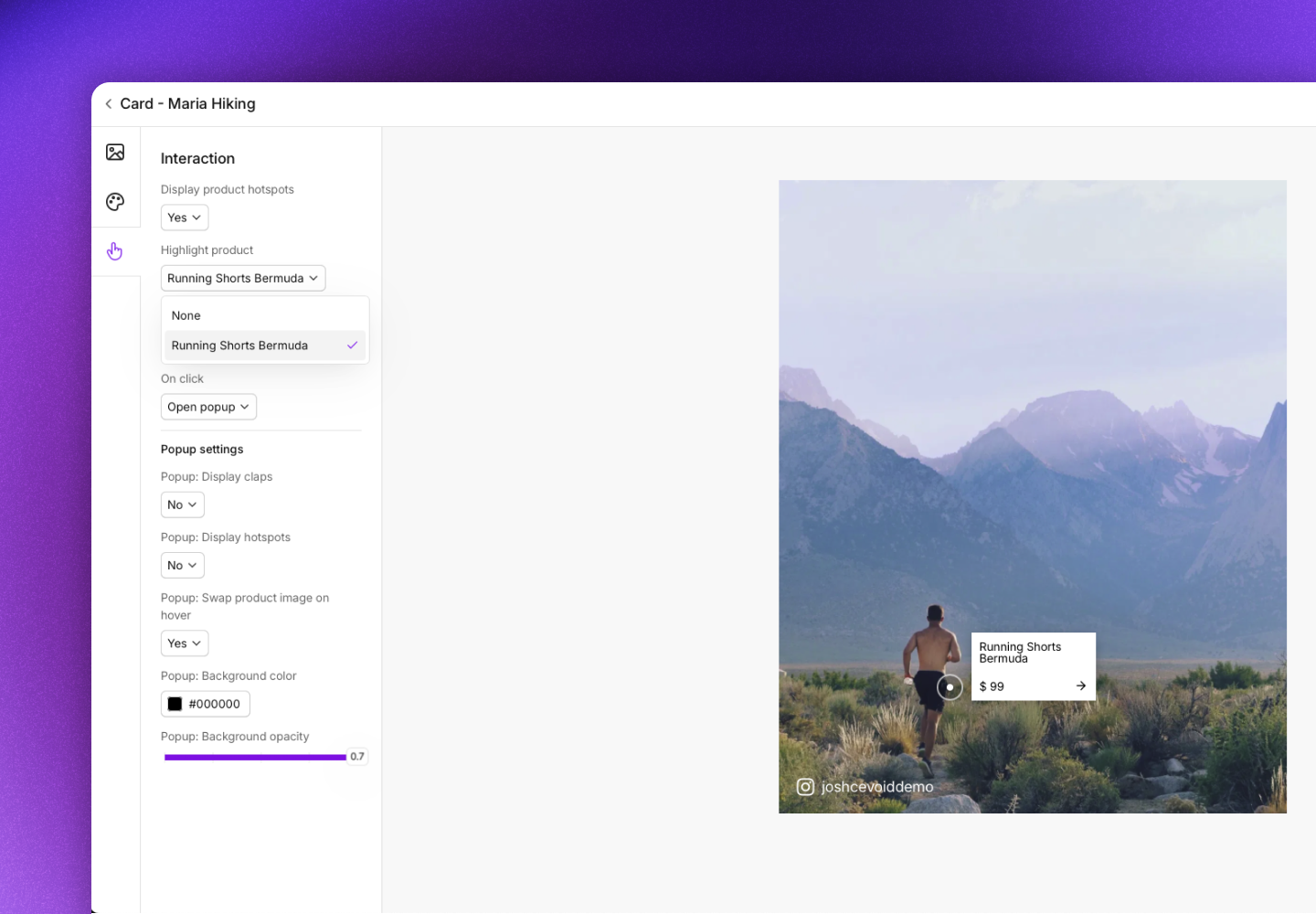
Hotspots highlight tagged products on the image. The product name and price display when visitors hover over each hotspot.
***
### Product hotspots
Hotspots highlight tagged products on the image. The product name and price display when visitors hover over each hotspot.
 | Setting | Options |
| -------------------------- | ------------------------------------------------------------------------------- |
| *Display product hotspots* | Yes or No |
| *Highlight product* | Select one product to always display (only available when hotspots are enabled) |
When you highlight a product, its name and price are always visible without requiring visitors to hover.
| Setting | Options |
| -------------------------- | ------------------------------------------------------------------------------- |
| *Display product hotspots* | Yes or No |
| *Highlight product* | Select one product to always display (only available when hotspots are enabled) |
When you highlight a product, its name and price are always visible without requiring visitors to hover.
 ***
### Hover effect
Add a hover effect when visitors mouse over the card. Only available when hotspots are disabled.
| Setting | Options |
| -------------------------- | --------------------------------------------- |
| *Hover effect* | None, Zoom, Overlay center, or Overlay bottom |
| *Hover background color* | Color picker |
| *Hover background opacity* | Opacity value |
| *Hover text* | Custom text (default: "Shop the look") |
| *Hover text color* | Color picker |
***
### Click behavior
Control what happens when visitors click the card.
| Option | Description |
| --------------------- | ----------------------------------------------------------------------------- |
| **Open post popup** | Default. Opens the full post in a popup. |
| **Link to product** | Links to the first tagged product. |
| **Link to Instagram** | Links to the creator's Instagram profile. |
| **Custom link** | Add any URL. |
| **Do nothing** | Disables click. Useful when you want visitors to only interact with hotspots. |
***
### Popup settings
Customize how the popup appears when visitors click the card. See [UGC popup](/ugc/showcase/ugc-popup) for all popup settings.
***
## Change the post in a card
Cards display static content, but you can change which post is shown at any time.
1. Navigate to [UGC -> On-site widgets](https://app.cevoid.com/on-site-widgets) and select the card
2. Click the *Content* tab
3. Select a new post
4. Click **Save changes**
***
### Hover effect
Add a hover effect when visitors mouse over the card. Only available when hotspots are disabled.
| Setting | Options |
| -------------------------- | --------------------------------------------- |
| *Hover effect* | None, Zoom, Overlay center, or Overlay bottom |
| *Hover background color* | Color picker |
| *Hover background opacity* | Opacity value |
| *Hover text* | Custom text (default: "Shop the look") |
| *Hover text color* | Color picker |
***
### Click behavior
Control what happens when visitors click the card.
| Option | Description |
| --------------------- | ----------------------------------------------------------------------------- |
| **Open post popup** | Default. Opens the full post in a popup. |
| **Link to product** | Links to the first tagged product. |
| **Link to Instagram** | Links to the creator's Instagram profile. |
| **Custom link** | Add any URL. |
| **Do nothing** | Disables click. Useful when you want visitors to only interact with hotspots. |
***
### Popup settings
Customize how the popup appears when visitors click the card. See [UGC popup](/ugc/showcase/ugc-popup) for all popup settings.
***
## Change the post in a card
Cards display static content, but you can change which post is shown at any time.
1. Navigate to [UGC -> On-site widgets](https://app.cevoid.com/on-site-widgets) and select the card
2. Click the *Content* tab
3. Select a new post
4. Click **Save changes**