> ## Documentation Index
> Fetch the complete documentation index at: https://docs.cevoid.com/llms.txt
> Use this file to discover all available pages before exploring further.
# Library & Inbox
> Access and organize all content your workspace has access to.
Related articles:
[Posts](/ugc/manage/posts), [Labels](/general/labels), [Social scheduling](/ugc/social-scheduling)
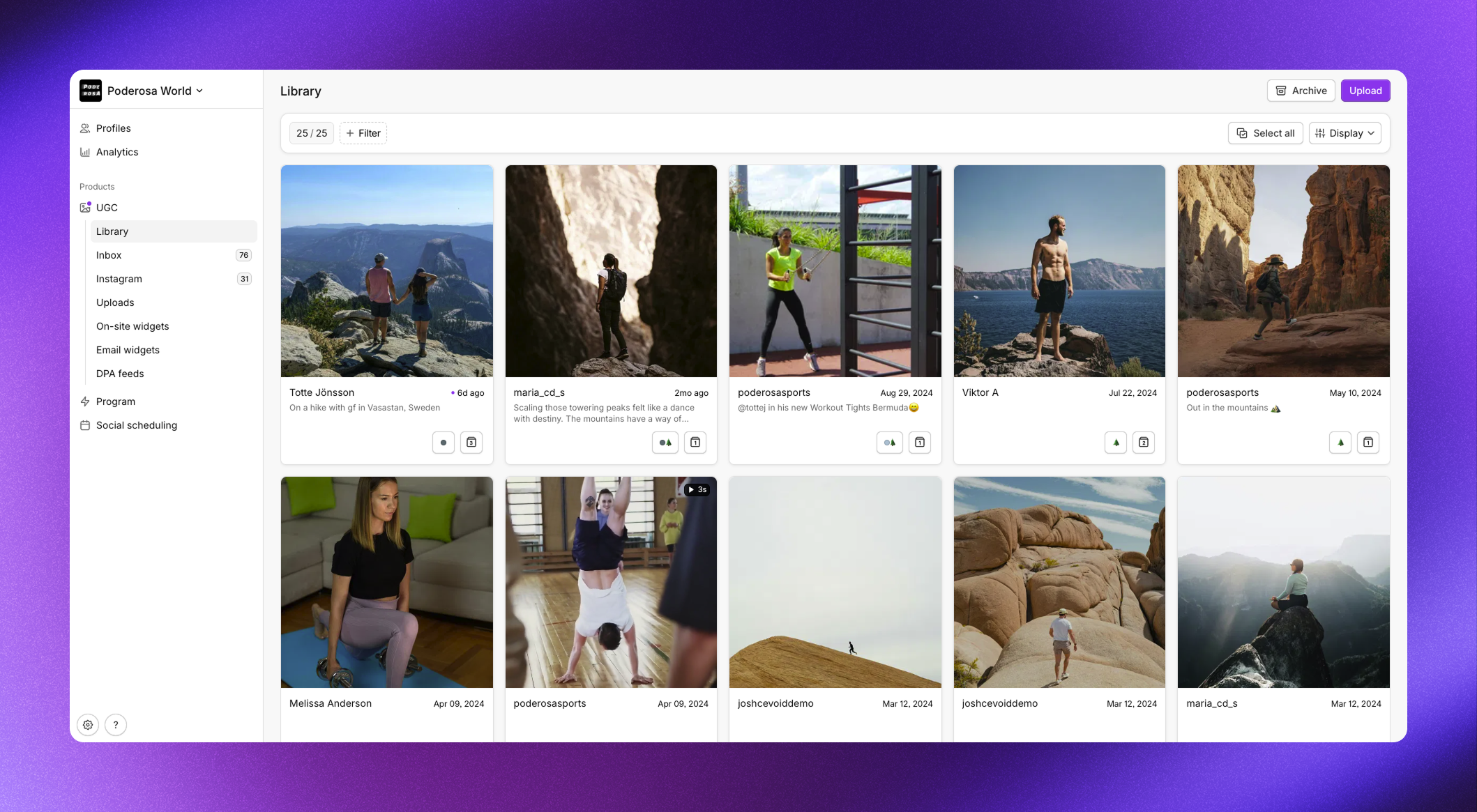
The Library and Inbox are your content management hubs where all posts are organized by approval status. New posts appear in your Inbox for review. Approved posts move to your Library and become visible in your galleries, cards, and email widgets.
Navigate to [UGC -> Library](https://app.cevoid.com/library) or [UGC -> Inbox](https://app.cevoid.com/inbox) to manage your content.
 ***
## Post statuses
| Status | Description | Displayed in widgets |
| ------------ | ------------------------------------------------- | -------------------- |
| **Inbox** | New posts awaiting review | No |
| **Approved** | Posts available in all matching widgets | Yes |
| **Deleted** | Archived posts, permanently removed after 30 days | No |
***
## Approve posts
Approving posts moves them from your Inbox to your Library. Approved posts automatically appear in any galleries, cards, or email widgets that match their content filters.
1. Navigate to [UGC -> Inbox](https://app.cevoid.com/inbox)
2. Hover over a post and click **Approve**, or select multiple posts and use bulk approve
***
## Delete and restore posts
Deleting a post moves it to the archive where it remains for 30 days before permanent deletion.
To restore a deleted post:
1. Navigate to [UGC -> Library](https://app.cevoid.com/library) or [UGC -> Inbox](https://app.cevoid.com/inbox)
2. Click **Archive**
3. Select the post and click **Move to Inbox** or **Approve**
***
## Filter posts
Filter your Library or Inbox to find specific content.
| Filter | Description |
| -------------------- | ---------------------------------------------------------------------------------- |
| *Labels* | Posts with selected labels |
| *Profile* | Posts from selected profiles |
| *Source* | Posts from selected content sources (upload forms, Instagram mentions, feed, etc.) |
| *Media type* | Photos or Videos |
| *Aspect ratio* | Landscape, Portrait, or Square |
| *Products* | Posts tagged with selected products |
| *Brand* | Posts tagged with products from selected brands |
| *Category* | Posts tagged with products in selected categories |
| *Has tagged product* | Posts with or without product tags |
1. Click **Filter** at the top of the Library or Inbox
2. Select your filter criteria
3. Apply multiple filters to narrow results
4. Click **Clear** to remove all filters
Click **is** on any filter to toggle to **is not** for exclusion filtering. For example, filter for posts where Labels *is not* "Biking" to see all posts without that label.
***
### Filter mode
When filtering by multiple categories, click to toggle between:
* **Match all filters**: Posts must match all selected criteria
* **Match any filter**: Posts can match any selected criteria
The toggle appears next to Clear when multiple filters are active.
***
## Bulk actions
Manage multiple posts at once.
| Action | Description |
| --------------------- | ----------------------------------- |
| **Add label** | Apply a label to selected posts |
| **Remove label** | Remove a label from selected posts |
| **Hide caption** | Hide captions on selected posts |
| **Change profile** | Assign posts to a different profile |
| **Schedule** | Create a social scheduling draft |
| **Approve** | Approve selected posts |
| **Move to Inbox** | Move posts back to the Inbox |
| **Delete** | Delete selected posts |
| **Download** | Download selected posts (max 10) |
| **Copy to workspace** | Copy posts to another workspace |
1. Hover over posts and check the tick box, or click **Select all** after filtering
2. Choose a bulk action
3. Configure any additional settings
4. Click **Apply action**
***
## Post statuses
| Status | Description | Displayed in widgets |
| ------------ | ------------------------------------------------- | -------------------- |
| **Inbox** | New posts awaiting review | No |
| **Approved** | Posts available in all matching widgets | Yes |
| **Deleted** | Archived posts, permanently removed after 30 days | No |
***
## Approve posts
Approving posts moves them from your Inbox to your Library. Approved posts automatically appear in any galleries, cards, or email widgets that match their content filters.
1. Navigate to [UGC -> Inbox](https://app.cevoid.com/inbox)
2. Hover over a post and click **Approve**, or select multiple posts and use bulk approve
***
## Delete and restore posts
Deleting a post moves it to the archive where it remains for 30 days before permanent deletion.
To restore a deleted post:
1. Navigate to [UGC -> Library](https://app.cevoid.com/library) or [UGC -> Inbox](https://app.cevoid.com/inbox)
2. Click **Archive**
3. Select the post and click **Move to Inbox** or **Approve**
***
## Filter posts
Filter your Library or Inbox to find specific content.
| Filter | Description |
| -------------------- | ---------------------------------------------------------------------------------- |
| *Labels* | Posts with selected labels |
| *Profile* | Posts from selected profiles |
| *Source* | Posts from selected content sources (upload forms, Instagram mentions, feed, etc.) |
| *Media type* | Photos or Videos |
| *Aspect ratio* | Landscape, Portrait, or Square |
| *Products* | Posts tagged with selected products |
| *Brand* | Posts tagged with products from selected brands |
| *Category* | Posts tagged with products in selected categories |
| *Has tagged product* | Posts with or without product tags |
1. Click **Filter** at the top of the Library or Inbox
2. Select your filter criteria
3. Apply multiple filters to narrow results
4. Click **Clear** to remove all filters
Click **is** on any filter to toggle to **is not** for exclusion filtering. For example, filter for posts where Labels *is not* "Biking" to see all posts without that label.
***
### Filter mode
When filtering by multiple categories, click to toggle between:
* **Match all filters**: Posts must match all selected criteria
* **Match any filter**: Posts can match any selected criteria
The toggle appears next to Clear when multiple filters are active.
***
## Bulk actions
Manage multiple posts at once.
| Action | Description |
| --------------------- | ----------------------------------- |
| **Add label** | Apply a label to selected posts |
| **Remove label** | Remove a label from selected posts |
| **Hide caption** | Hide captions on selected posts |
| **Change profile** | Assign posts to a different profile |
| **Schedule** | Create a social scheduling draft |
| **Approve** | Approve selected posts |
| **Move to Inbox** | Move posts back to the Inbox |
| **Delete** | Delete selected posts |
| **Download** | Download selected posts (max 10) |
| **Copy to workspace** | Copy posts to another workspace |
1. Hover over posts and check the tick box, or click **Select all** after filtering
2. Choose a bulk action
3. Configure any additional settings
4. Click **Apply action**