> ## Documentation Index
> Fetch the complete documentation index at: https://docs.cevoid.com/llms.txt
> Use this file to discover all available pages before exploring further.
# UGC from Instagram
> Collect user-generated content from Instagram mentions, tags, and hashtags.
Related articles:
[Instagram integration](/integrations/instagram), [Instagram feed sync](/ugc/collect/instagram-feed), [Library & Inbox](/ugc/manage/library-and-inbox), [Posts](/ugc/manage/posts)
Instagram is one of the most valuable sources for user-generated content. Cevoid automatically detects and collects posts where your brand is mentioned or tagged, plus content from hashtags you choose to track.
All Instagram UGC appears in a dedicated section where you can review content, request usage rights, or instantly push posts into your content library.
Navigate to [UGC -> Instagram](https://app.cevoid.com/instagram) to view and manage Instagram UGC.
***
## UGC that Cevoid tracks
Cevoid automatically detects Instagram posts, carousels, and Reels related to your connected Instagram accounts.
| Detection type | Description |
| -------------- | -------------------------------------------------------------------- |
| **Mentioned** | Creator writes "@YOURBRAND" in their caption |
| **Tagged** | Creator tags you in at least one image or video of their post |
| **Hashtagged** | Creator adds at least one of the hashtags you track to their caption |
***
### Mentioned posts
Cevoid continuously syncs mentioned posts created after you connected your Instagram account. Historical mentioned posts cannot be imported.
***
### Tagged posts
Cevoid continuously syncs tagged posts created after you connected your Instagram account. Cevoid also imports tagged posts from one year before you connected.
**Import older tagged posts:**
1. Navigate to [Settings -> Integrations -> Instagram](https://app.cevoid.com/settings/integrations/instagram)
2. Select the correct Instagram account
3. Click **Import** under *Want to import more tagged posts?*
4. Select the date you want to import tagged posts from
5. Click **Import**
You can import tagged posts up to seven years back.
***
### Hashtagged posts
Cevoid continuously syncs hashtagged posts created after you started tracking the hashtag. Historical hashtagged posts cannot be imported. You can track up to 30 hashtags.
Posts detected only through a tracked hashtag do not show the creator's Instagram handle since Instagram does not share this information for hashtagged posts.
**Start tracking a hashtag:**
1. Navigate to [Settings -> Integrations -> Instagram](https://app.cevoid.com/settings/integrations/instagram)
2. Click **Track hashtag**
3. Enter the hashtag you want to track
4. Click **Create hashtag**
***
## Finding new Instagram posts
All new Instagram UGC posts appear under [UGC -> Instagram](https://app.cevoid.com/instagram). From this page you can:
* Review new posts where your brand was mentioned or tagged
* See posts from your tracked hashtags
* Send usage rights requests
* Get instant access to posts you already have rights to use
* Remove posts you don't want to use
***
## Get access to an Instagram post
Before you can use a detected Instagram post, you need to retrieve access to it. Once you have access, the post moves to your UGC Inbox.
Carousel posts from Instagram are divided into separate posts once moved to your Inbox.
Three ways to get access:
| Method | Use case |
| ------------------------- | -------------------------------------------------------------------------------------------- |
| **Instant access** | One-click action for posts you already have rights to use |
| **Whitelist a creator** | Get instant access to all posts from a specific creator (common for influencer partnerships) |
| **Send a rights request** | Request permission from the creator through the platform |
***
## Instant access
If you already have the creator's permission to use a specific post, mark it as direct access and push it to your UGC Inbox.
1. Navigate to [UGC -> Instagram](https://app.cevoid.com/instagram)
2. Click on the post
3. Click **Direct access**
The post is now in your UGC Inbox.
For hashtagged posts, you also need to assign the post to a profile, or add the creator's Instagram handle if they don't exist as a profile in your workspace yet.
***
## Whitelist a creator
Skip all requests and get instant access to all tagged and mentioned posts from a creator by changing their Instagram rights settings.
Only posts where the creator has mentioned or tagged you are saved.
1. Navigate to [Profiles](https://app.cevoid.com/profiles)
2. Click **Create profile**
3. Enter their Instagram handle
4. Click **Create profile**
5. Open their profile
6. Click the dropdown under *Instagram -> Rights*
7. Select your preferred option
| Option | Description |
| ------------------------------------------------ | ------------------------------------------------------------------------------- |
| **Send requests** | Your team sends requests or marks as instant access for each post |
| **Direct access to future posts** | Newly detected tagged or mentioned posts go directly to your Inbox |
| **Direct access to historical and future posts** | Existing and newly detected tagged or mentioned posts go directly to your Inbox |
***
## Sending rights requests
When you find Instagram content you want to use but need the creator's permission, Cevoid provides two methods: DM requests and comment requests. Both methods can be used at the same time.
Request messages should link to a page on your website that contains your content consent policy. See [Content consent example](/resources/content-consent-example) for a template.
| Aspect | DM requests | Comment requests |
| ------------------------------------ | --------------------------------- | -------------------------------- |
| **How it's sent** | Direct message to the creator | Comment on the creator's post |
| **Visibility** | Only the creator | Public |
| **How creator approves** | Clicks a link to an approval form | Replies with an approval hashtag |
| **Creator can whitelist themselves** | Yes | No |
| **Time to send** | 30-60 seconds | 5-20 seconds |
| **Auto-detection of approval** | Yes | Yes |
Both methods use templates, allowing you to define reusable messages. There is no limit to how many DM request templates you can create.
Send requests promptly while content is still fresh. Creators are more likely to respond to timely requests about recent posts.
***
### Comment requests
Your request template includes instructions for the creator to respond with a specific approval hashtag (e.g., #yesBRANDNAME). Cevoid automatically monitors the post for the approval hashtag response. When the creator responds, the post is automatically approved and moved to your Inbox.
Posts detected through mentions allow you to send the request with one click without leaving the platform.
**Send a comment request:**
1. Navigate to [UGC -> Instagram](https://app.cevoid.com/instagram)
2. Click **Request** on the post you want to use
3. Select a comment request template
4. Send your request message:
* For mentioned posts: Click **Send request**
* For tagged and hashtagged posts: Copy the message, click **Open Post**, paste as a comment on Instagram, then return to Cevoid
5. Click **I've sent the request**
**Create or edit a comment request template:**
1. Navigate to [Settings -> Integrations -> Instagram](https://app.cevoid.com/settings/integrations/instagram)
2. Click **Edit** in the request templates section
3. Select *Comments*
4. Click **New message** to create a new template, or click the edit icon on an existing template
5. Name your template under *Title*
6. Add the hashtag the creator should use to approve your request
7. Under *Terms of Service*, select one of your saved [Legal](/general/legal) content terms or enter a custom URL
8. Write your request message and include the dynamic values
9. Click **Save**
**Available dynamic values:**
| Value | Description |
| ------------------ | ----------------------------------------------------------------------------- |
| `%approveHashtag%` | Required. The hashtag the creator uses to approve |
| `%handle%` | Your Instagram handle (recommended to include since replies must mention you) |
| `%terms%` | URL to your Terms of Service |
| `%creatorHandle%` | The creator's Instagram handle |
**Example comment request template:**
"We just love this picture 🥰 Is it possible for us to use this picture on our website and social media channels? Please reply to this comment with %handle% and %approveHashtag% if you approve. Go to %terms% for more information. Have a beautiful day!"
***
### DM requests
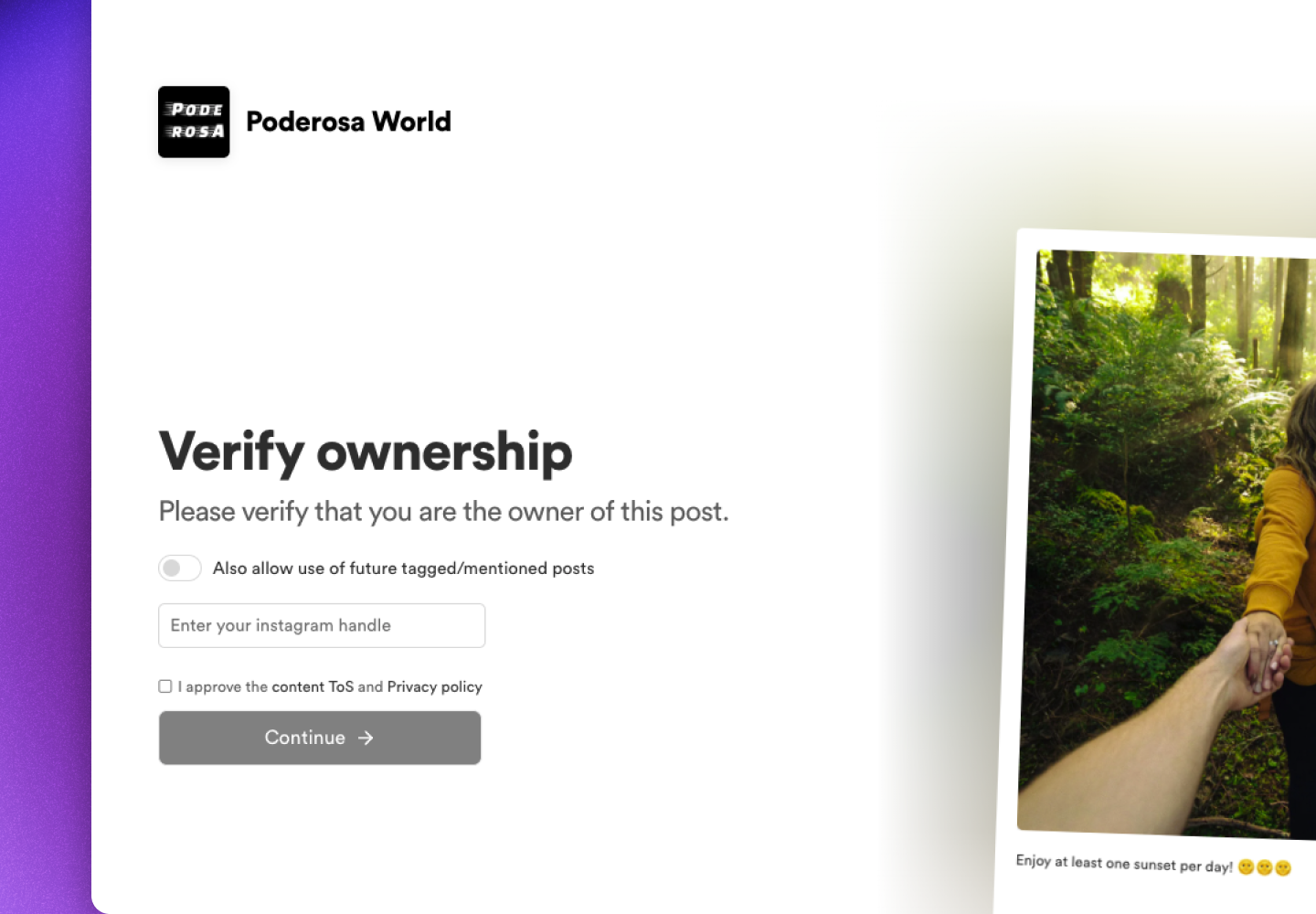
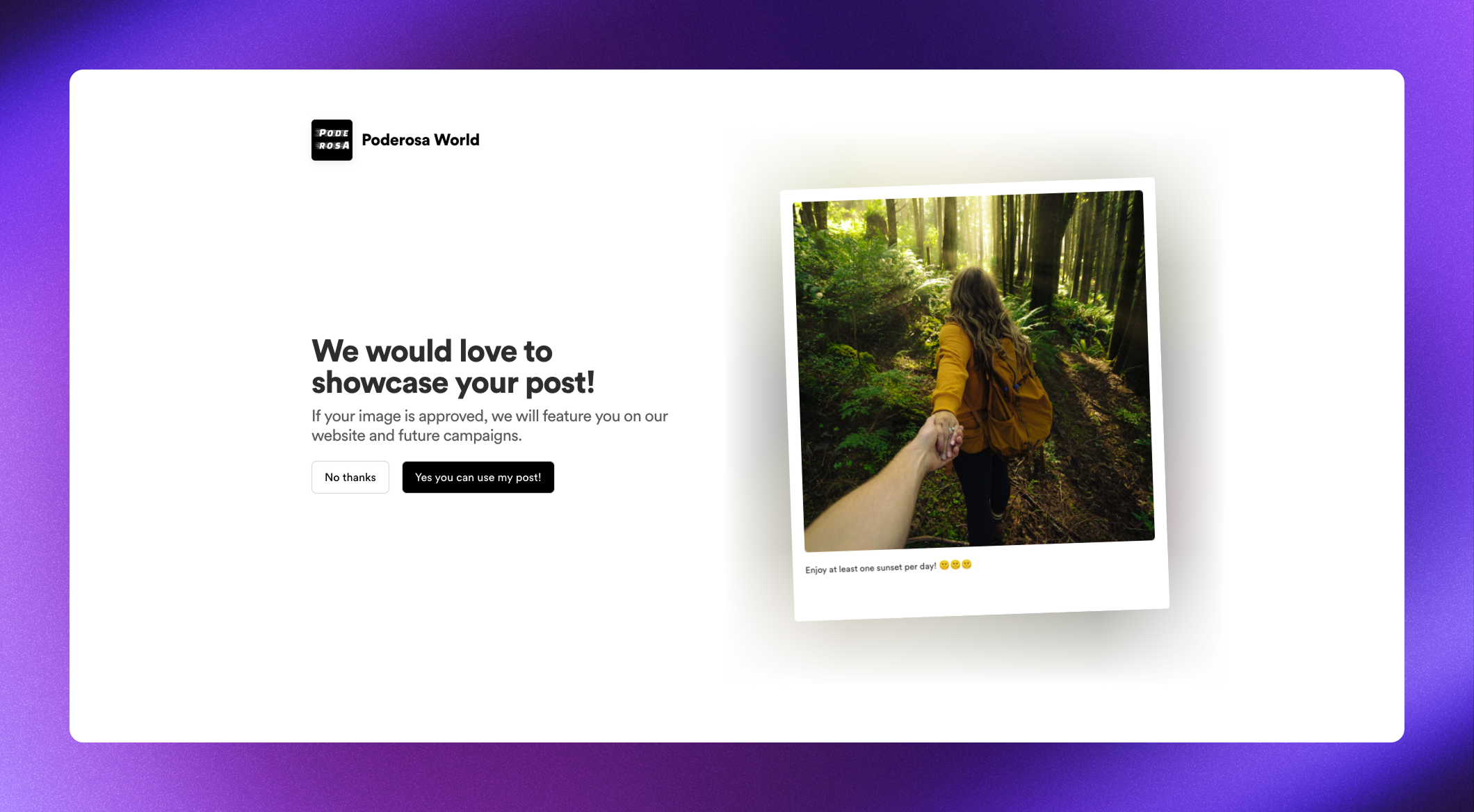 Your request message includes a unique approval URL for the creator. The creator clicks the URL to approve your request instantly. Approved posts automatically move to your Inbox.
Creators can whitelist themselves as part of the DM approval flow.
Your request message includes a unique approval URL for the creator. The creator clicks the URL to approve your request instantly. Approved posts automatically move to your Inbox.
Creators can whitelist themselves as part of the DM approval flow.
 **Send a DM request:**
1. Navigate to [UGC -> Instagram](https://app.cevoid.com/instagram)
2. Click **Request** on the post you want to use
3. Click **Open Post** to access Instagram in a separate window
4. Copy the creator's Instagram username
5. Create a new message to the creator using their username
6. Return to Cevoid
7. Select a DM request template
8. Copy the request message (includes unique approval URL)
9. Open the Instagram window
10. Paste and send the request message
11. Return to Cevoid and click **I've sent the request**
**Create or edit a DM request template:**
1. Navigate to [Settings -> Integrations -> Instagram](https://app.cevoid.com/settings/integrations/instagram)
2. Click **Edit** in the request templates section
3. Select *Direct Messages (DM)*
4. Click **New message** to create a new template, or click the menu icon on an existing template
5. Name your template under *Title*
6. Under *Terms of Service*, select one of your saved [Legal](/general/legal) content terms or enter a custom URL
7. Write your request message
8. Click **Save**
End your message with a reference to the request URL since Cevoid appends the approval link after your template text.
**Example DM request template:**
"Hi there! We love your post and would like to feature it on our website. If that is OK with you, please approve our request here:"
***
### Tracking request status
Monitor pending requests to follow up when needed.
1. Navigate to [UGC -> Instagram](https://app.cevoid.com/instagram)
2. Click **Requested posts** in the upper right corner
3. Select a request status to filter
| Status | Description |
| ------------ | ------------------------------------- |
| **Open** | Request sent, waiting for response |
| **Approved** | Creator approved, post moved to Inbox |
| **Declined** | Creator declined (DM requests only) |
**Send a DM request:**
1. Navigate to [UGC -> Instagram](https://app.cevoid.com/instagram)
2. Click **Request** on the post you want to use
3. Click **Open Post** to access Instagram in a separate window
4. Copy the creator's Instagram username
5. Create a new message to the creator using their username
6. Return to Cevoid
7. Select a DM request template
8. Copy the request message (includes unique approval URL)
9. Open the Instagram window
10. Paste and send the request message
11. Return to Cevoid and click **I've sent the request**
**Create or edit a DM request template:**
1. Navigate to [Settings -> Integrations -> Instagram](https://app.cevoid.com/settings/integrations/instagram)
2. Click **Edit** in the request templates section
3. Select *Direct Messages (DM)*
4. Click **New message** to create a new template, or click the menu icon on an existing template
5. Name your template under *Title*
6. Under *Terms of Service*, select one of your saved [Legal](/general/legal) content terms or enter a custom URL
7. Write your request message
8. Click **Save**
End your message with a reference to the request URL since Cevoid appends the approval link after your template text.
**Example DM request template:**
"Hi there! We love your post and would like to feature it on our website. If that is OK with you, please approve our request here:"
***
### Tracking request status
Monitor pending requests to follow up when needed.
1. Navigate to [UGC -> Instagram](https://app.cevoid.com/instagram)
2. Click **Requested posts** in the upper right corner
3. Select a request status to filter
| Status | Description |
| ------------ | ------------------------------------- |
| **Open** | Request sent, waiting for response |
| **Approved** | Creator approved, post moved to Inbox |
| **Declined** | Creator declined (DM requests only) |