> ## Documentation Index
> Fetch the complete documentation index at: https://docs.cevoid.com/llms.txt
> Use this file to discover all available pages before exploring further.
# Translations
> Manage translations for all consumer-facing copy across your markets.
Related articles: [Products & Markets](/general/products-markets), [UGC introduction](/ugc/introduction), [Rewards program introduction](/program/introduction), [Accessibility](/resources/accessibility)
All consumer-facing content is automatically translated for each of your market languages. Write copy in your primary language anywhere in the platform, and Cevoid's AI translates it to all your other languages when you save. In most cases, you won't need to visit the Translations page at all.
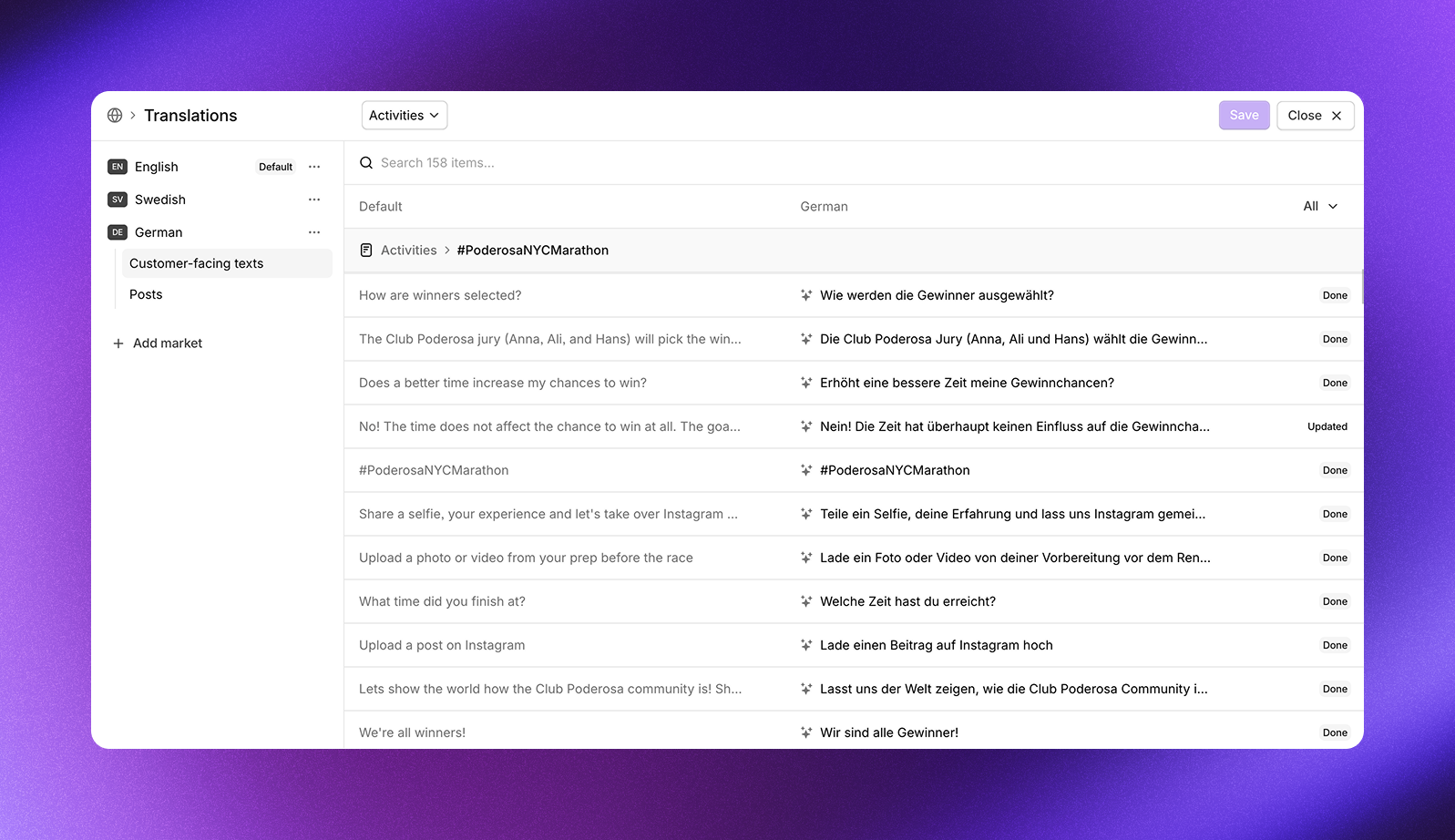
Navigate to [Settings -> Translations](https://app.cevoid.com/settings/translations) to view and adjust translations.
 ***
## Automatic translations
Cevoid's AI handles all translations automatically:
**Widget copy** - All text in your UGC and rewards program widgets is translated when you create or edit it. This includes activity descriptions, reward names, button labels, and any custom copy you write.
**Post content** - Captions and accessibility text (alt text, video captions, video descriptions) are translated automatically for each market. Hashtags and @mentions in captions are kept in their original form.
You can still make manual adjustments to any translation if needed.
***
## Set a custom tone
Give Cevoid's AI language-specific guidelines to ensure translations match your brand voice for each market.
1. Navigate to [Settings -> Translations](https://app.cevoid.com/settings/translations)
2. Click **Localize** on a language
3. Click the menu icon next to the language name
4. Click **Language settings**
5. Enter your custom tone guidelines
6. Click **Save**
***
## Primary language
Your workspace's primary language is the source for all translations.
To change your primary language:
1. Navigate to [Settings -> General](https://app.cevoid.com/settings)
2. Select the new language under *Primary language*
3. Click **Save changes**
***
## Where do I write consumer-facing copy?
Copy is written in different places depending on what you're editing:
**Program content** - Activities, rewards, tiers, and other program content is written where you create it. Navigate to the activity, reward, or tier and edit the copy there.
**Navigation and general copy** - Button labels, headings, and other general copy is pre-written but can be adjusted. Edit your default language in [Settings -> Translations](https://app.cevoid.com/settings/translations), and changes are automatically translated across all languages.
**UGC copy** - UGC widget copy is shared across multiple interfaces, so it's edited in the same place as navigation and general copy.
Texts that need to be edited elsewhere are marked with an **Edit in source** button in the translation editor.
***
## Navigate the translations page
Click **Localize** on any language to open the translation editor.
The sidebar shows:
* **Customer-facing texts** - Widget copy and other consumer-facing content
* **Posts** - Caption and accessibility translations for your posts
Use the filters to find specific translations:
* Search bar to find specific text
* Dropdown filter by solution (Program, UGC, Activities, Tiers, etc.)
* Filter for texts that need review
***
## Manual adjustments
While translations happen automatically, you can adjust any translation manually.
1. Navigate to [Settings -> Translations](https://app.cevoid.com/settings/translations)
2. Click **Localize** on the language you want to edit
3. Find the text you want to change
4. Enter your translation
5. Click **Save**
Dynamic values like `{pointsAmount}` and `{pointsName}` must be kept in your translations. These ensure correct data is displayed in your widgets.
***
## Translation exceptions
Some branded content works better when kept consistent across all languages. Use translation exceptions to control whether tier names and points names are translated or kept in your primary language.
Navigate to [Settings -> Translations](https://app.cevoid.com/settings/translations) to configure exceptions.
| Setting | Options |
| ---------------- | ----------------------------------------------- |
| *Name of tiers* | Should be translated / Should not be translated |
| *Name of points* | Should be translated / Should not be translated |
For example, if your points are called "Stars" as part of your brand identity, you may want to keep that name across all markets rather than translating it to "Sterne" in German or "Stjärnor" in Swedish.
Learn more about customizing your points name in [Points branding](/program/program-setup/points-branding).
***
## Automatic translations
Cevoid's AI handles all translations automatically:
**Widget copy** - All text in your UGC and rewards program widgets is translated when you create or edit it. This includes activity descriptions, reward names, button labels, and any custom copy you write.
**Post content** - Captions and accessibility text (alt text, video captions, video descriptions) are translated automatically for each market. Hashtags and @mentions in captions are kept in their original form.
You can still make manual adjustments to any translation if needed.
***
## Set a custom tone
Give Cevoid's AI language-specific guidelines to ensure translations match your brand voice for each market.
1. Navigate to [Settings -> Translations](https://app.cevoid.com/settings/translations)
2. Click **Localize** on a language
3. Click the menu icon next to the language name
4. Click **Language settings**
5. Enter your custom tone guidelines
6. Click **Save**
***
## Primary language
Your workspace's primary language is the source for all translations.
To change your primary language:
1. Navigate to [Settings -> General](https://app.cevoid.com/settings)
2. Select the new language under *Primary language*
3. Click **Save changes**
***
## Where do I write consumer-facing copy?
Copy is written in different places depending on what you're editing:
**Program content** - Activities, rewards, tiers, and other program content is written where you create it. Navigate to the activity, reward, or tier and edit the copy there.
**Navigation and general copy** - Button labels, headings, and other general copy is pre-written but can be adjusted. Edit your default language in [Settings -> Translations](https://app.cevoid.com/settings/translations), and changes are automatically translated across all languages.
**UGC copy** - UGC widget copy is shared across multiple interfaces, so it's edited in the same place as navigation and general copy.
Texts that need to be edited elsewhere are marked with an **Edit in source** button in the translation editor.
***
## Navigate the translations page
Click **Localize** on any language to open the translation editor.
The sidebar shows:
* **Customer-facing texts** - Widget copy and other consumer-facing content
* **Posts** - Caption and accessibility translations for your posts
Use the filters to find specific translations:
* Search bar to find specific text
* Dropdown filter by solution (Program, UGC, Activities, Tiers, etc.)
* Filter for texts that need review
***
## Manual adjustments
While translations happen automatically, you can adjust any translation manually.
1. Navigate to [Settings -> Translations](https://app.cevoid.com/settings/translations)
2. Click **Localize** on the language you want to edit
3. Find the text you want to change
4. Enter your translation
5. Click **Save**
Dynamic values like `{pointsAmount}` and `{pointsName}` must be kept in your translations. These ensure correct data is displayed in your widgets.
***
## Translation exceptions
Some branded content works better when kept consistent across all languages. Use translation exceptions to control whether tier names and points names are translated or kept in your primary language.
Navigate to [Settings -> Translations](https://app.cevoid.com/settings/translations) to configure exceptions.
| Setting | Options |
| ---------------- | ----------------------------------------------- |
| *Name of tiers* | Should be translated / Should not be translated |
| *Name of points* | Should be translated / Should not be translated |
For example, if your points are called "Stars" as part of your brand identity, you may want to keep that name across all markets rather than translating it to "Sterne" in German or "Stjärnor" in Swedish.
Learn more about customizing your points name in [Points branding](/program/program-setup/points-branding).