> ## Documentation Index
> Fetch the complete documentation index at: https://docs.cevoid.com/llms.txt
> Use this file to discover all available pages before exploring further.
# Legal policies
> Configure consent policies for content submissions and program opt-ins.
Related articles: [Upload forms](/ugc/collect/upload-forms), [UGC from Instagram](/ugc/collect/ugc-from-instagram), [Challenges](/program/activities/challenges), [Member opt-in & enrollment](/program/program-setup/member-opt-in-enrollment)
Legal policies help you collect consent from customers when they submit content or join your rewards program. Configure the messages your customers see and ensure compliance with regional requirements.
Navigate to [Settings -> Legal](https://app.cevoid.com/settings/legal) to manage your policies.
 Policies can be localized for different jurisdictions to align with regional legal requirements.
Only activated policies are displayed to customers.
***
## Available policies
| Policy | Description |
| -------------------------- | ---------------------------------------------------------------------------------------------- |
| **Content consent** | Displayed when someone submits content through upload forms, DM rights requests, or challenges |
| **Program opt-in consent** | Displayed when someone joins your rewards program through a Cevoid widget |
| **Competition terms** | Optional terms for challenges that are competitions |
***
## Content consent
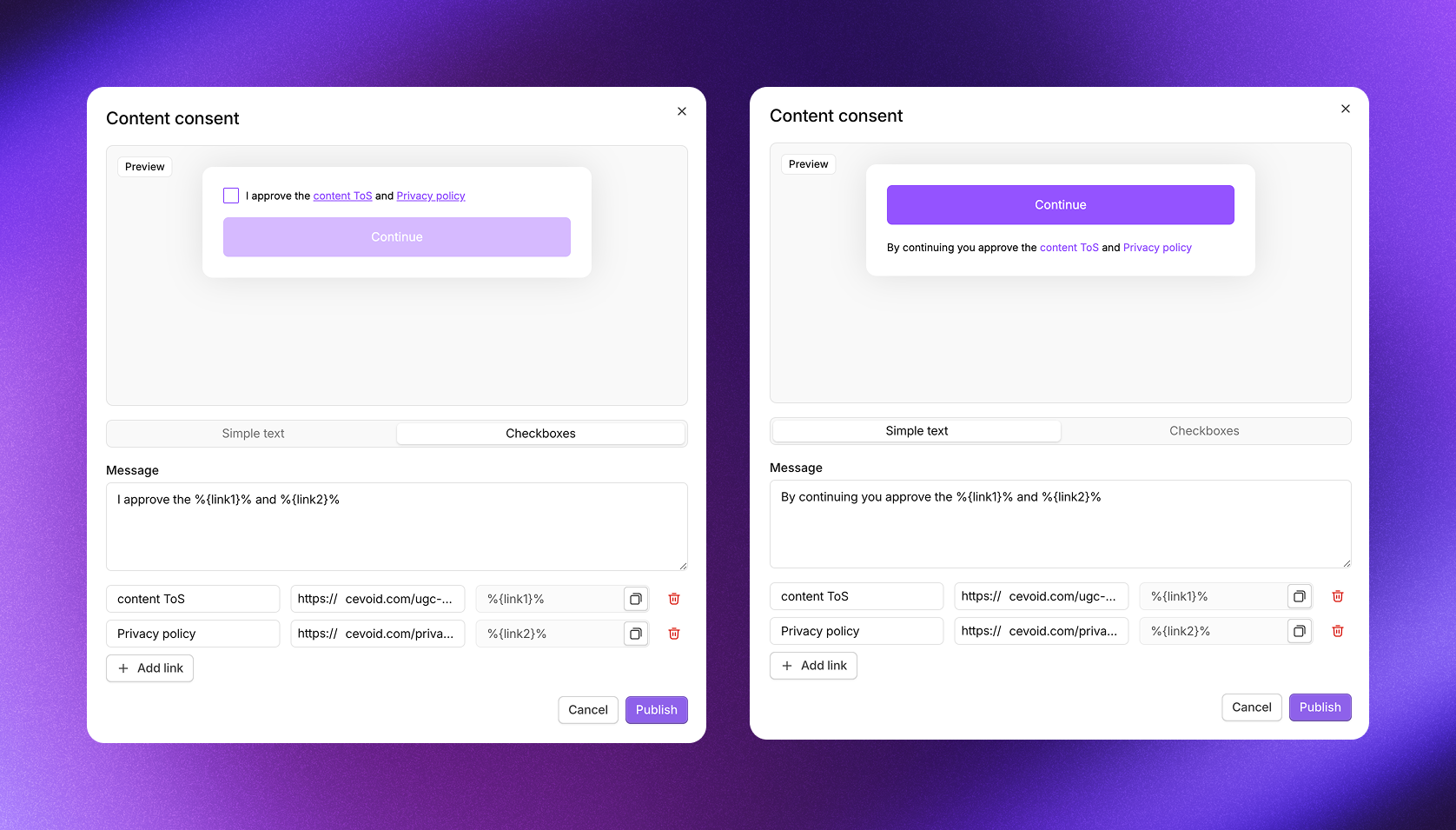
The content consent policy ensures that anyone submitting content to your brand approves your UGC policy and grants permission to use their content. This protects both you and the creator by making the terms of use clear upfront.
Include a link to your website where the full content consent terms are available. See [Content consent example](/resources/content-consent-example) for sample copy you can adapt.
**Where it's displayed:**
| Solution | When displayed |
| ----------------------------------------------------- | ------------------------------------------ |
| [Upload forms](/ugc/collect/upload-forms) | When someone submits a post |
| [DM rights requests](/ugc/collect/ugc-from-instagram) | When approving a rights request |
| [Challenges](/program/activities/challenges) | When submitting content-related challenges |
### Activate content consent
1. Navigate to [Settings -> Legal](https://app.cevoid.com/settings/legal)
2. Open **Content consent**
3. Select Simple text or Checkboxes based on your requirements
4. Enter your message and add any required links
5. Click **Publish**
6. Repeat for any additional jurisdictions you need
***
## Program opt-in consent
The program opt-in consent policy ensures that members agree to your program terms before participating in any activities. This is essential for transparency and helps you stay compliant with consumer protection regulations.
You can also collect marketing consent at the same time, streamlining the opt-in experience while keeping consent properly documented.
Include a link to your website where the full program terms are available.
**Where it's displayed:**
| Solution | When displayed |
| ------------------- | ------------------------------------------------- |
| All program widgets | When a new member opts in to your rewards program |
This policy is only enforced through Cevoid widgets. Members may opt in through other methods depending on your [opt-in settings](/program/program-setup/member-opt-in-enrollment).
### Activate program opt-in consent
1. Navigate to [Settings -> Legal](https://app.cevoid.com/settings/legal)
2. Open **Program opt-in consent**
3. Select Simple text or Checkboxes based on your requirements
4. Enter your message and add any required links
5. Optional: Add a marketing communication message to collect email consent at the same time
* Simple text automatically approves everyone for marketing communications
* Checkboxes only approves members who explicitly check the marketing box
6. Click **Publish**
7. Repeat for any additional jurisdictions you need
***
## Competition terms
When running challenges that are formal competitions, you may need to display specific legal terms beyond your standard content consent. The competition terms policy lets you add these requirements to specific challenges.
Include a link to your website where the full competition terms are available.
Competition terms are not automatically displayed on all challenges since not every challenge is a competition. You need to enable them per challenge.
**Where it's displayed:**
| Solution | When displayed |
| -------------------------------------------- | --------------------------------------------------------- |
| [Challenges](/program/activities/challenges) | When submitting challenges with competition terms enabled |
### Activate competition terms
1. Navigate to [Settings -> Legal](https://app.cevoid.com/settings/legal)
2. Open **Competition terms**
3. Select Simple text or Checkboxes based on your requirements
4. Enter your message and add any required links
5. Click **Publish**
6. Repeat for any additional jurisdictions you need
### Enable competition terms on a challenge
1. Edit the challenge
2. Click **General Settings**
3. Toggle on *Competition Terms*
***
## Consent options
Each policy can be configured to use either checkboxes or simple text. You can use different options for different jurisdictions based on local requirements.
| Option | How it works |
| --------------- | ------------------------------------------------------------------------------------------------------- |
| **Checkboxes** | Visitors must tick the checkbox before they can proceed. This provides explicit consent documentation. |
| **Simple text** | Visitors see the message and can continue without taking action. The act of proceeding implies consent. |
The only exception is the marketing communication option in program opt-in consent, which always uses an optional checkbox regardless of your main consent setting.
***
## Jurisdictions
Different markets often have different legal requirements. Jurisdictions let you configure separate policy versions for different regions. Cevoid widgets automatically display the correct policy based on the [market](/general/products-markets) they're shown in.
You only need to set up jurisdictions if you want different policies for different markets. The default policy applies to all markets that don't have a specific jurisdiction assigned.
### Create a jurisdiction
1. Navigate to [Settings -> Legal](https://app.cevoid.com/settings/legal)
2. Click **Add jurisdiction**
3. Name the jurisdiction (e.g., "EU" or "UK")
4. Select which markets should use this jurisdiction's policies
5. Click **Create**
6. Configure the jurisdiction-specific policies
Policies can be localized for different jurisdictions to align with regional legal requirements.
Only activated policies are displayed to customers.
***
## Available policies
| Policy | Description |
| -------------------------- | ---------------------------------------------------------------------------------------------- |
| **Content consent** | Displayed when someone submits content through upload forms, DM rights requests, or challenges |
| **Program opt-in consent** | Displayed when someone joins your rewards program through a Cevoid widget |
| **Competition terms** | Optional terms for challenges that are competitions |
***
## Content consent
The content consent policy ensures that anyone submitting content to your brand approves your UGC policy and grants permission to use their content. This protects both you and the creator by making the terms of use clear upfront.
Include a link to your website where the full content consent terms are available. See [Content consent example](/resources/content-consent-example) for sample copy you can adapt.
**Where it's displayed:**
| Solution | When displayed |
| ----------------------------------------------------- | ------------------------------------------ |
| [Upload forms](/ugc/collect/upload-forms) | When someone submits a post |
| [DM rights requests](/ugc/collect/ugc-from-instagram) | When approving a rights request |
| [Challenges](/program/activities/challenges) | When submitting content-related challenges |
### Activate content consent
1. Navigate to [Settings -> Legal](https://app.cevoid.com/settings/legal)
2. Open **Content consent**
3. Select Simple text or Checkboxes based on your requirements
4. Enter your message and add any required links
5. Click **Publish**
6. Repeat for any additional jurisdictions you need
***
## Program opt-in consent
The program opt-in consent policy ensures that members agree to your program terms before participating in any activities. This is essential for transparency and helps you stay compliant with consumer protection regulations.
You can also collect marketing consent at the same time, streamlining the opt-in experience while keeping consent properly documented.
Include a link to your website where the full program terms are available.
**Where it's displayed:**
| Solution | When displayed |
| ------------------- | ------------------------------------------------- |
| All program widgets | When a new member opts in to your rewards program |
This policy is only enforced through Cevoid widgets. Members may opt in through other methods depending on your [opt-in settings](/program/program-setup/member-opt-in-enrollment).
### Activate program opt-in consent
1. Navigate to [Settings -> Legal](https://app.cevoid.com/settings/legal)
2. Open **Program opt-in consent**
3. Select Simple text or Checkboxes based on your requirements
4. Enter your message and add any required links
5. Optional: Add a marketing communication message to collect email consent at the same time
* Simple text automatically approves everyone for marketing communications
* Checkboxes only approves members who explicitly check the marketing box
6. Click **Publish**
7. Repeat for any additional jurisdictions you need
***
## Competition terms
When running challenges that are formal competitions, you may need to display specific legal terms beyond your standard content consent. The competition terms policy lets you add these requirements to specific challenges.
Include a link to your website where the full competition terms are available.
Competition terms are not automatically displayed on all challenges since not every challenge is a competition. You need to enable them per challenge.
**Where it's displayed:**
| Solution | When displayed |
| -------------------------------------------- | --------------------------------------------------------- |
| [Challenges](/program/activities/challenges) | When submitting challenges with competition terms enabled |
### Activate competition terms
1. Navigate to [Settings -> Legal](https://app.cevoid.com/settings/legal)
2. Open **Competition terms**
3. Select Simple text or Checkboxes based on your requirements
4. Enter your message and add any required links
5. Click **Publish**
6. Repeat for any additional jurisdictions you need
### Enable competition terms on a challenge
1. Edit the challenge
2. Click **General Settings**
3. Toggle on *Competition Terms*
***
## Consent options
Each policy can be configured to use either checkboxes or simple text. You can use different options for different jurisdictions based on local requirements.
| Option | How it works |
| --------------- | ------------------------------------------------------------------------------------------------------- |
| **Checkboxes** | Visitors must tick the checkbox before they can proceed. This provides explicit consent documentation. |
| **Simple text** | Visitors see the message and can continue without taking action. The act of proceeding implies consent. |
The only exception is the marketing communication option in program opt-in consent, which always uses an optional checkbox regardless of your main consent setting.
***
## Jurisdictions
Different markets often have different legal requirements. Jurisdictions let you configure separate policy versions for different regions. Cevoid widgets automatically display the correct policy based on the [market](/general/products-markets) they're shown in.
You only need to set up jurisdictions if you want different policies for different markets. The default policy applies to all markets that don't have a specific jurisdiction assigned.
### Create a jurisdiction
1. Navigate to [Settings -> Legal](https://app.cevoid.com/settings/legal)
2. Click **Add jurisdiction**
3. Name the jurisdiction (e.g., "EU" or "UK")
4. Select which markets should use this jurisdiction's policies
5. Click **Create**
6. Configure the jurisdiction-specific policies