> ## Documentation Index
> Fetch the complete documentation index at: https://docs.cevoid.com/llms.txt
> Use this file to discover all available pages before exploring further.
# Labels
> Create custom labels to categorize posts and profiles.
Related articles:
[Posts](/ugc/manage/posts), [Profiles](/general/profiles/profiles), [Segments](/general/profiles/segments), [Galleries](/ugc/showcase/galleries)
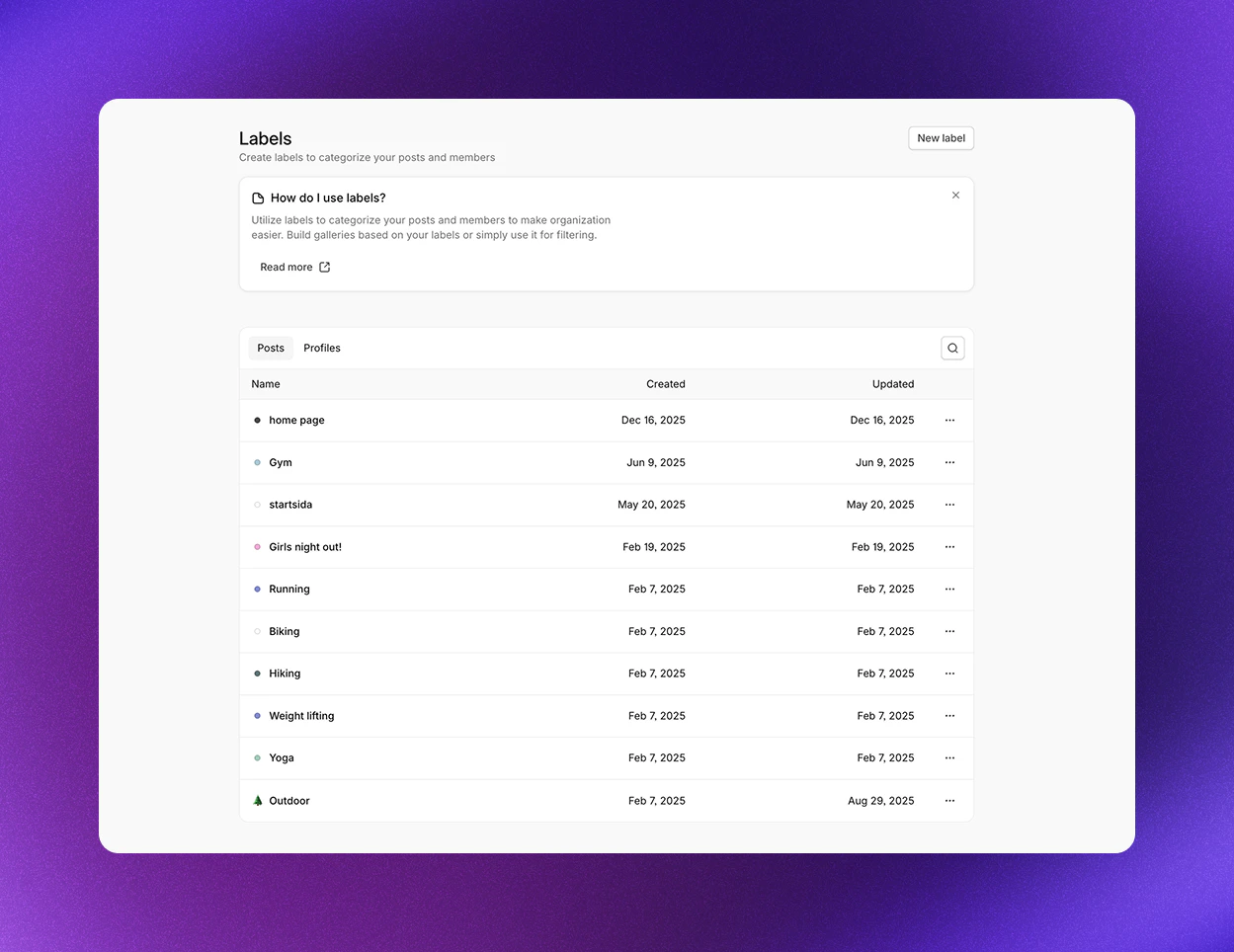
Labels let you define custom categorizations for posts and profiles. Use them to organize content and your brand community beyond Cevoid's built-in categorizations.
Navigate to [Settings -> Labels](https://app.cevoid.com/settings/labels) to manage your labels.
 | Label type | Use for |
| --------------------------------- | ------------------------------------ |
| [Post labels](#post-labels) | Organize posts and build UGC widgets |
| [Profile labels](#profile-labels) | Organize your brand community |
***
## Post labels
Post labels let you categorize your posts freely. Use them to:
* Filter your [Library and Inbox](/ugc/manage/library-and-inbox)
* Create [Galleries](/ugc/showcase/galleries) that use the label as a content source
* Create [dynamic email widgets](/ugc/showcase/email-widgets)
In most cases, you don't need to create post labels related to your product catalog. Instead, add product tags to a post to automatically relate the post to the product, its categories, and product collections.
***
### Create a post label
**From the Labels view:**
1. Navigate to [Settings -> Labels](https://app.cevoid.com/settings/labels)
2. Select *Post* as label type
3. Enter the name of your new post label
4. Optional: Add a color or emoji to make your label more visually unique
5. Click **Create**
**From the Post view:**
1. Open a post from the [Library or Inbox](/ugc/manage/library-and-inbox)
2. Click **Add label**
3. Enter the name of your new post label
4. Click **New label:** (the name you entered)
***
## Profile labels
Profile labels let you categorize your profiles freely. Use them to:
* Filter your [Profiles](/general/profiles/profiles) overview
* As filter criteria for custom [segments](/general/profiles/segments)
***
### Create a profile label
**From the Labels view:**
1. Navigate to [Settings -> Labels](https://app.cevoid.com/settings/labels)
2. Select *Profile* as label type
3. Enter the name of your new profile label
4. Optional: Add a color or emoji to make your label more visually unique
5. Click **Create**
**From the Profile view:**
1. Navigate to a profile page
2. Click **Add label** under *Properties* in the sidebar
3. Enter the name of your new profile label
4. Click **New label:** (the name you entered)
| Label type | Use for |
| --------------------------------- | ------------------------------------ |
| [Post labels](#post-labels) | Organize posts and build UGC widgets |
| [Profile labels](#profile-labels) | Organize your brand community |
***
## Post labels
Post labels let you categorize your posts freely. Use them to:
* Filter your [Library and Inbox](/ugc/manage/library-and-inbox)
* Create [Galleries](/ugc/showcase/galleries) that use the label as a content source
* Create [dynamic email widgets](/ugc/showcase/email-widgets)
In most cases, you don't need to create post labels related to your product catalog. Instead, add product tags to a post to automatically relate the post to the product, its categories, and product collections.
***
### Create a post label
**From the Labels view:**
1. Navigate to [Settings -> Labels](https://app.cevoid.com/settings/labels)
2. Select *Post* as label type
3. Enter the name of your new post label
4. Optional: Add a color or emoji to make your label more visually unique
5. Click **Create**
**From the Post view:**
1. Open a post from the [Library or Inbox](/ugc/manage/library-and-inbox)
2. Click **Add label**
3. Enter the name of your new post label
4. Click **New label:** (the name you entered)
***
## Profile labels
Profile labels let you categorize your profiles freely. Use them to:
* Filter your [Profiles](/general/profiles/profiles) overview
* As filter criteria for custom [segments](/general/profiles/segments)
***
### Create a profile label
**From the Labels view:**
1. Navigate to [Settings -> Labels](https://app.cevoid.com/settings/labels)
2. Select *Profile* as label type
3. Enter the name of your new profile label
4. Optional: Add a color or emoji to make your label more visually unique
5. Click **Create**
**From the Profile view:**
1. Navigate to a profile page
2. Click **Add label** under *Properties* in the sidebar
3. Enter the name of your new profile label
4. Click **New label:** (the name you entered)